

怎麼用 AI 移動日曆上的課表,以及在課表庫中建立、編輯或刪除課表?
把 Claude 或 ChatGPT 等 AI App 連接到 TrainerDay,然後在對話中請它移動日曆上的課表,或在你的課表庫中建立、編輯、刪除課表。
如果你只是想用文字描述來建立課表,先從 TrainerDay 內建的 AI 課表產生器開始:怎麼用文字描述讓 AI 建立課表?。下面的步驟是連接另一個 AI App 用的。
- 在網站上打開 我的日曆。在頁面底部點 API / MCP,打開 TrainerDay 的 AI App 設定指南。
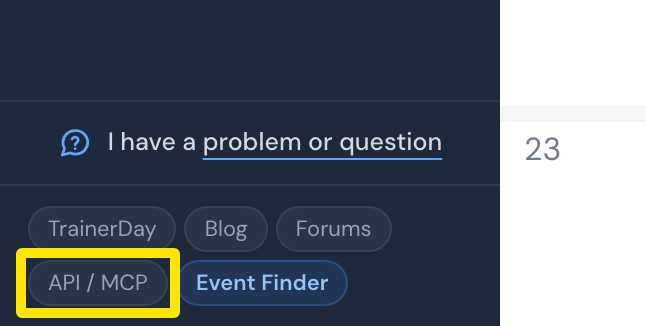 位置:網站 · 我的日曆 · 開啟
- 在你的 AI App 中新增與 TrainerDay 的連接。在 Claude 中選 Add custom connector。名稱輸入 TrainerDay,網址輸入 **https://api.trainerday.com/mcp**,然後點 加入。
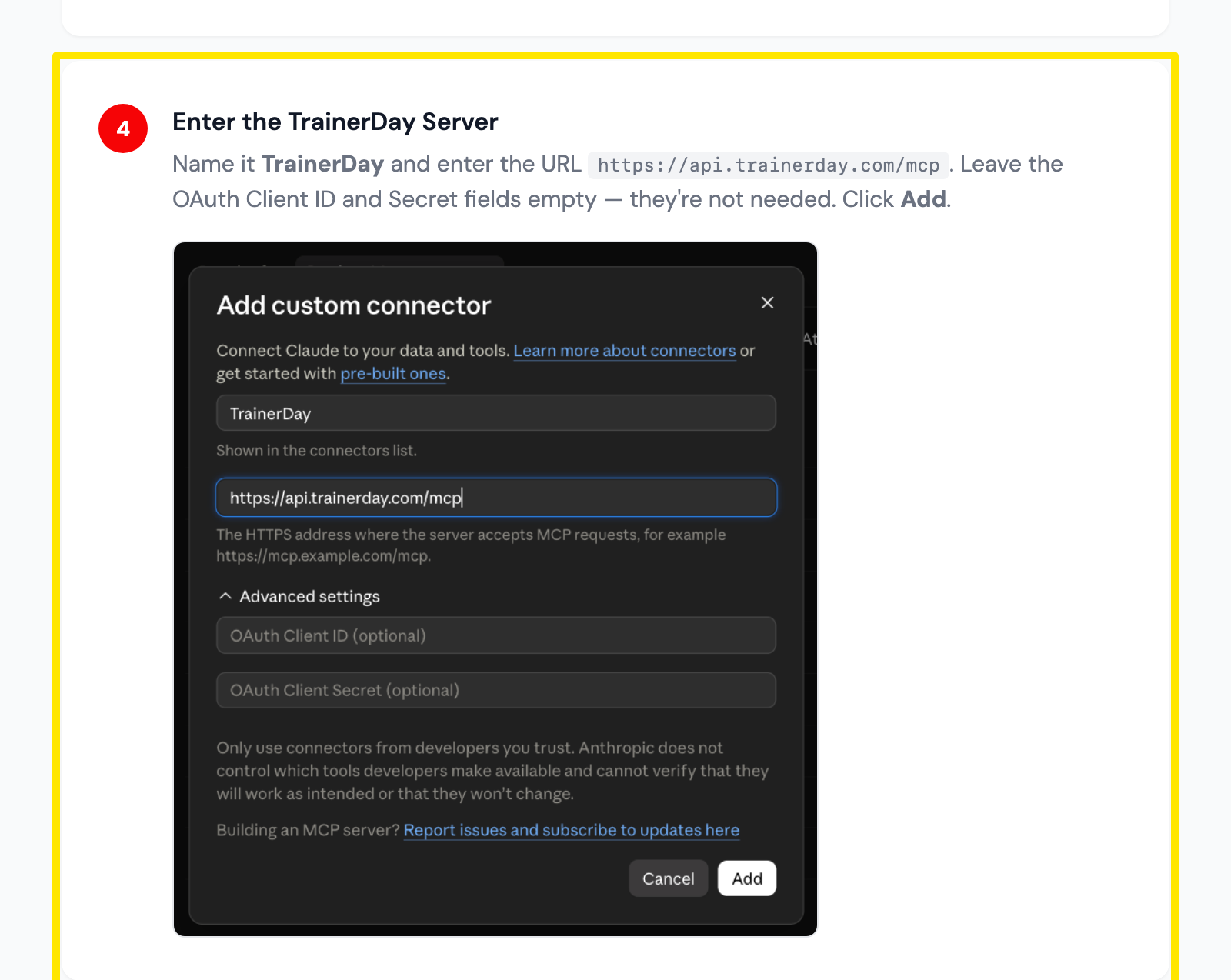 位置:Claude 的 Add custom connector 視窗,如 TrainerDay 的 Claude 設定指南所示
- 在你的 AI App 開始對話。請它移動日曆上的課表,或在課表庫中建立、編輯或刪除課表。
小提醒: 在 ChatGPT 中使用同一個網址,驗證方式選 OAuth。