

How do I connect a cadence sensor that won't connect?
Connect your cadence sensor from the Devices screen in the TrainerDay mobile or desktop app, give it the Cadence job with its + tag, and use Missing Device? if it still won't connect.
- In the TrainerDay mobile app, open Settings and tap Add Devices to open the Devices screen (desktop app: click the Bluetooth / ANT+ button at the top right of the window).
- Spin the crank to wake the cadence sensor. When it shows under Available, tap + next to it (desktop: Connect).
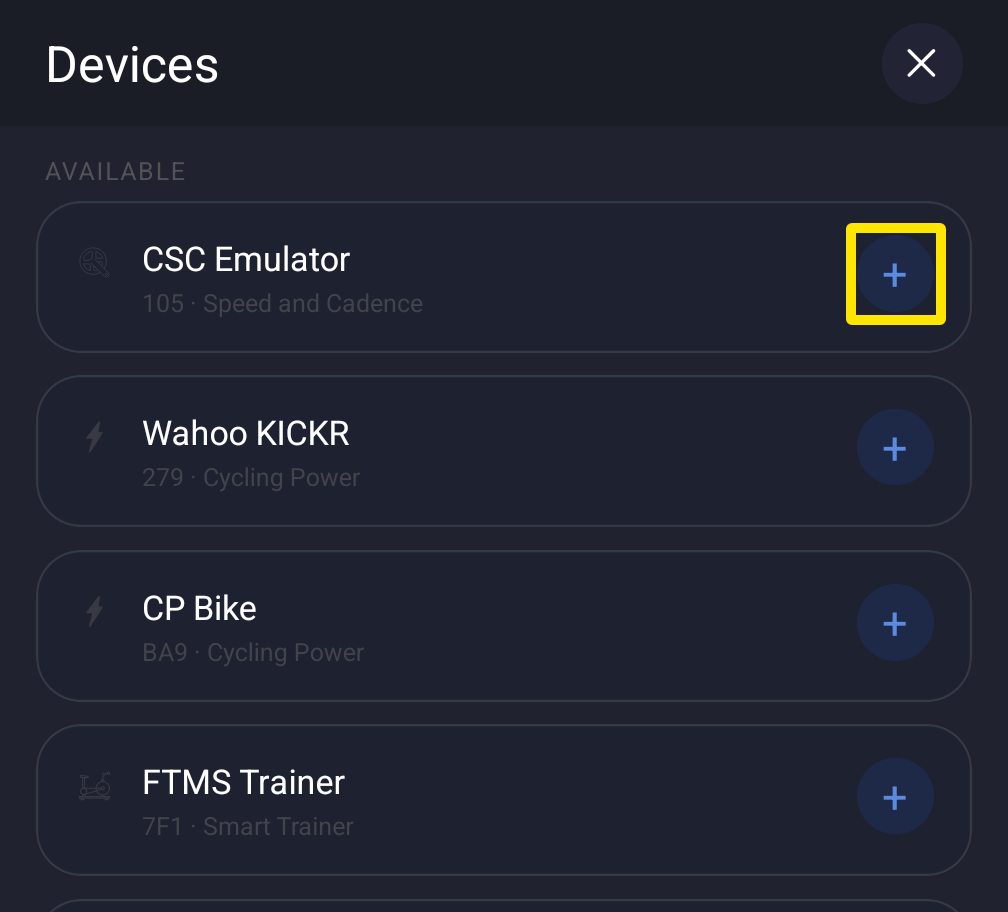 Where: Mobile app · Settings tab → Add Devices
- On the sensor's card, tap + Cadence so cadence comes from the sensor, not the smart trainer.
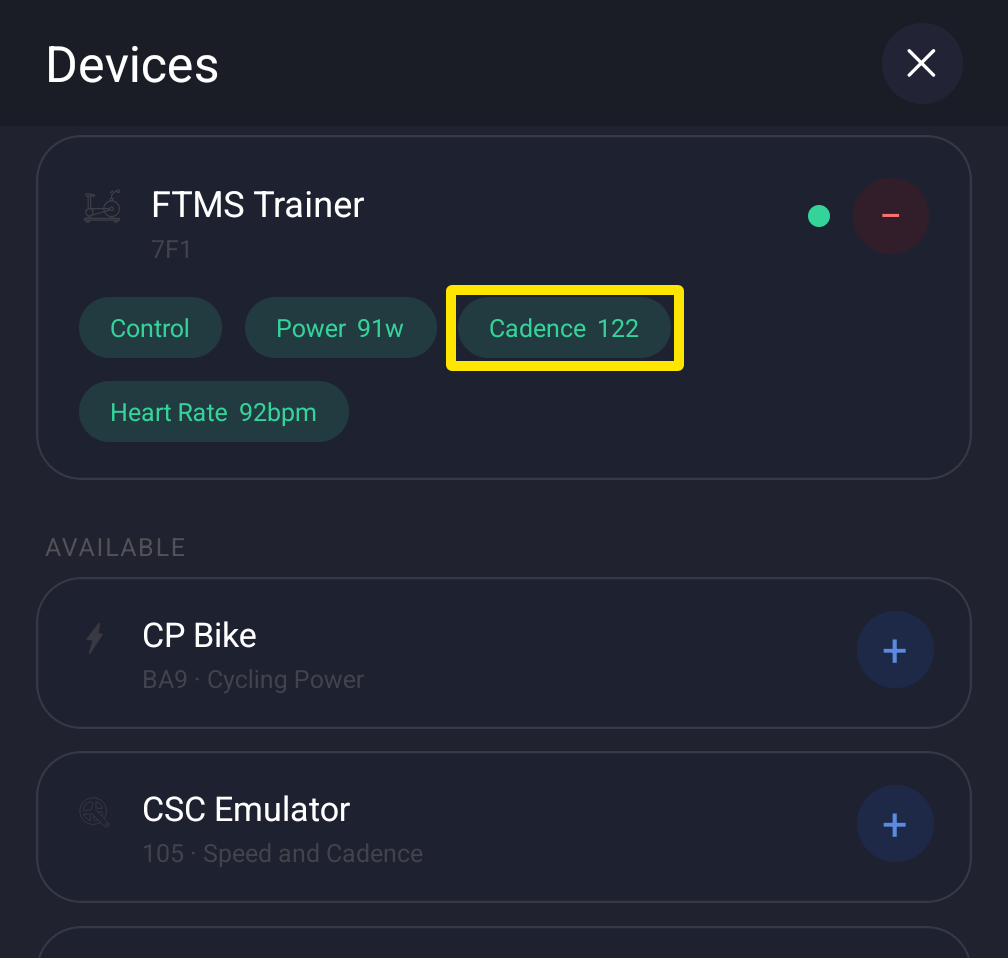 Where: Mobile app · Settings tab → Add Devices
- Still not listed or not connecting? Tap Missing Device? at the bottom of the Devices screen (desktop: Can't find your device? or Not connecting?) and follow its steps.
Good to know: Pair the sensor only inside TrainerDay, not in your phone or computer Bluetooth settings, because pairing it there can block the TrainerDay connection.
Works on: iPhone, Android, Mac and Windows apps. ANT+ sensors work only on the Mac and Windows app with a USB ANT+ adapter. The website cannot connect devices.