

How do I fix cadence that reads wrong, jumps or shows 0 rpm?
To fix cadence that reads wrong, jumps or shows 0 rpm, open Devices in the TrainerDay mobile app (Settings tab → Add Devices), switch cadence to the other device, and reconnect a sensor that keeps dropping.
- In the TrainerDay mobile app, open the Settings tab → Add Devices. The device whose Cadence tag is filled with live rpm is your cadence source.
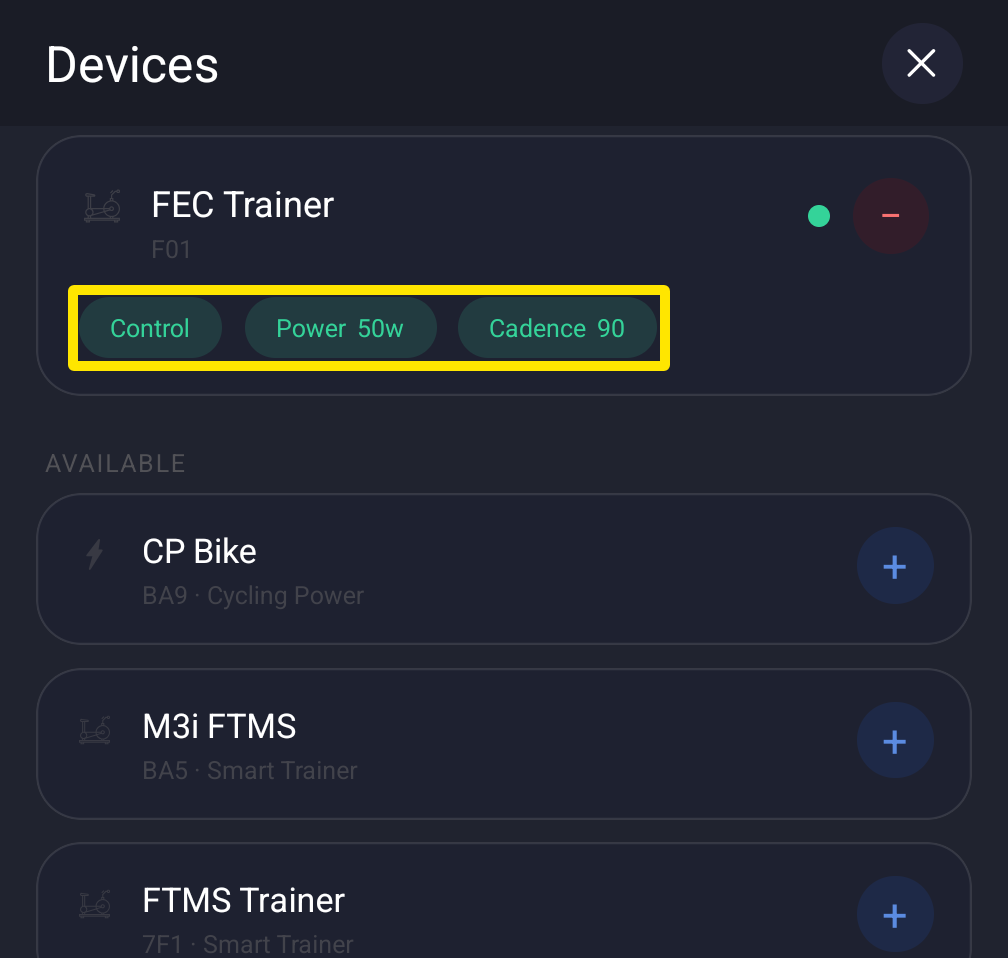 Where: Mobile app · Settings tab → Add Devices
- If cadence jumps, reads wrong or shows 0, tap Cadence on the other device's card. That is either the separate sensor or the trainer. Cadence moves to that device.
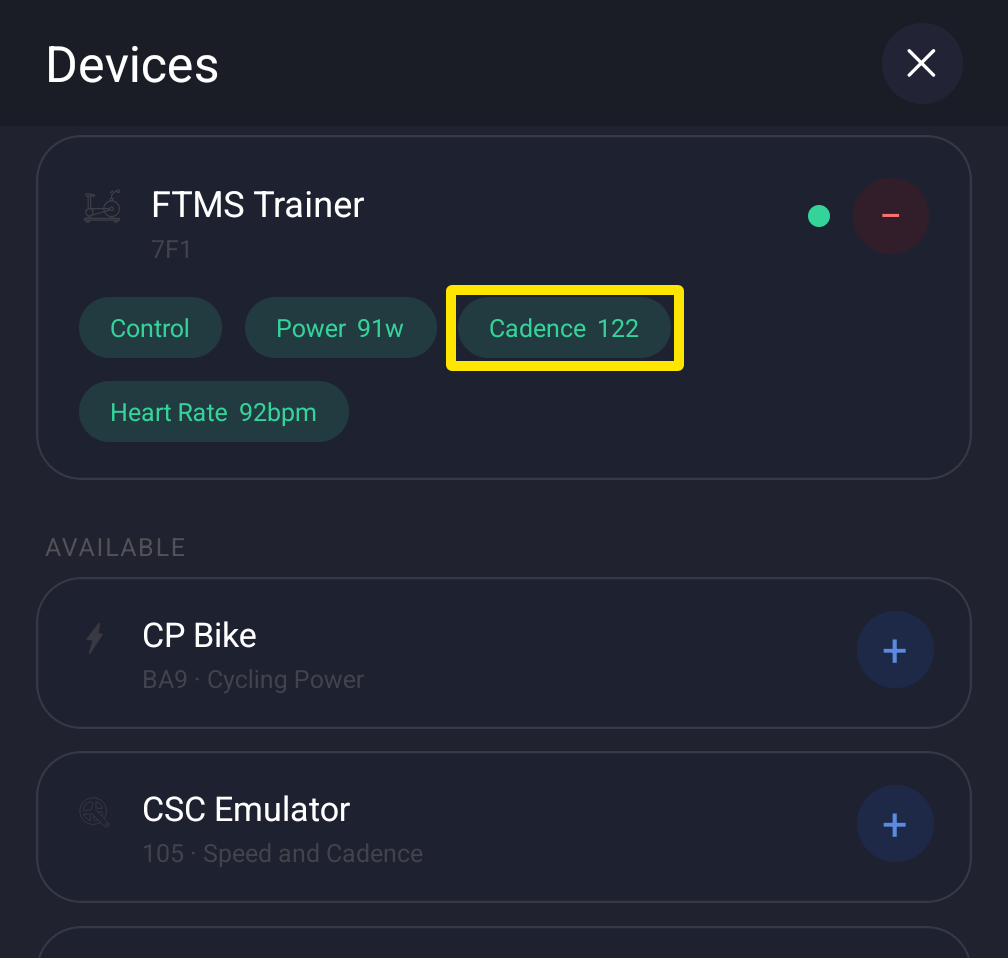 Where: Mobile app · Settings tab → Add Devices
- If the sensor keeps dropping out, it may already be connected to another app. Close Zwift. Turn off bike computers and watches, or disconnect the sensor from them. Then forget the sensor in your phone's Settings → Bluetooth.
- Spin the crank to wake the sensor. Go back to TrainerDay and open the Settings tab → Add Devices. Tap + on the sensor to connect it again.
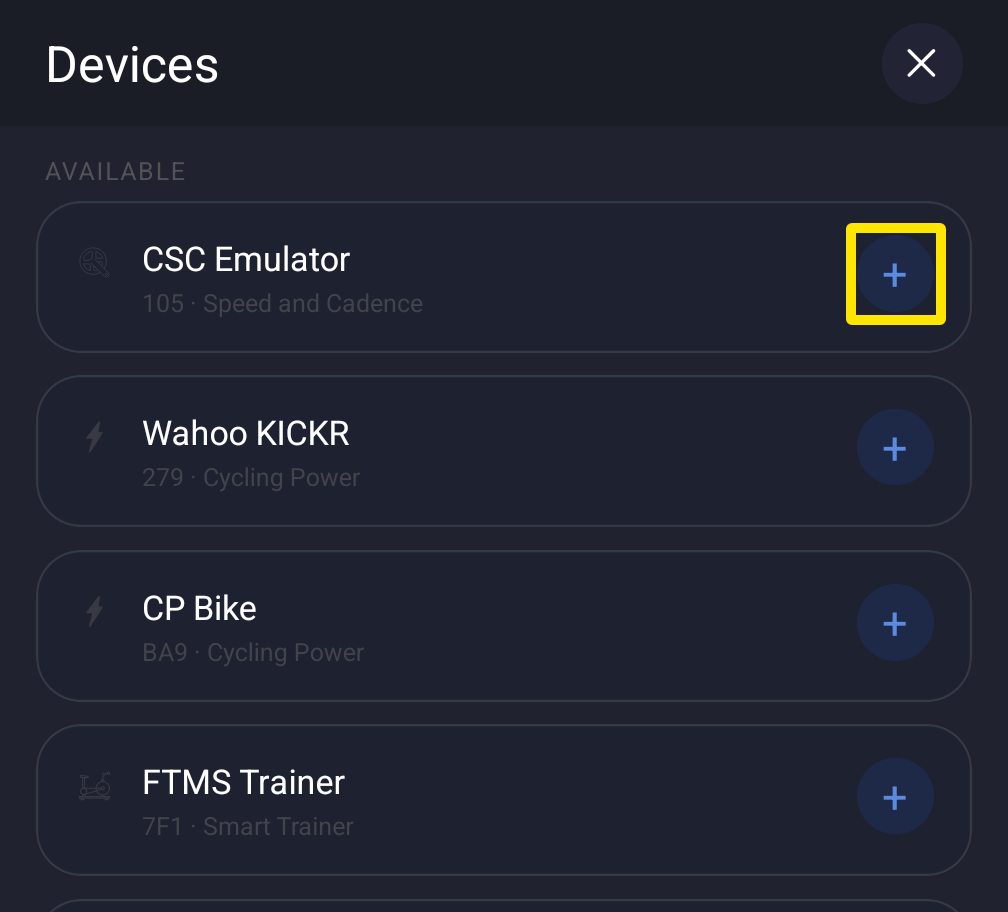 Where: Mobile app · Settings tab → Add Devices
- Still wrong? Turn Bluetooth off and on, or restart the phone. Then reconnect.
Good to know: Only one device gives cadence at a time.
Works on: mobile app and desktop app (Devices window, Cadence tag on each device). Not on the website.