

How do I choose which sensor gives my cadence?
In the mobile app, open Settings → Add Devices and tap the Cadence tag on the card of the sensor you want to give your cadence.
- In the mobile app, open the Settings tab and tap Add Devices (during a workout, tap the device counter at the top).
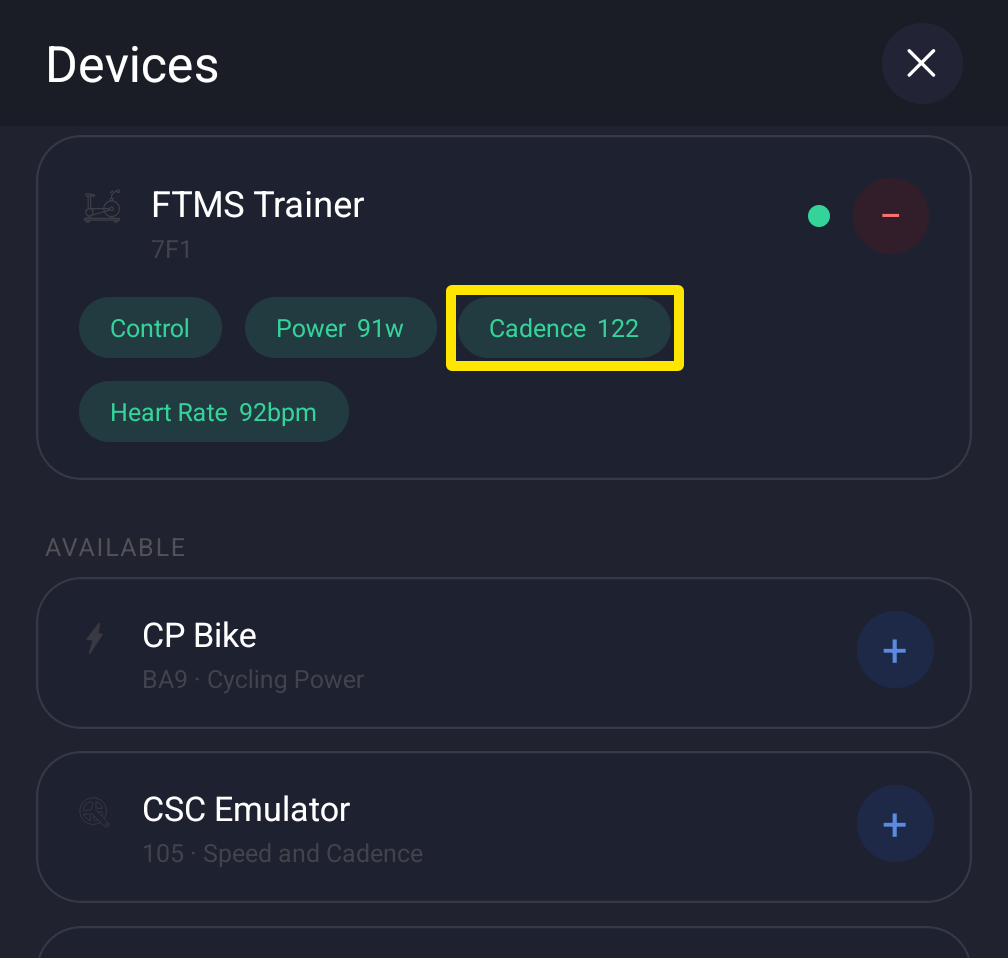 Where: Mobile app · Settings tab → Add Devices
- On the card of the sensor that should give cadence, tap its Cadence tag (+ Cadence) so it is filled. Cadence moves off the trainer or other device.
- To stop a sensor giving cadence, tap its filled Cadence tag. To remove the sensor altogether, tap the − next to it.
- Tap Done.
Good to know: In the desktop app, use the Cadence tag on each device in the Devices window.
Works on: mobile app and desktop app, not the website.