

How do I choose which device gives my heart rate?
In the mobile app, open Settings → Add Devices and tap the Heart Rate tag on the device that should give your heart rate; it moves off any other device.
- In the mobile app, open the Settings tab and tap Add Devices (during a workout, tap the device counter at the top of the workout screen).
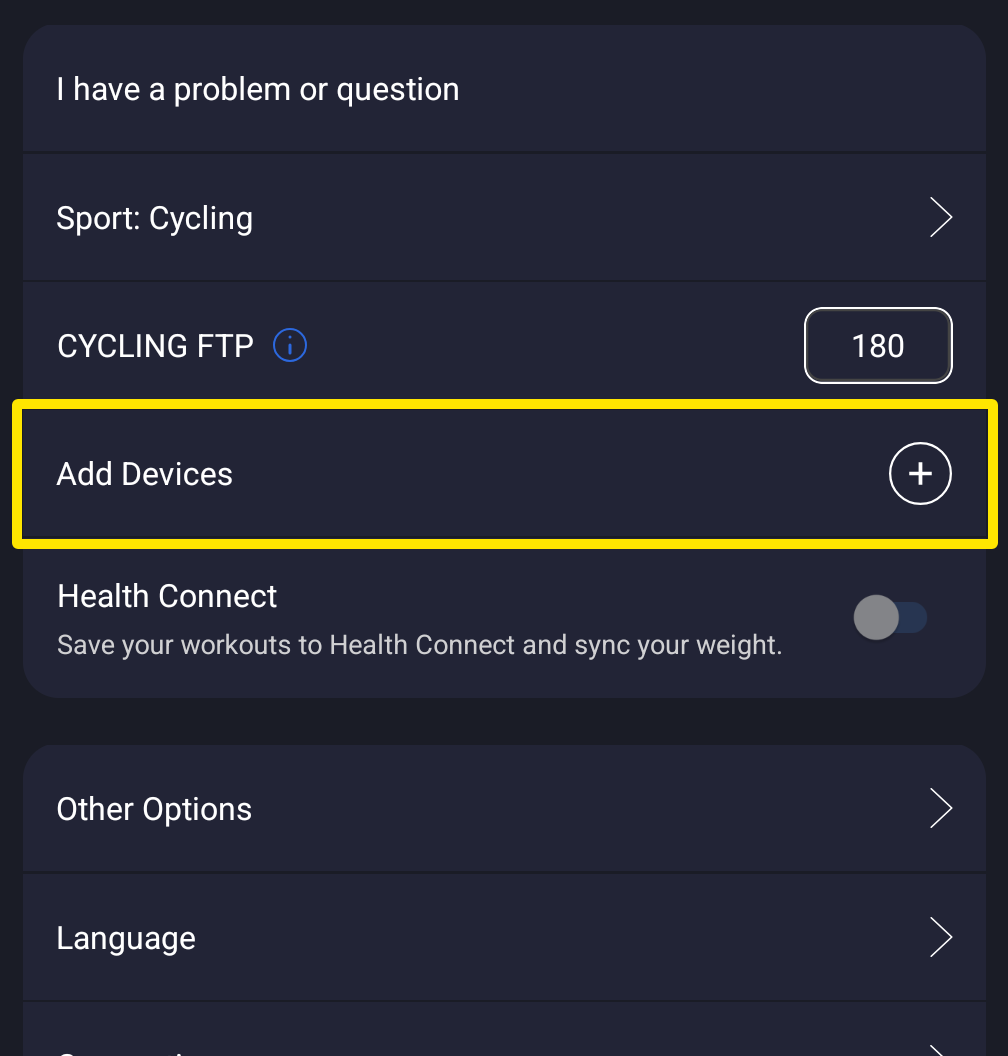 Where: Mobile app · Settings tab
- On the Devices screen, find the card of the device that should give your heart rate and tap its Heart Rate tag so it is filled. It shows your bpm. Heart rate comes from one device at a time, so it moves off the other device.
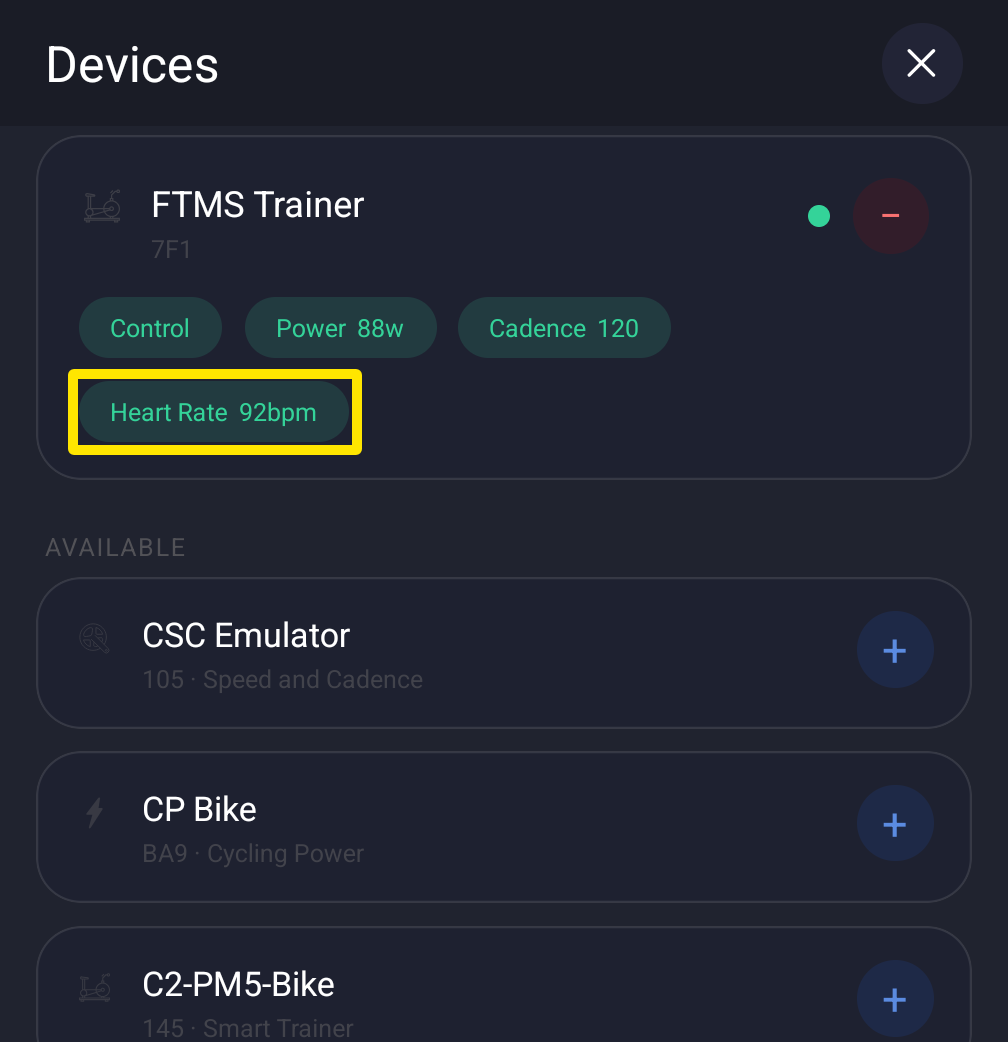 Where: Mobile app · Settings tab → Add Devices
- To use an Apple Watch or Wear OS watch instead, tap the filled Heart Rate tag on your strap or trainer to switch it off. The watch is used only when no Bluetooth device gives heart rate.
- Tap Done.
Good to know: The first device to connect takes over heart rate (or power or cadence) if no other device is already giving it, so a trainer that reports heart rate can keep it until you tap the tag on another device.
Works on: mobile app; desktop app (the HR tag on the device in Devices); not the website.