

How do I connect a heart rate monitor?
Pair your heart rate strap inside the TrainerDay mobile app from Settings → Add Devices, or in the desktop app from the Bluetooth / ANT+ button at the top right.
On your phone
- Wet the strap's contacts and put it on. It switches off when it isn't touching skin.
- In the TrainerDay mobile app, open the Settings tab and tap Add Devices.
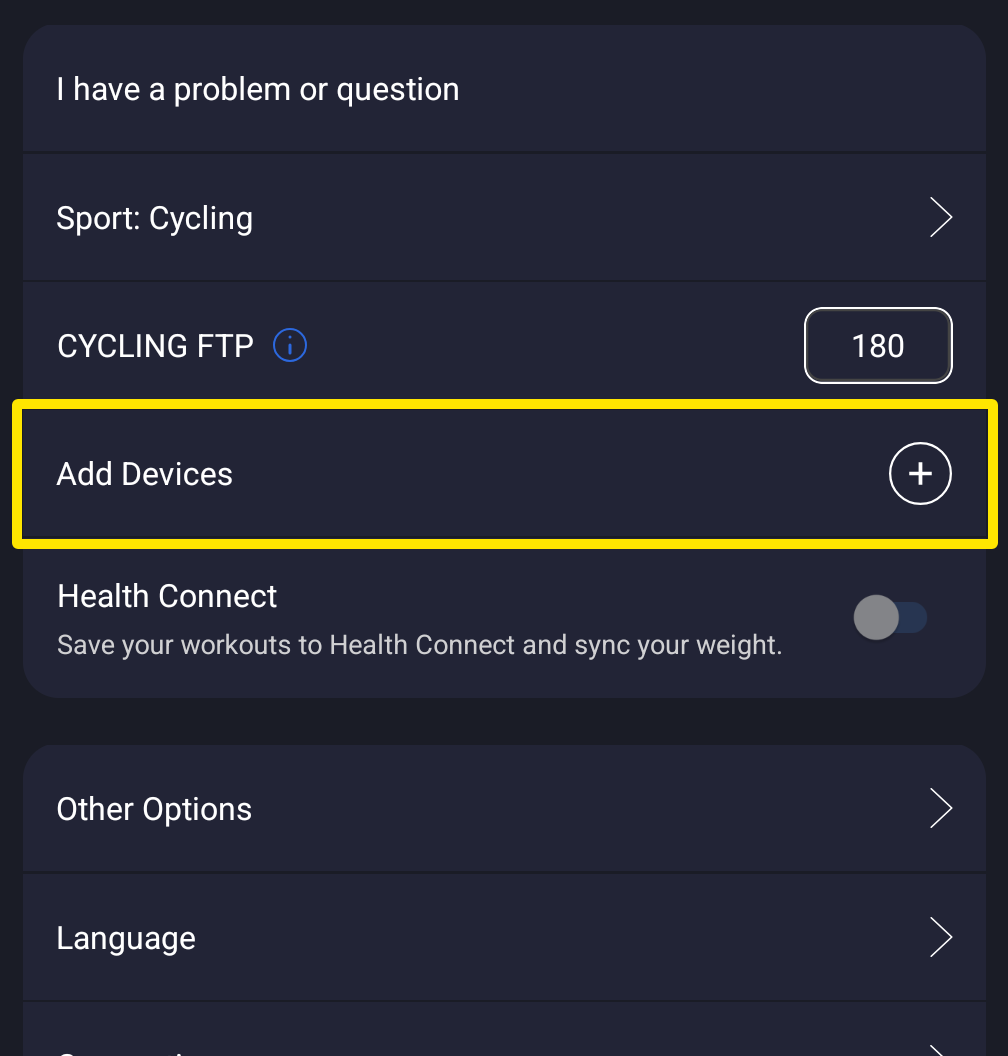 Where: Mobile app · Settings tab
- On the Devices screen, tap + next to your heart rate monitor. Its card shows the Heart Rate tag filled.
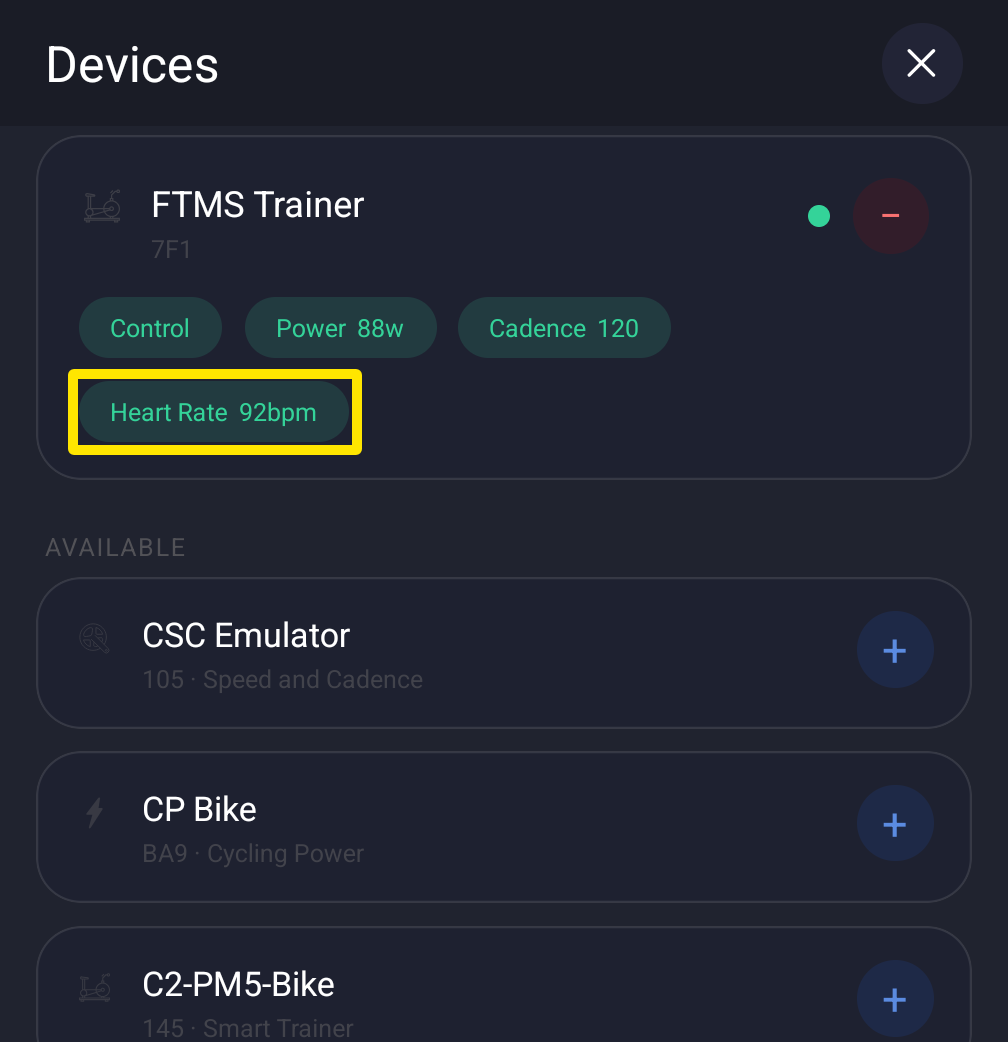 Where: Mobile app · Settings tab → Add Devices
On desktop
- Wet the strap's contacts and put it on.
- In the TrainerDay desktop app, on the Today tab, click the Bluetooth / ANT+ icon button at the top right.
- In the Devices window, click Connect next to the strap under AVAILABLE. Make sure its HR tag is filled.
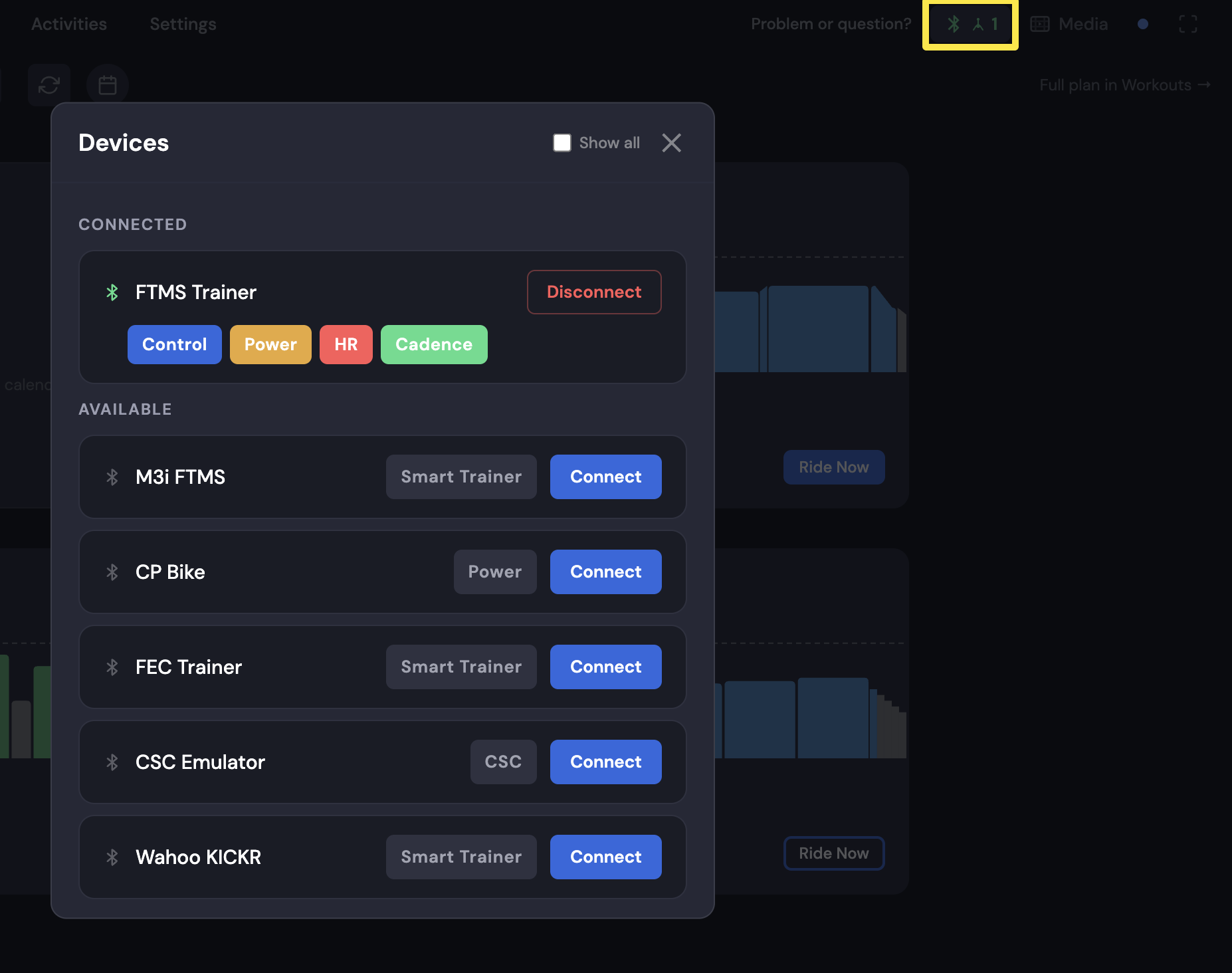 Where: Desktop app · Today tab → Bluetooth / ANT+ button
- Start a ride. Your heart rate shows in the BPM box at the bottom of the ride screen.
Good to know: Pair the strap only inside TrainerDay, not in your phone's or computer's Bluetooth settings. Pairing it there can block the TrainerDay connection.
Works on: Mobile app (Bluetooth only); desktop app (Bluetooth, or ANT+ with a USB stick). Not the website.