

How do I show TrainerDay on a bigger screen or monitor?
Install the TrainerDay desktop app on the computer connected to your monitor or TV, start a ride, and press G to fill the screen.
- On the computer connected to your big screen, go to trainerday.com/download and install the desktop app for Windows, Mac or Linux.
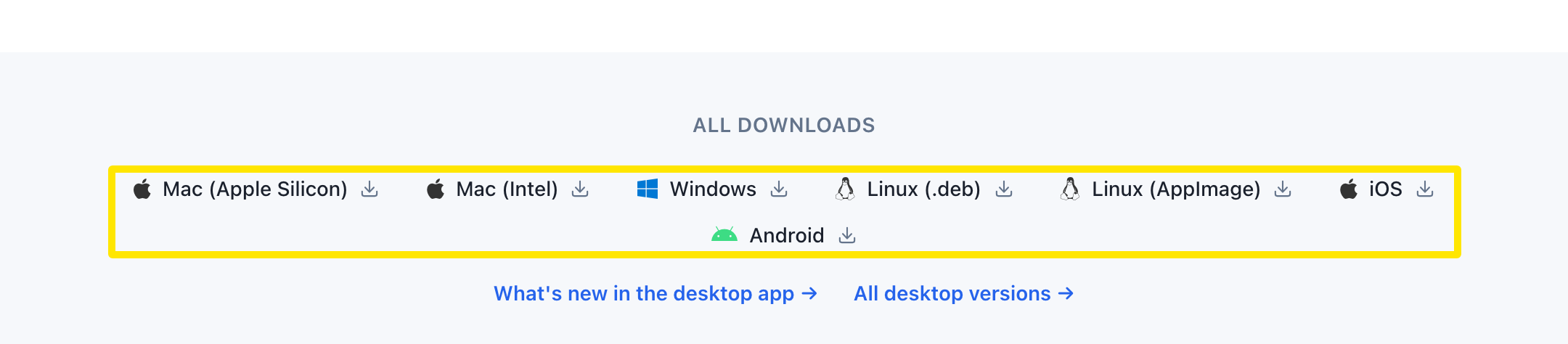 Where: Website · trainerday.com/download · open it
- Open the desktop app, go to the Today tab and click Ride Now to start your workout.
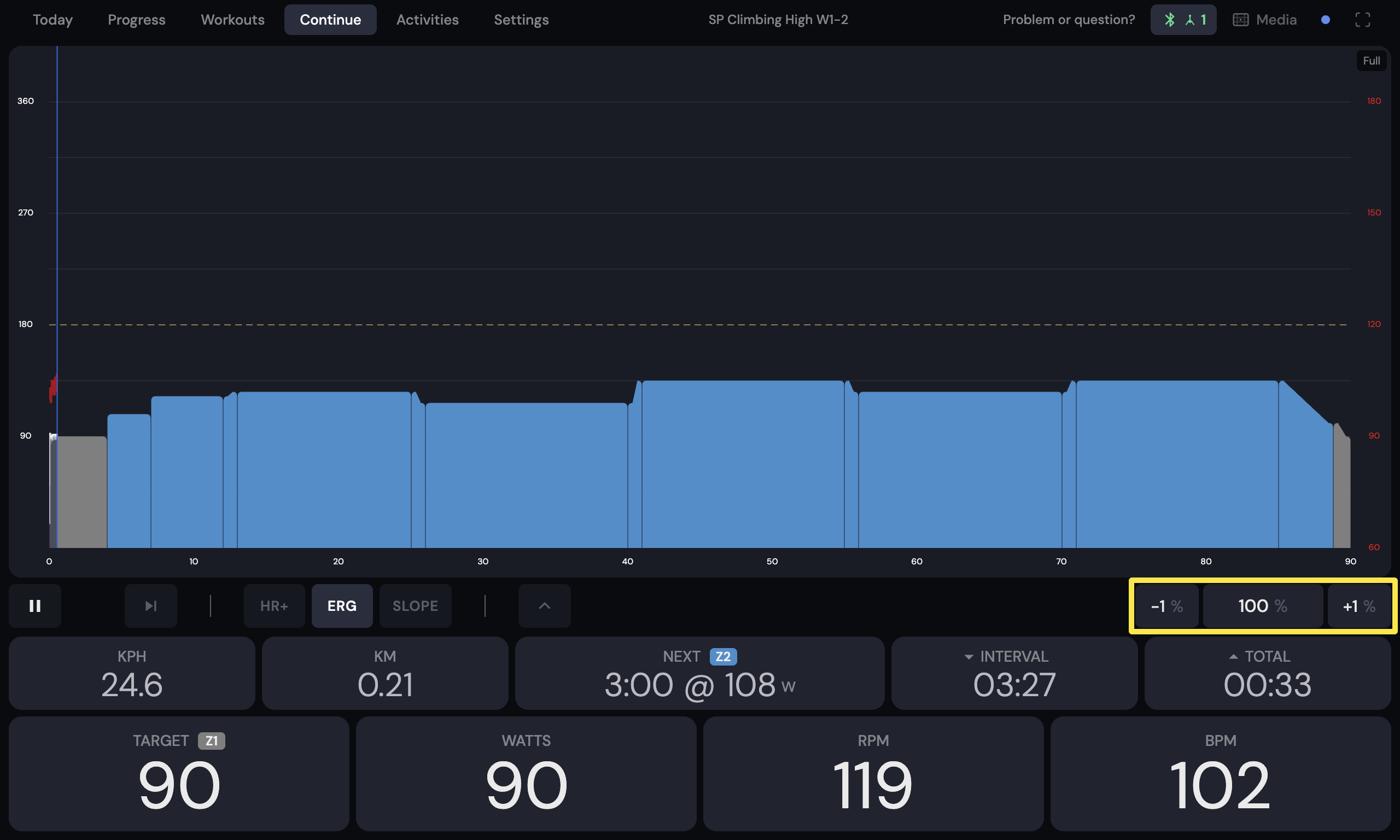 Where: Desktop app · the workout screen during a ride (Today tab → Ride Now)
- On the workout screen, click the down-arrow button on the bottom bar to show the extra data row.
- Press G to make the app fill the screen. For window fullscreen, press F11 (Windows, Linux) or Ctrl+Cmd+F (Mac).
Good to know: The mobile app has no casting of its own (no AirPlay or Chromecast), but your phone's own screen mirroring can show it on a TV as it is.
Works on: Desktop app (Windows, Mac, Linux); mobile app only through phone screen mirroring.