

How do I get colored interval bars back in the app?
Turn off the classic blue charts setting on the website (Account → Display) or in the mobile app (Settings → Other Options) to get colored interval bars back.
- On the website, click the gear icon at the top of the left menu, then Account.
- Under Display, untick Use classic workout charts (all blue).
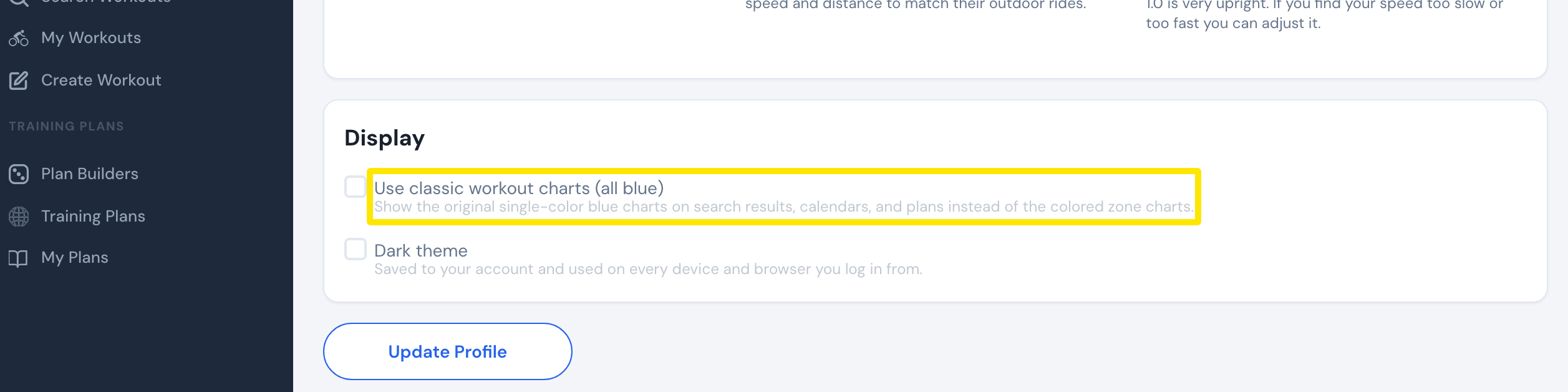 Where: Website · Account · open it
- Click Update Profile. Workout charts on search results, calendars and plans show zone colors again.
- In the mobile app, go to the Settings tab → Other Options and turn off Classic blue charts. It is the same account setting, so it follows the website.
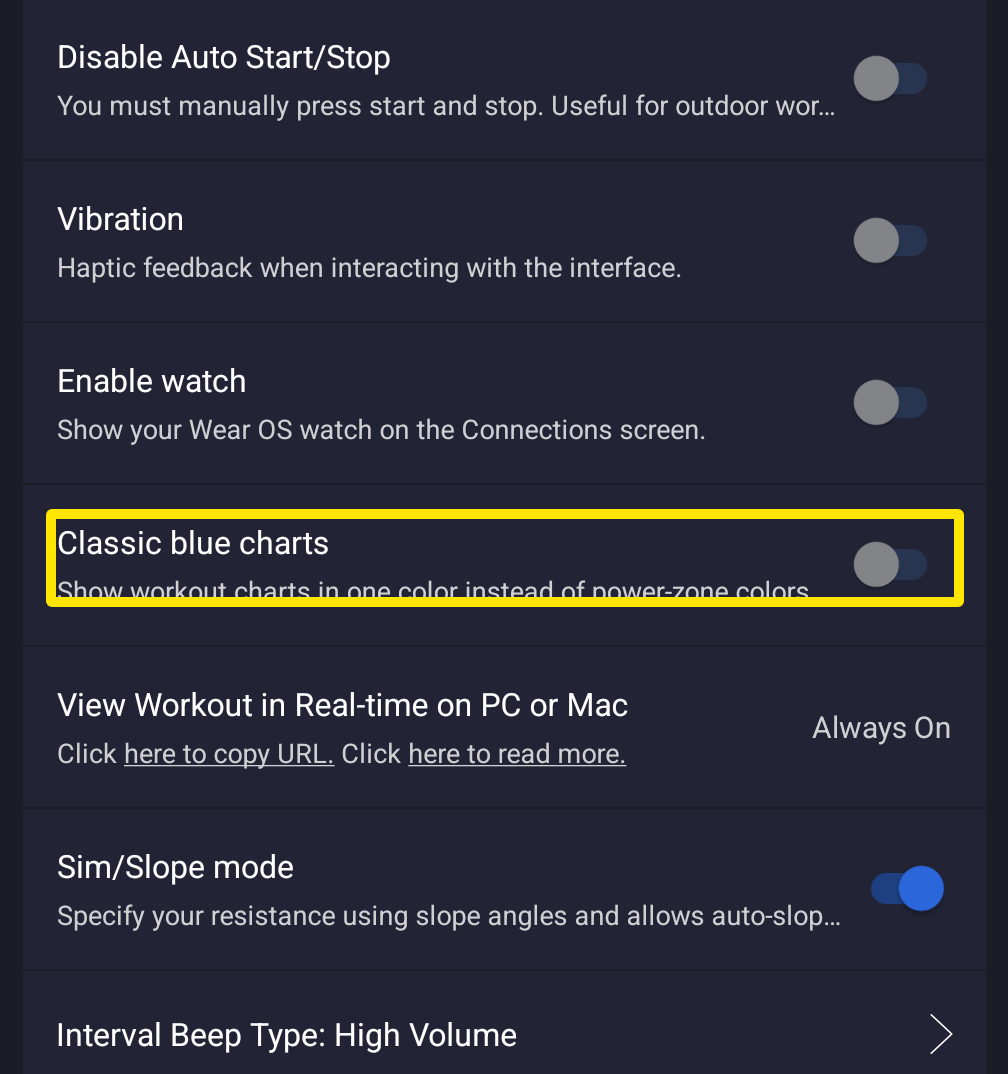 Where: Mobile app · Settings tab → Other Options
Good to know: In the mobile workout player, the chart is always grey in HR mode. All other modes use zone colors.
Works on: website and mobile app. The desktop app has no such setting.