

How do I set up TrainerDay for several riders in my family?
Each rider in your family makes their own TrainerDay account, and riders who share one phone, tablet or computer log out and back in to switch.
One TrainerDay account is one rider. There are no rider profiles under one login, so one account cannot hold or manage plans for other family members.
- Each rider opens trainerday.com/login, clicks Register here, and makes their own account with their own FTP and zones. Each rider needs their own subscription for Pro.
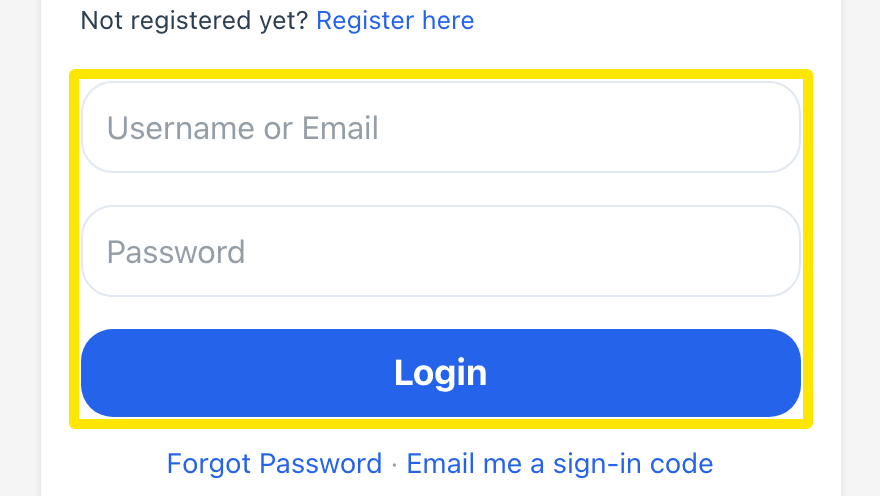 Where: Website · Log in · open it
To switch riders on a shared device, follow only the steps for the app you use.
Website
- On My Calendar, click the gear icon at the top of the left menu, then Log Out.
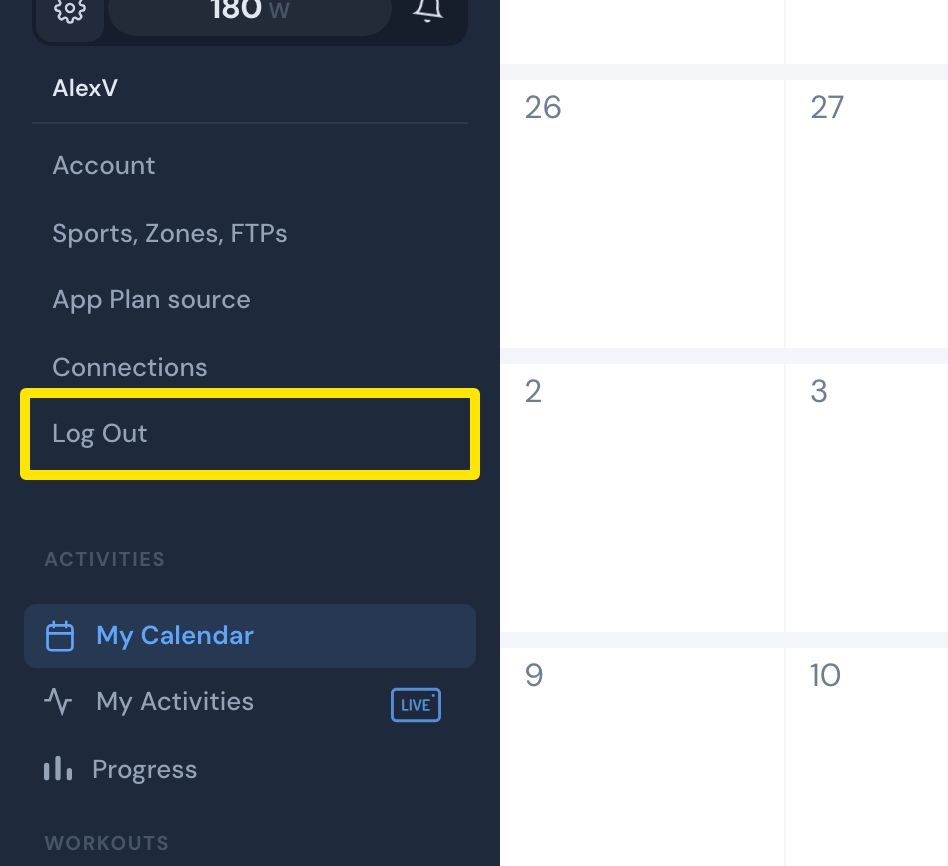 Where: Website · My Calendar · open it
- The next rider logs in with their own account at trainerday.com/login.
Mobile app
- Open the Settings tab, scroll to the bottom, tap Logout/Reset, and confirm. If the app lists rides that have not synced yet, wait for them to sync first. Otherwise those rides are lost.
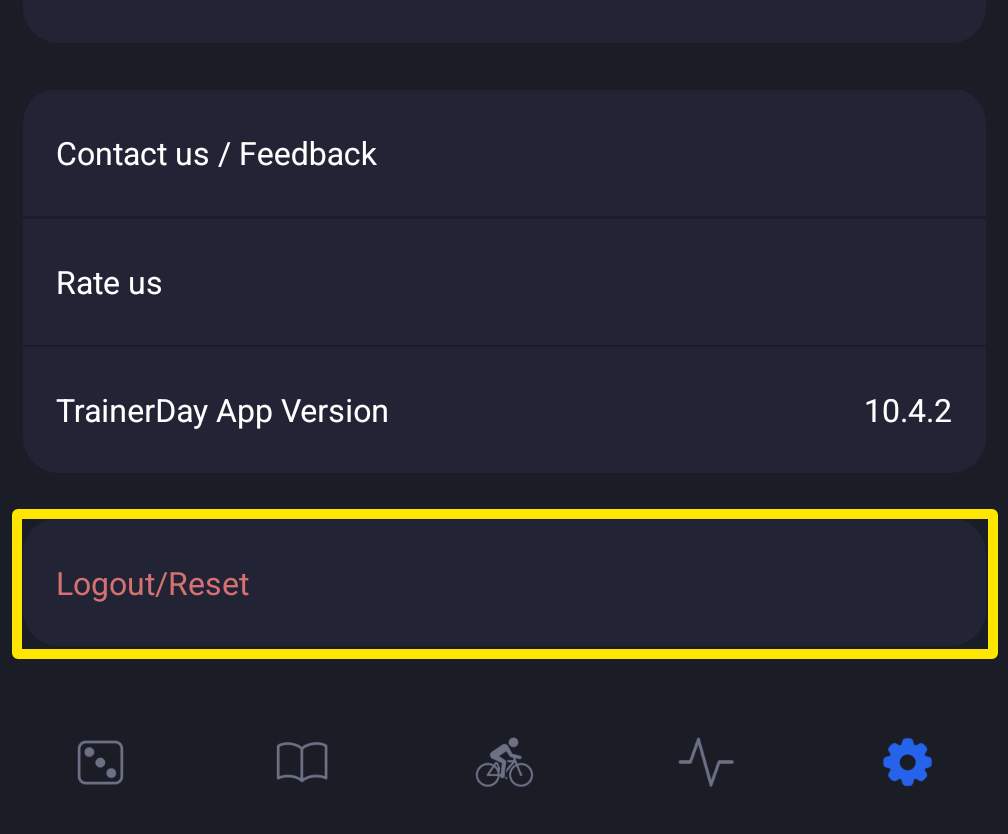 Where: Mobile app · Settings tab (scrolled to the bottom)
- The next rider logs in with their own account.
Desktop app
- Open the Settings tab and scroll down to More Information. Click Log Out & Clear Data, then Yes, Log Out.
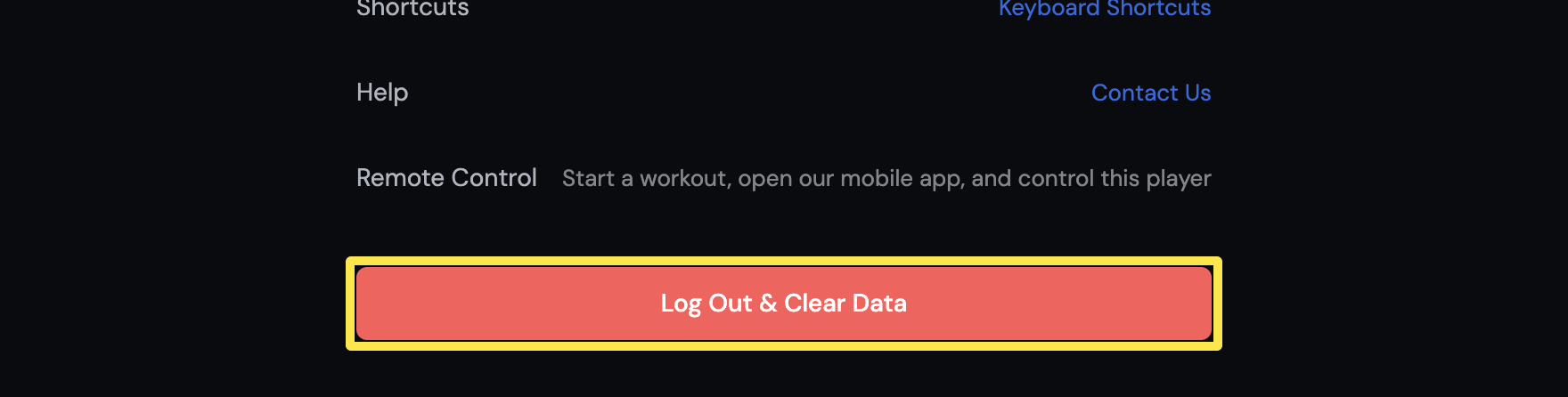 Where: Desktop app · Settings tab → More Information
- The next rider logs in with their own account.
Good to know: For several riders riding together in one room on one computer, use TrainerDay Squad, a free desktop app built for group indoor rides.