

How do I get calendar changes to show up in the mobile app?
Make My Calendar the mobile app's plan source on the TrainerDay website, then refresh the Today tab in the mobile app to see your latest calendar changes.
- On the website, in the left sidebar click My Calendar (open it).
- Click the menu (≡) at the top right of the calendar and click Activate in Mobile App. If it already reads Active in Mobile App in green, the calendar is already the app's plan source.
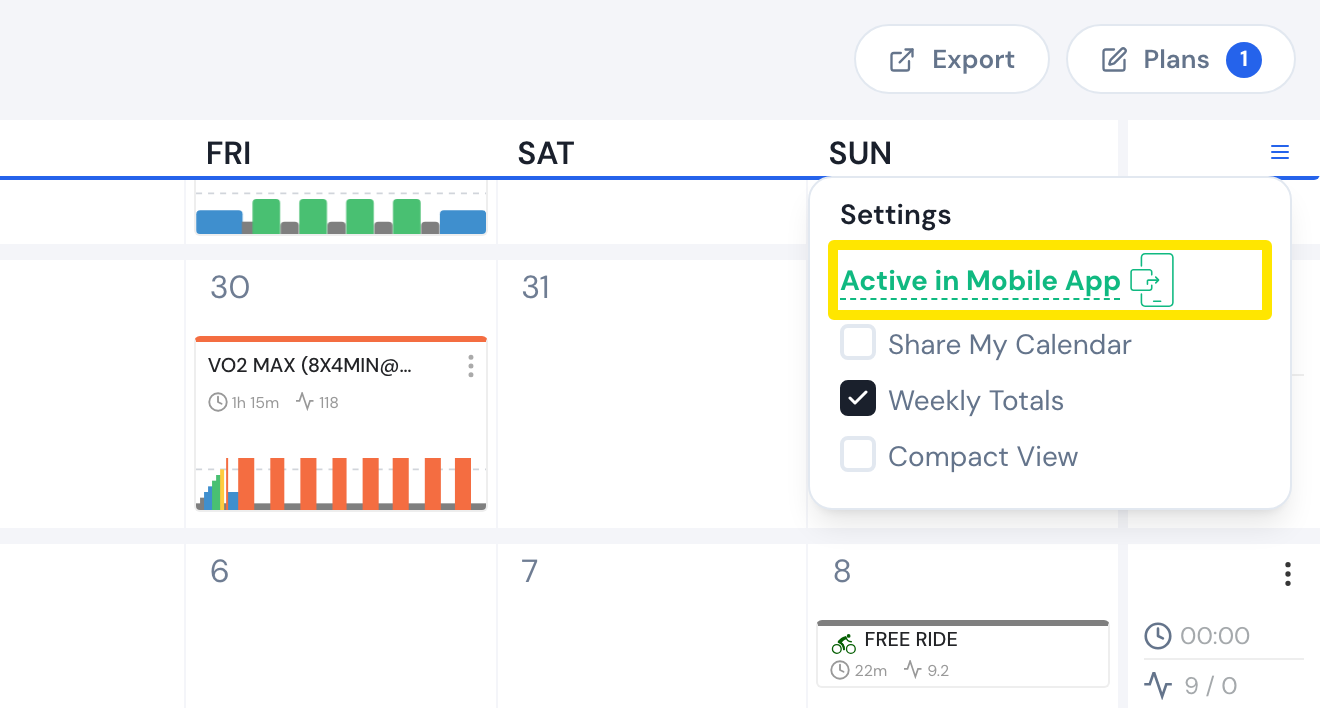 Where: Website · My Calendar · open it
- In Mobile App Plan Source, keep My calendar selected and click Save.
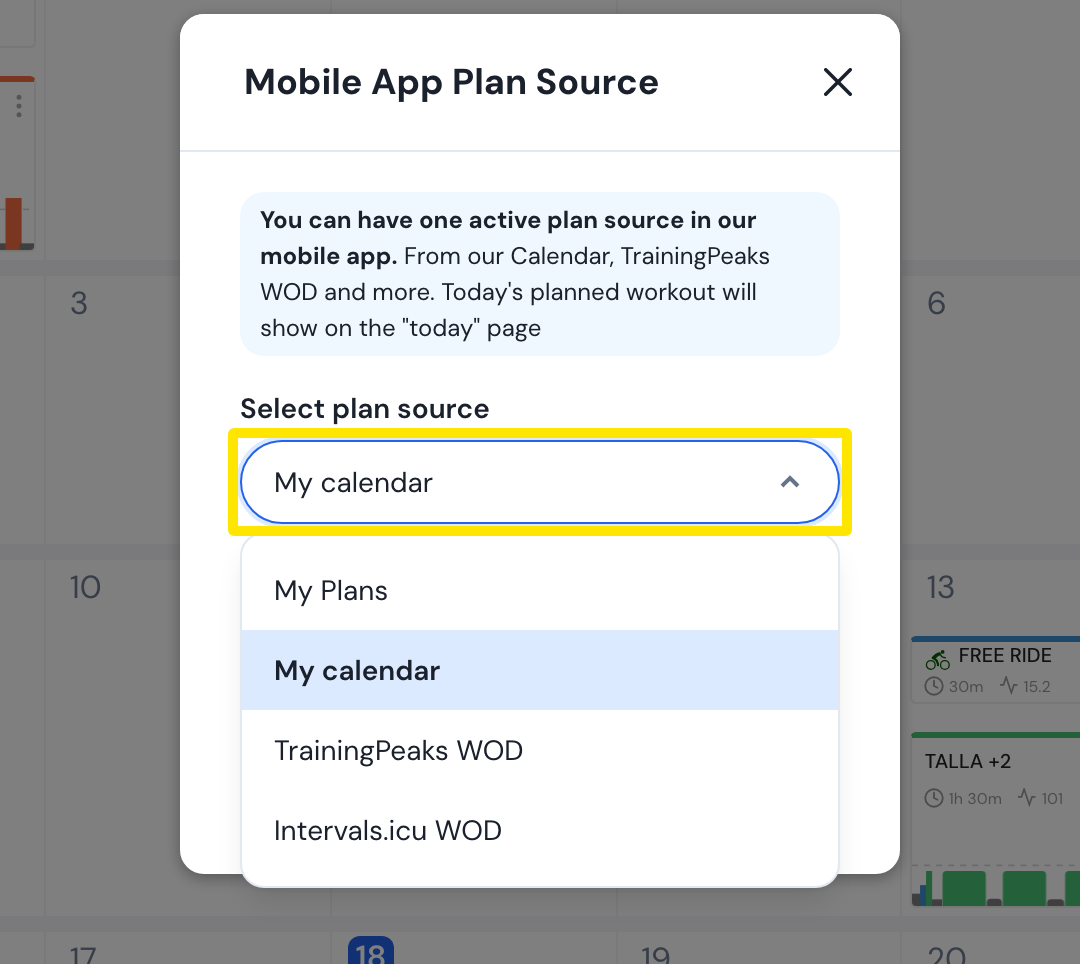 Where: Website · My Calendar · open it
- In the mobile app, open the Today tab and pull the page down or tap the refresh button (circular arrow). Today then shows today's calendar workout as it is now.
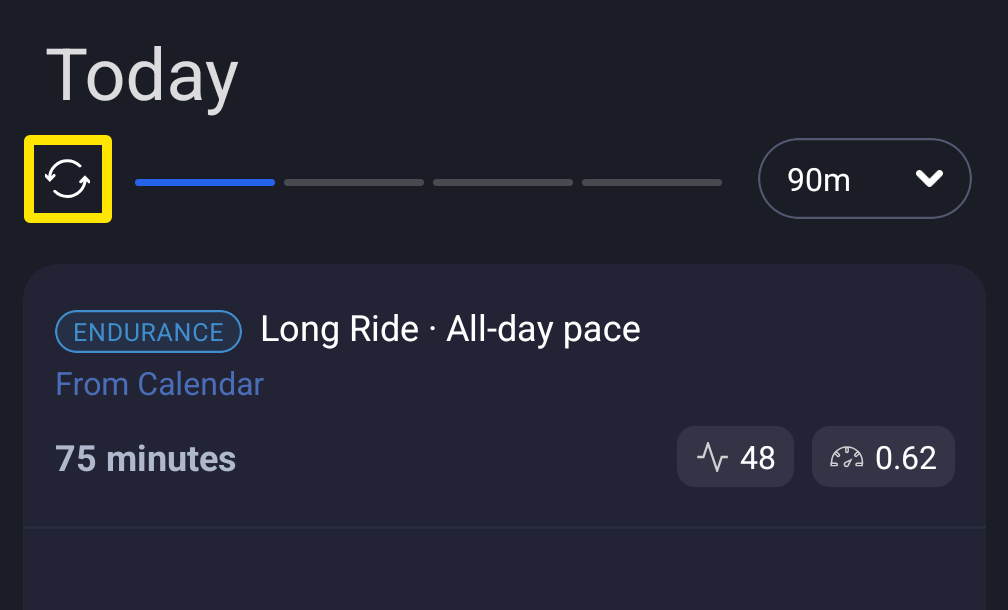 Where: Mobile app · Today tab
- Or, on the Today tab, tap the round calendar button to open My Calendar. It loads the weeks again each time you come back to it or bring the app to the front.
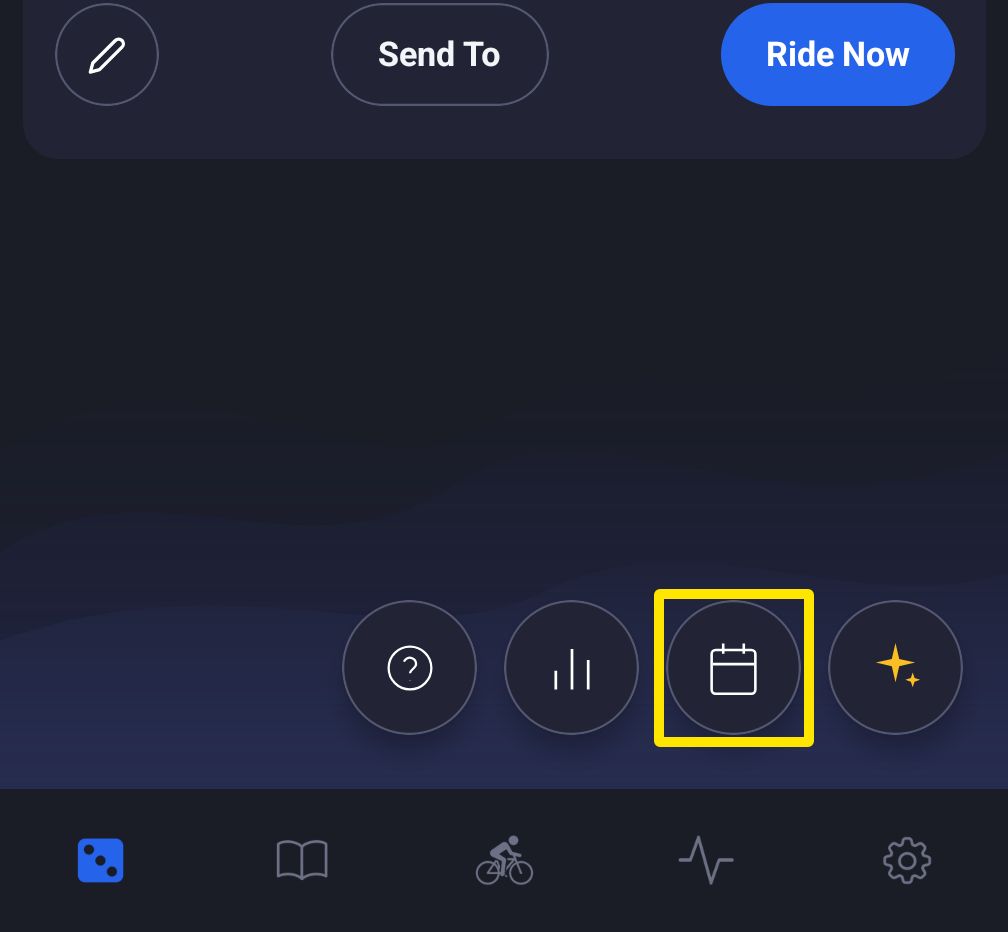 Where: Mobile app · Today tab
Good to know: There is no waiting time on the server, but the Today tab does not reload by itself after you edit the calendar on the website. Refresh it yourself.
Works on: Mobile app (refresh on the Today tab, paid accounts) · Desktop app (Refresh workouts button on the Today page).