

How do I turn on the calendar for the mobile app?
To turn on your calendar for the mobile app, go to My Calendar on the TrainerDay website, open the ≡ menu, click Activate in Mobile App, and choose My calendar as where the mobile app gets your workouts.
- On the website, click My Calendar in the left sidebar (app.trainerday.com/calendar).
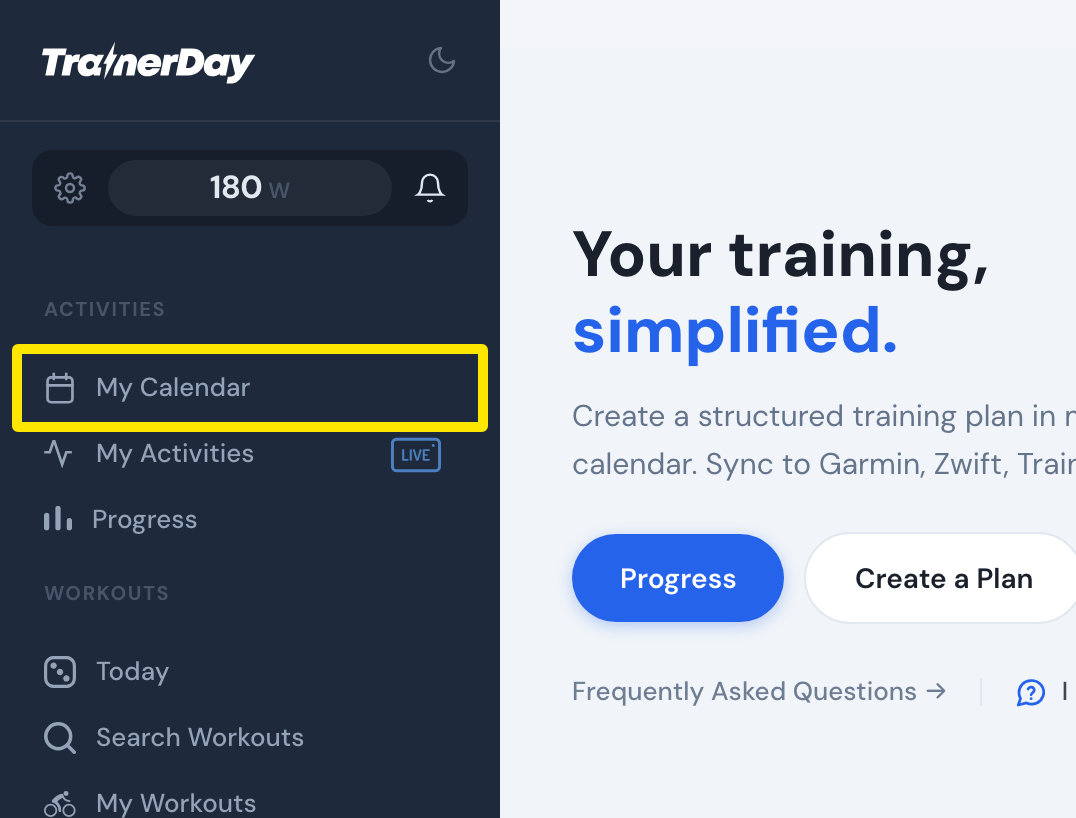 Where: Website · Home · open it
- Click the ≡ menu above the Weekly Totals column (top right of the calendar), then click Activate in Mobile App. Or click the yellow warning Your calendar is not active in the mobile app. at the top of the calendar.
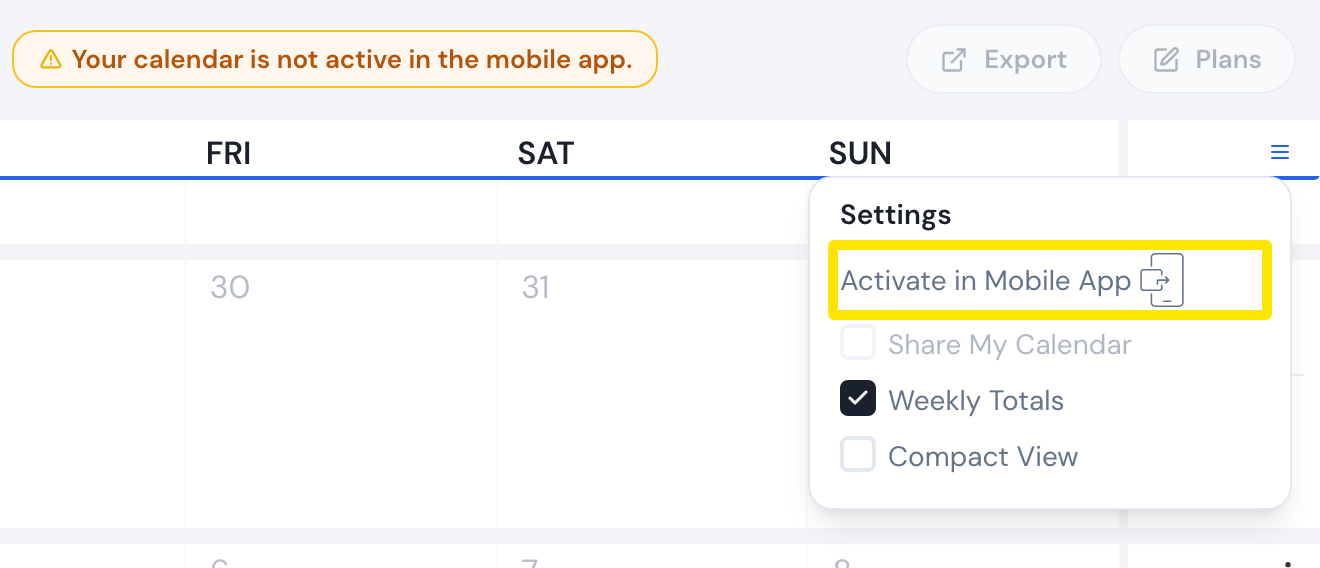 Where: Website · My Calendar · open it
- In the Mobile App Plan Source window, under Select plan source choose My calendar and click Save.
- On My Calendar, open the ≡ menu again. It now reads Active in Mobile App in green.
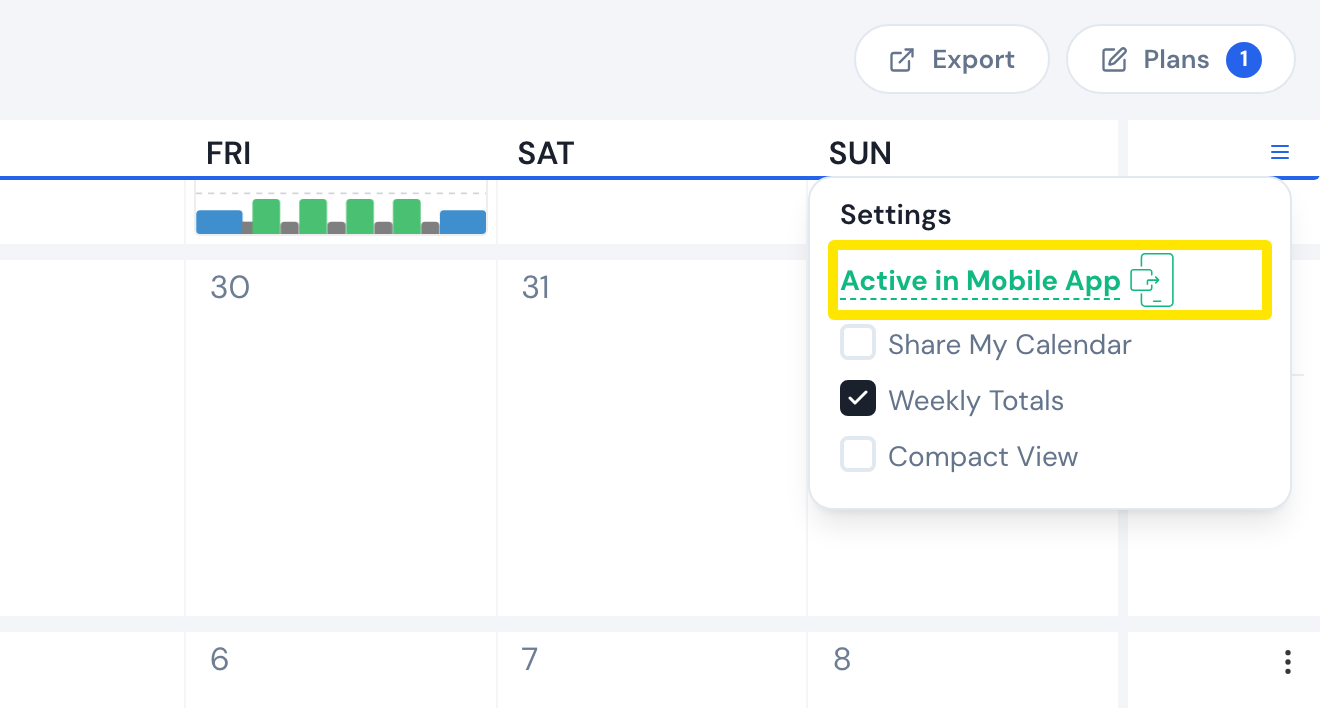 Where: Website · My Calendar · open it
- In the mobile app, the Workouts tab's Plan list is now called My calendar, and Today shows today's calendar workout. Pull down to refresh if it doesn't show yet.
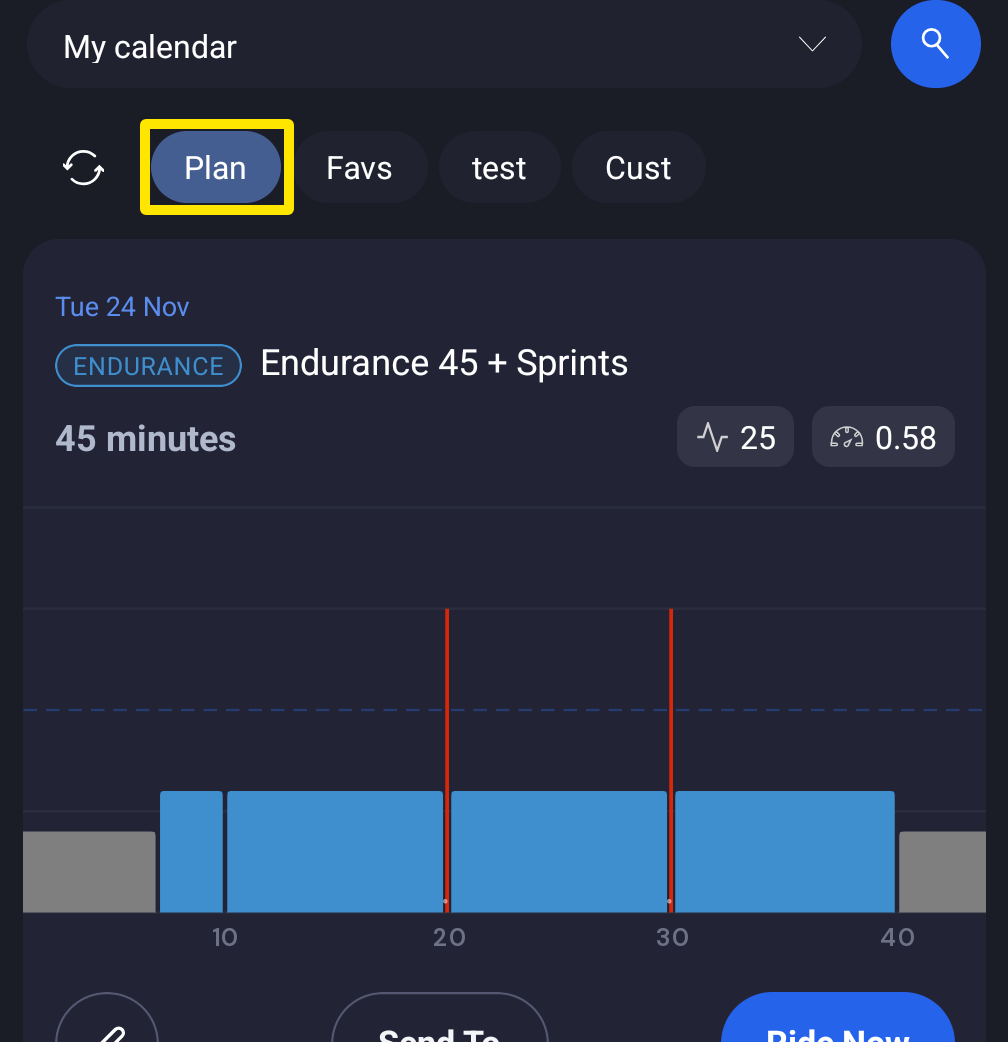 Where: Mobile app · Workouts tab → Plan
Good to know: The mobile app gets workouts from one place at a time: a plan from My Plans, My calendar, TrainingPeaks workout of the day or Intervals.icu workout of the day. You can change this only on the website.
Works on: Turn it on from the website; the change shows in the mobile app.