

How do I add a training plan to my calendar?
On the website, open a plan from Training Plans and click Send To Calendar to put it on your calendar starting next Monday.
- On the website, click Training Plans in the left sidebar (app.trainerday.com/training-plans) and open a plan.
- Click Send To Calendar at the top of the plan.
- In the Send To Calendar window, keep the plan as designed or turn on Change Training Days and tick your days. Then click Send To Calendar. The plan starts on next week's Monday.
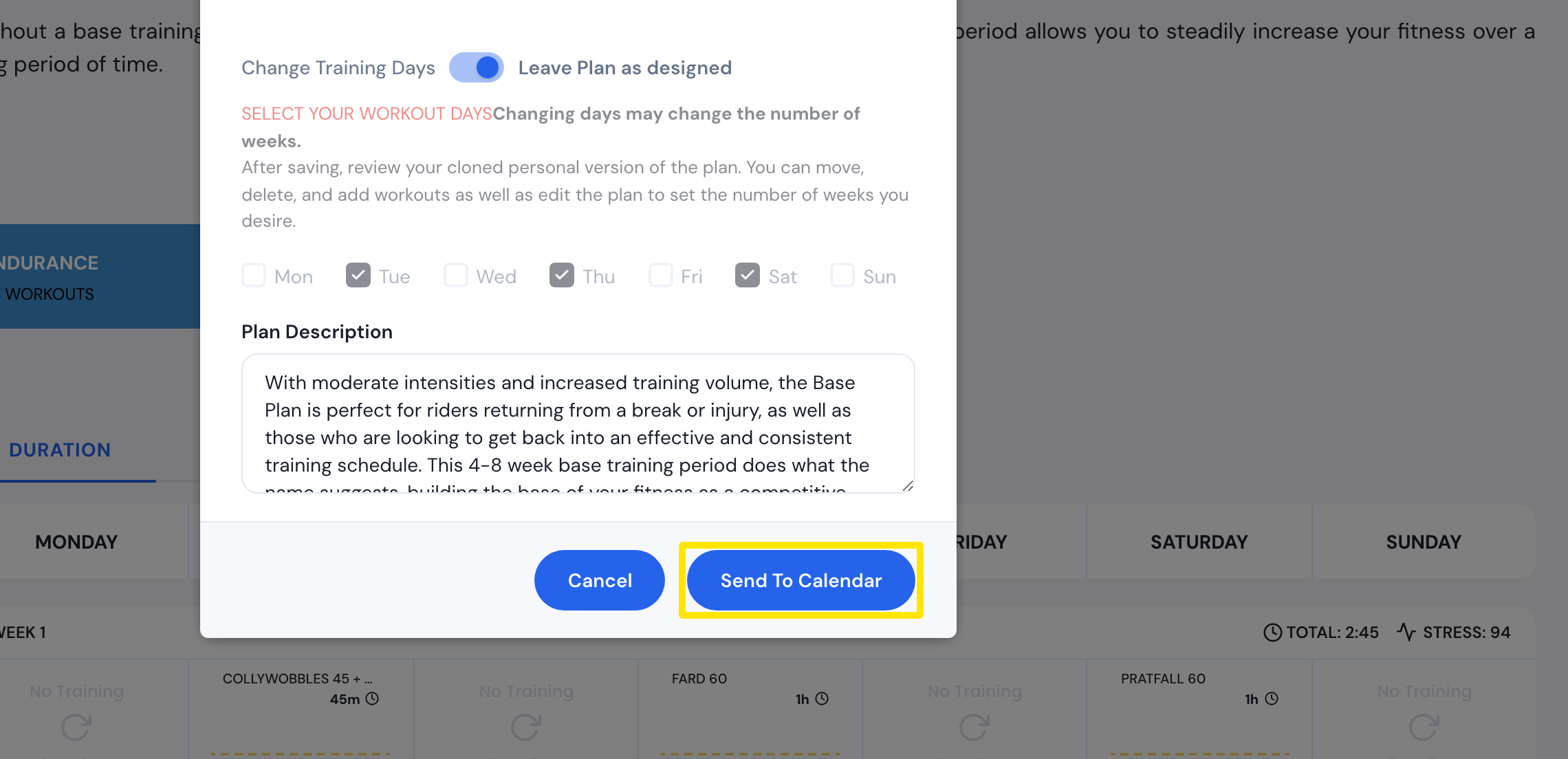 Where: Website · Training Plans → a plan → Send To Calendar · open it
Good to know: To pick the start Monday or only some weeks, go to My Plans, open the plan's ⋯ menu, click Send or Download, and set Destination to TO MY CALENDAR. You can also go to My Calendar → Plans → Add a Plan. Several plans can be on your calendar at once.
Works on: Website. In the mobile app, go to My Calendar, tap +, then tap Add a plan.