

How do I see my calendar workouts in the mobile app?
Open My Calendar from the round calendar button on the mobile app's Today tab to see your calendar workouts week by week, or see the next two weeks in the Workouts tab's Plan list.
- In the TrainerDay mobile app, open the Today tab.
- Tap the round calendar button (My Calendar) at the bottom of the screen, left of the create button.
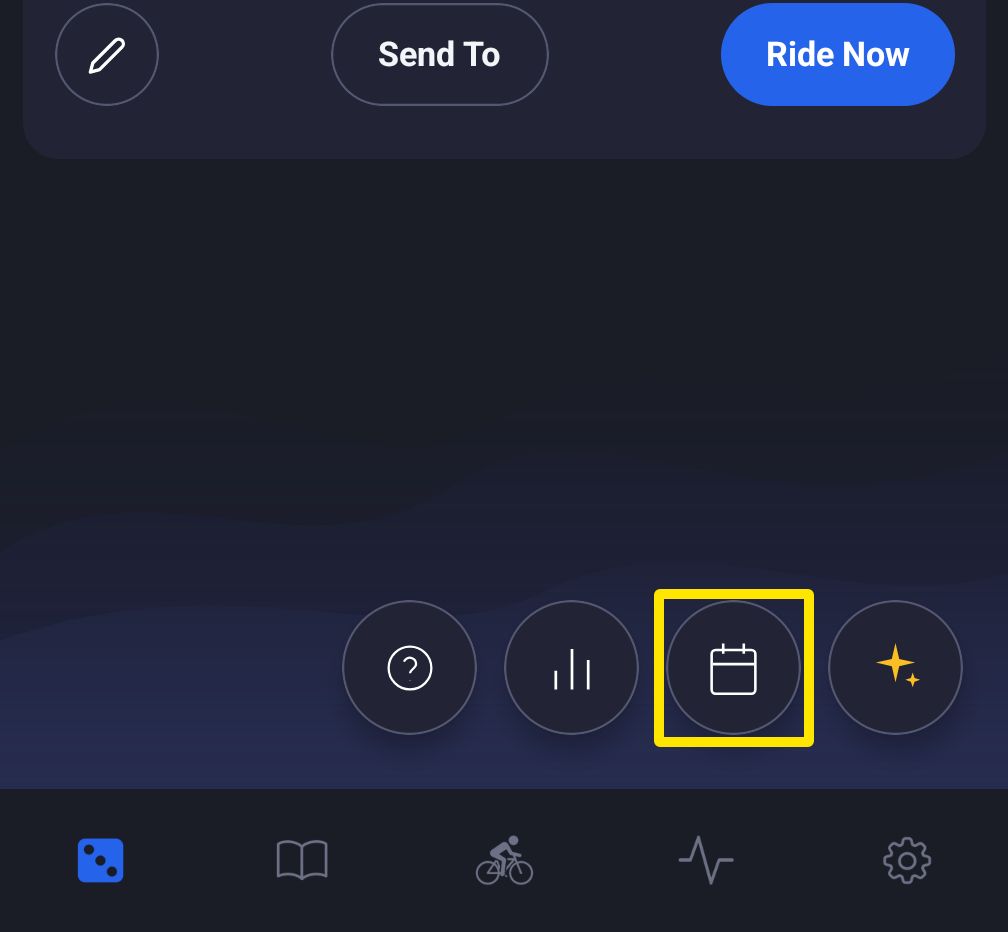 Where: Mobile app · Today tab
- My Calendar opens at this week as a list of weeks. Scroll up or down for other weeks, tap Today to come back, or tap the month name at the top to jump to another month.
- Tap a workout to see its details and Ride Now.
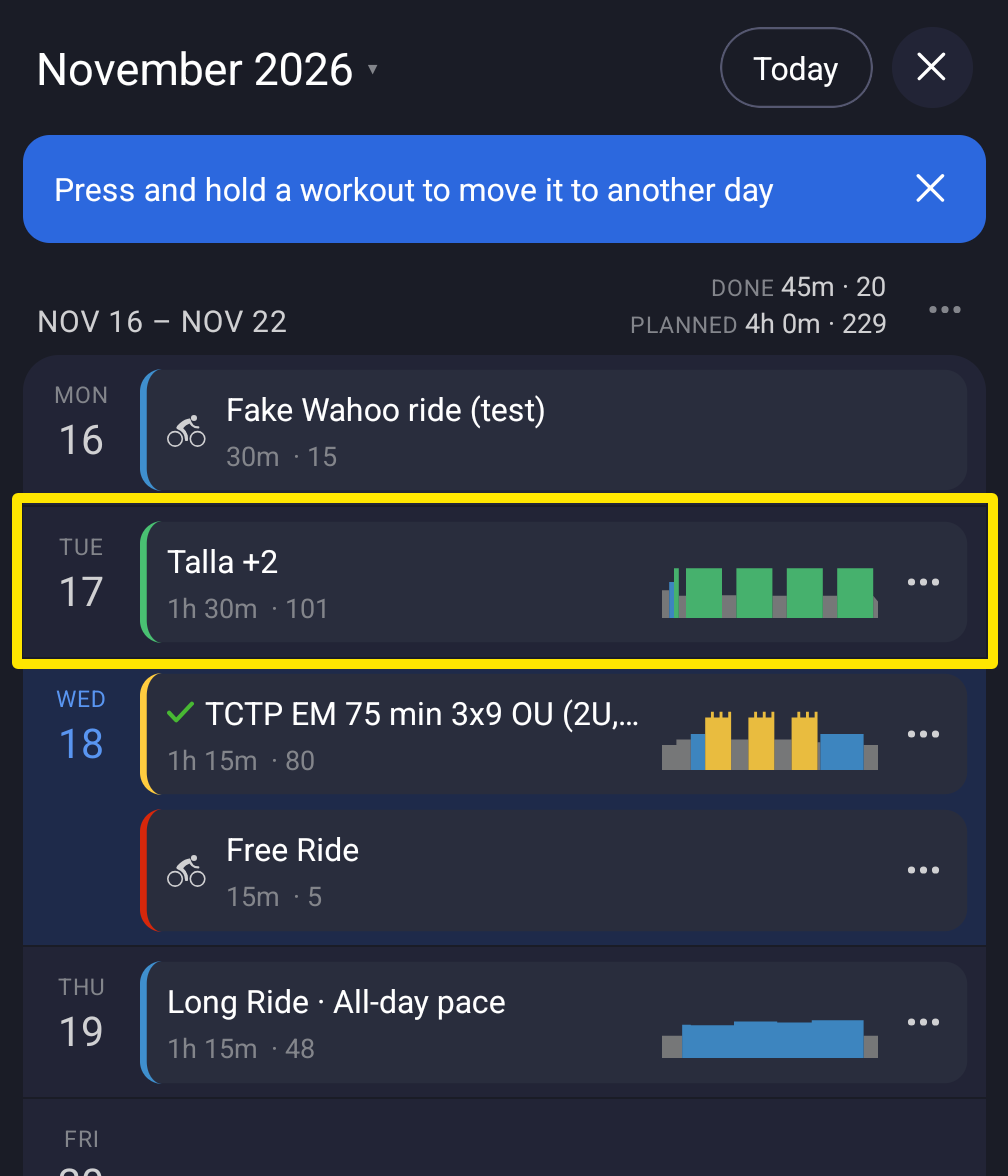 Where: Mobile app · Today tab → My Calendar
- Or: open the Workouts tab and the Plan list. When the calendar is the app's plan source, it is called My calendar and lists calendar workouts from 3 days ago to 13 days ahead.
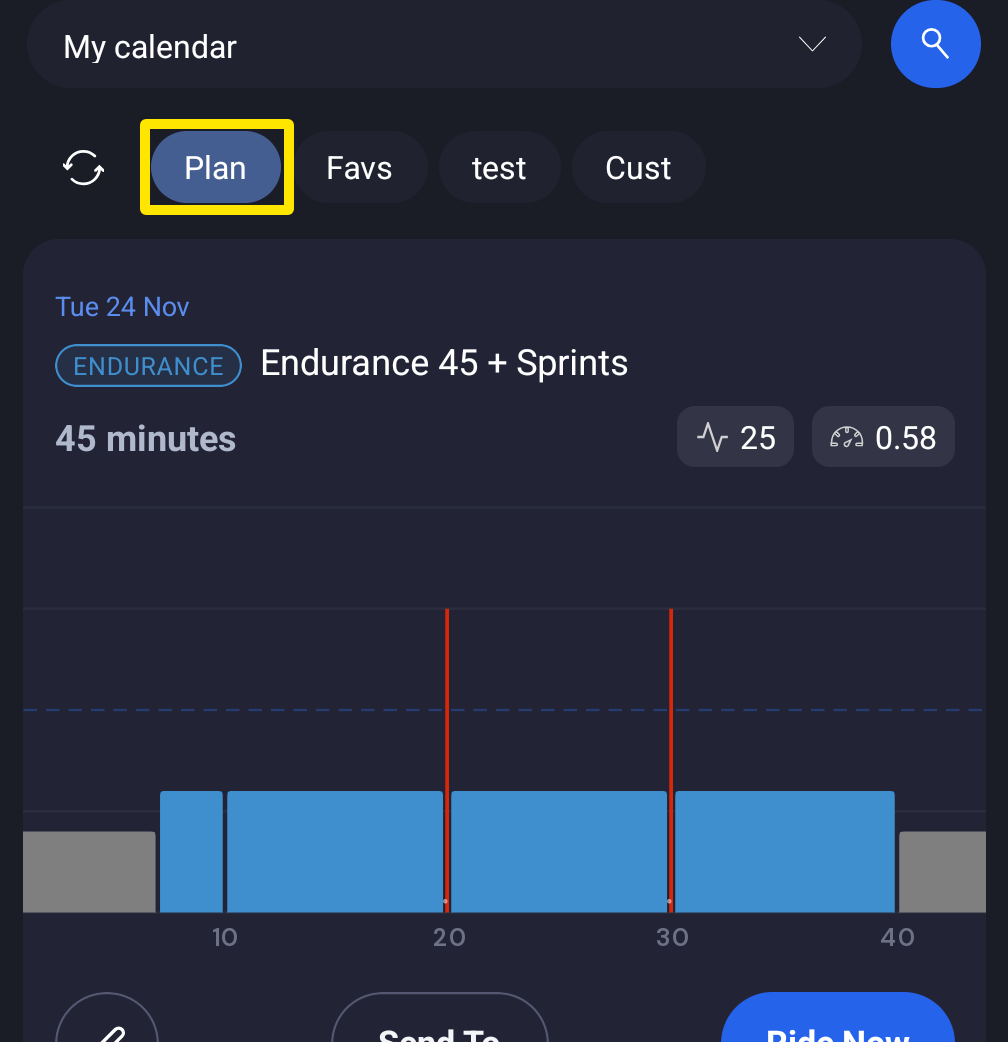 Where: Mobile app · Workouts tab → Plan
Good to know: My Calendar is a Pro feature; a free account gets the upgrade screen.
Works on: Mobile app (full list of weeks); desktop app (view-only); website (My Calendar in the sidebar, where everything can be edited).