

How do I give TrainerDay Bluetooth and location permission on my phone?
Turn on Bluetooth for TrainerDay in your phone's Settings app (on Android 11 or older, also allow Location), then open the Settings tab → Add Devices in TrainerDay to scan.
- iPhone: Open the iPhone Settings app → TrainerDay and switch Bluetooth on. Location is not needed for Bluetooth. It is only used when recording outdoor workouts.
- Android 12 or newer: Open Settings → Apps → TrainerDay → Permissions and allow Nearby devices (Bluetooth scan and connect). Location is not needed.
- Android 11 or older: On the same Permissions screen, also allow Location. These Android versions need it to scan for Bluetooth devices.
- Back in TrainerDay, open the Settings tab and tap Add Devices. If permission is still missing, you see Enable Bluetooth Scanning. Tap it and allow.
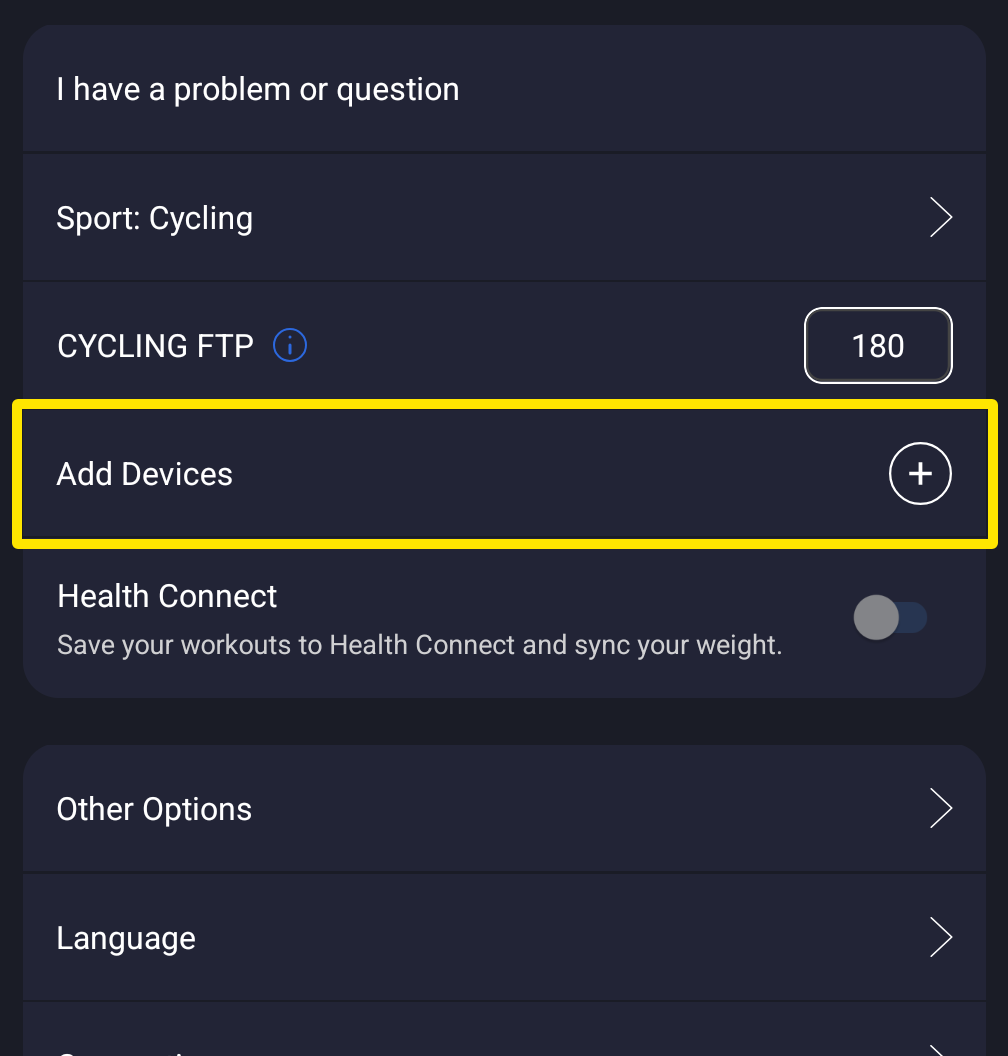 Where: Mobile app · Settings tab
Good to know: Bluetooth devices do not need Google Play services. The Android app uses them only for Health Connect.
Works on: Mobile app (iPhone, Android). The Mac desktop app asks for Bluetooth permission once and never for location. The website does not need these permissions.