

How do I stop my trainer or sensors from disconnecting during a workout?
To stop your trainer or sensors from dropping mid-ride, close every other app that is still connected to the trainer, unpair it from your phone's Bluetooth settings, and use the TrainerDay app's Missing Device? help if it keeps disconnecting.
If your trainer has already dropped mid-ride and you need it back now, see How do I reconnect my trainer after it drops during a workout?
- Close Zwift, the trainer maker's app and TrainerDay on any other phone, tablet or computer. A trainer talks to one app at a time, and an app running in the background still holds it.
- Open your phone's Settings → Bluetooth. If the trainer or sensor is listed there, forget (unpair) it. Connect it only inside TrainerDay.
- Go back to the TrainerDay mobile app and open the Settings tab, then tap Add Devices.
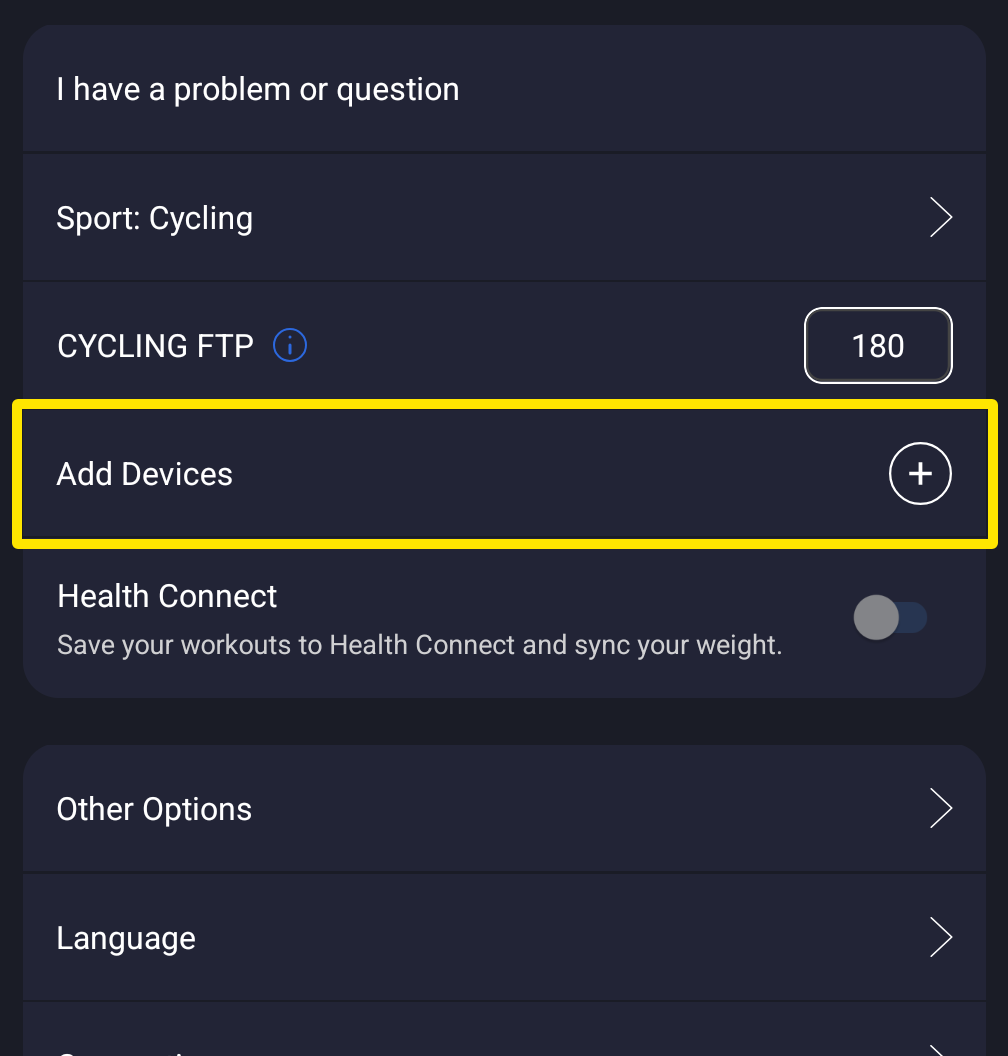 Where: Mobile app · Settings tab
- On the Devices screen, tap Missing Device?, pick the device, choose It connects, then disconnects again and follow the steps: unplug the trainer for 10 seconds, turn Bluetooth off and on, or restart the phone.
- On Android, when you start a workout from the workout screen, allow the Keep Rolling notification permission. It keeps the workout running when you switch apps or lock the screen.
Good to know: If a device drops mid-ride, keep pedaling. The app reconnects it by itself, and again when you open Devices. The desktop app also reconnects on its own, and Not connecting? under a device opens the same help.
Works on: mobile app and desktop app; the website does not connect to devices.