

How do I connect my trainer to the desktop app on Windows or Mac?
Download the TrainerDay desktop app for Mac or Windows, close other apps using your trainer, then click the Bluetooth / ANT+ icon button at the top right and click Connect next to your trainer.
- Open trainerday.com/download, download the desktop app for your Mac or Windows computer, install it and sign in.
 Where: Website · trainerday.com/download · open it
- Close Zwift, the TrainerDay mobile app and any other app that could be connected to the trainer. Don't pair the trainer in Mac or Windows Bluetooth settings.
- In the desktop app, pedal for a few seconds to wake the trainer. Click the Bluetooth / ANT+ icon button at the top right. The Devices window opens and starts scanning.
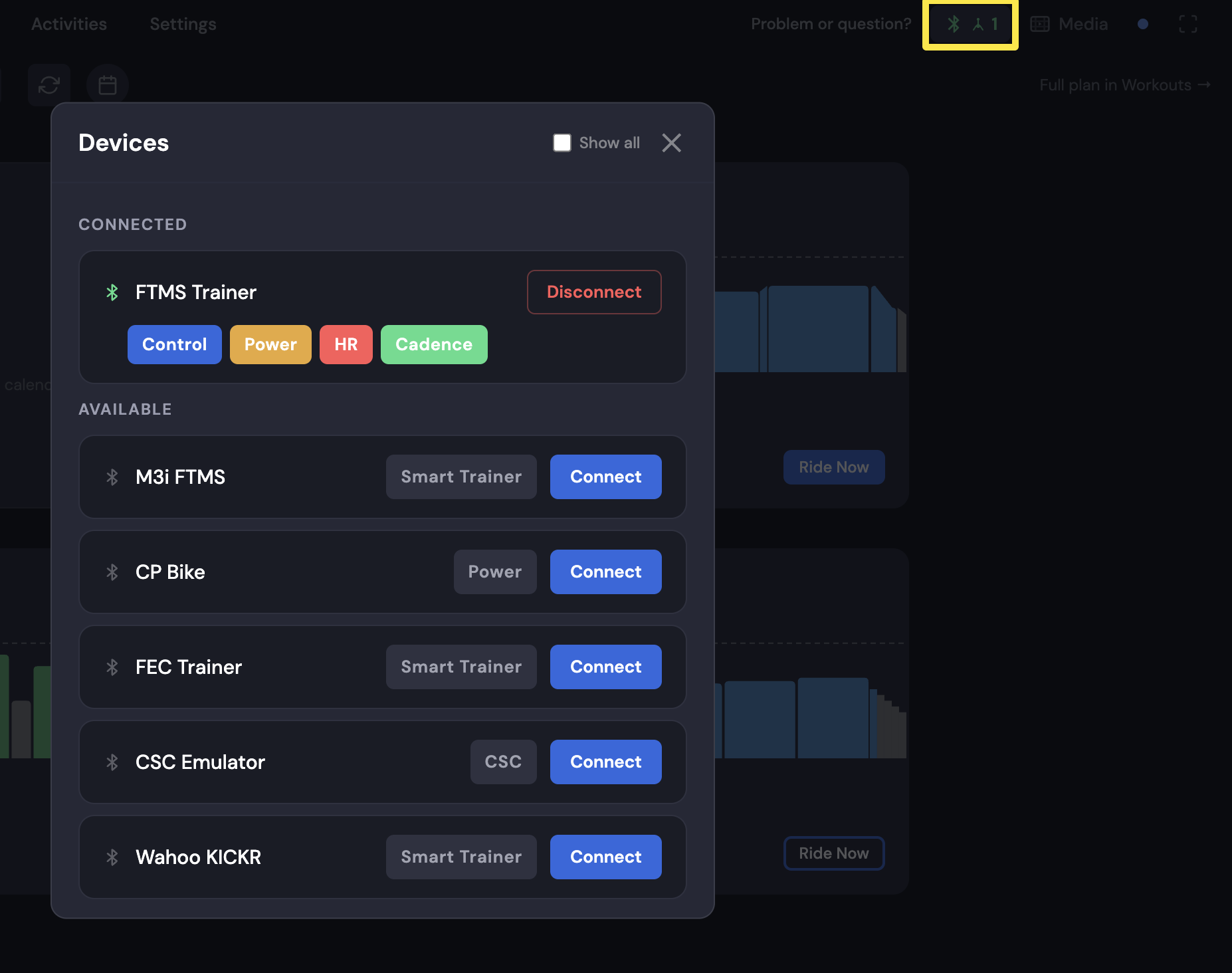 Where: Desktop app · Today tab
- Under AVAILABLE, click Connect next to your trainer. It moves to CONNECTED and shows Control, Power and Cadence.
 Where: Desktop app · Today tab
- Not listed? Click Show all, or Can't find your device? at the bottom of Devices for guided help.
Good to know: ANT+ devices need a USB ANT+ adapter (Garmin works best), and they pair in the same Devices window as Bluetooth.
Works on: Windows and Mac desktop app.