

How do I set my trainer to be controlled by the app?
Turn on the Control button on your trainer in the Devices screen of the mobile or desktop app, so that the ERG and SLOPE buttons on the workout screen drive your trainer.
- In the mobile app, open the Settings tab and tap Add Devices. Connect your trainer.
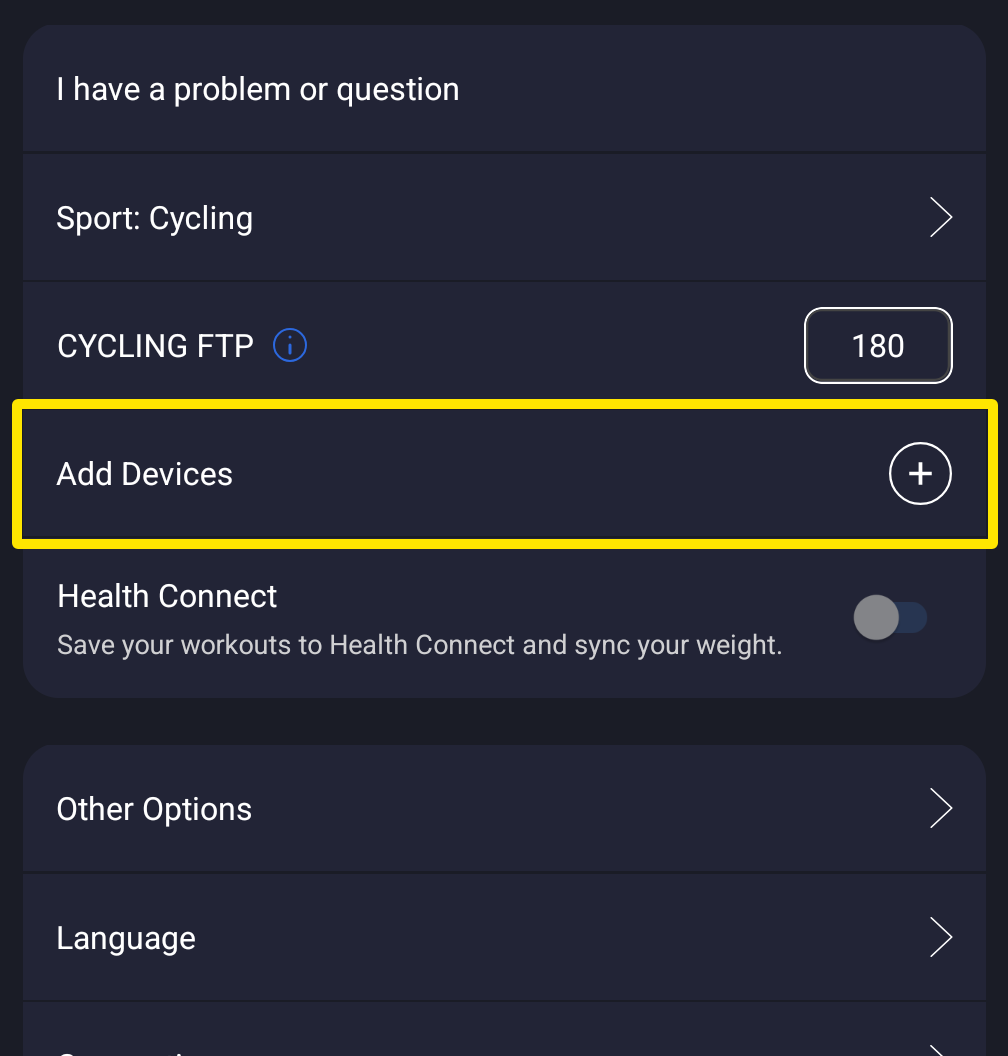 Where: Mobile app · Settings tab
- On the Devices screen, find your trainer. A filled button is on. A button with a + is off.
- Tap Control so it is filled. Tap Power too if the trainer should give your power. Only one device can hold each button.
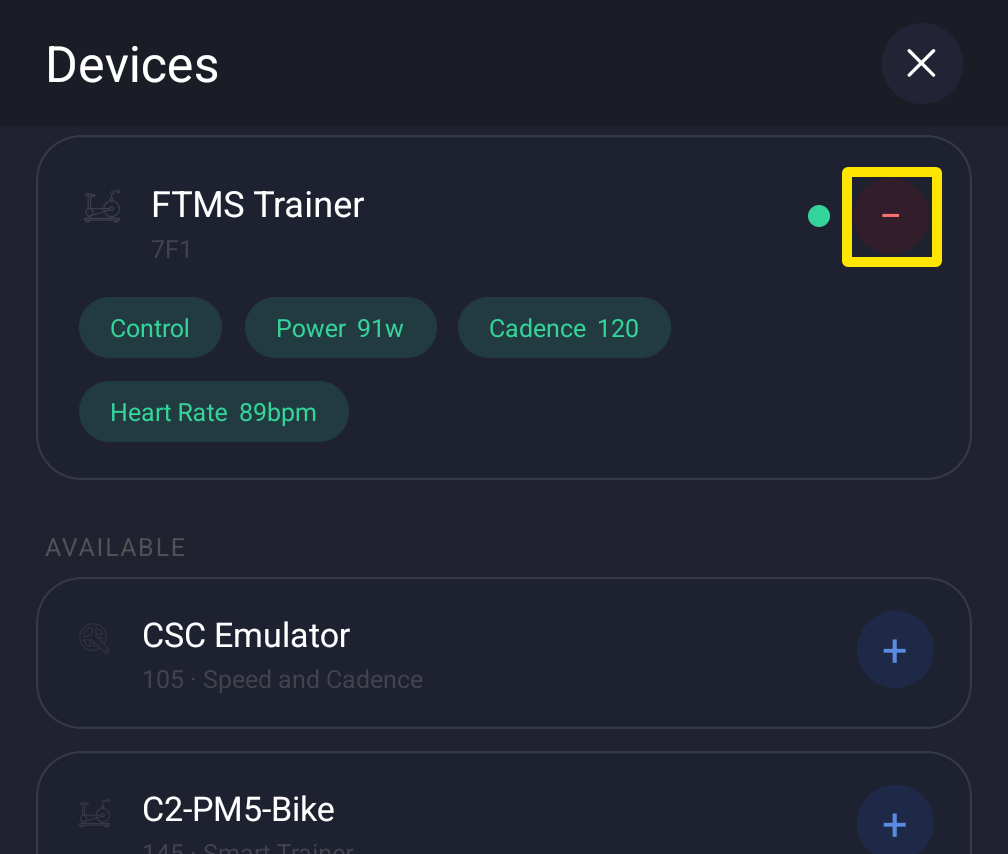 Where: Mobile app · Settings tab → Add Devices
- Tap Done, then start a workout. On the workout screen, ERG and SLOPE now control the trainer.
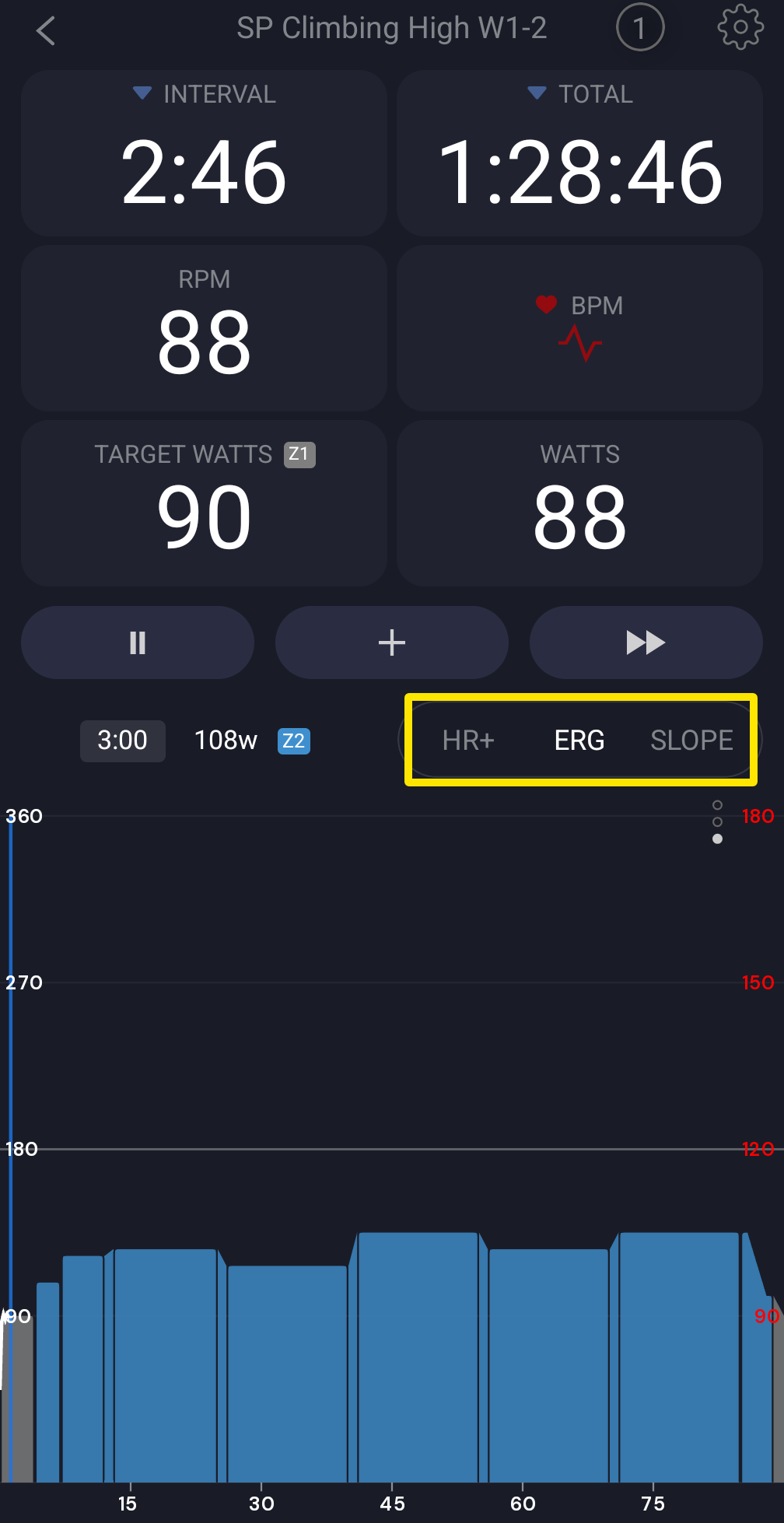 Where: Mobile app · the workout screen during a ride
- In the desktop app, click the Bluetooth and ANT+ icon in the top bar. In the Devices window, click Control on your trainer.
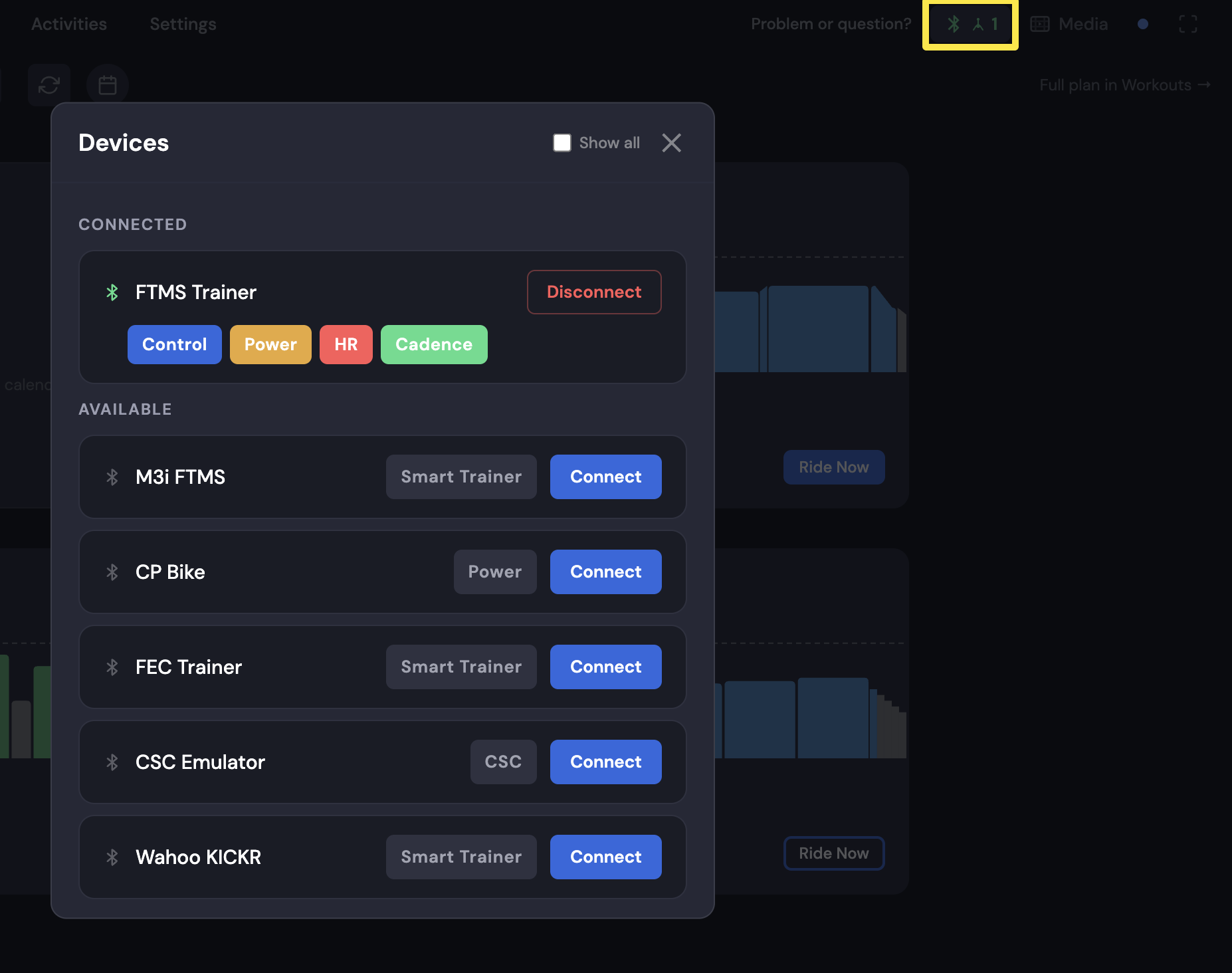 Where: Desktop app · Devices window (Bluetooth and ANT+ icon in the top bar)
Good to know: If no device has Control on, the mobile workout screen shows No Control instead of the mode buttons.
Works on: mobile app and desktop app. It does not work on the website.