

How do I fix a trainer stuck on 'connecting'?
A trainer stuck on connecting is usually held by another app or paired in your computer or phone Bluetooth settings: close other apps, wake or unplug the trainer, then forget it in TrainerDay's Devices list and connect it again.
- In the desktop app, on the Today tab, click the Bluetooth/ANT+ button at the top right to open Devices.
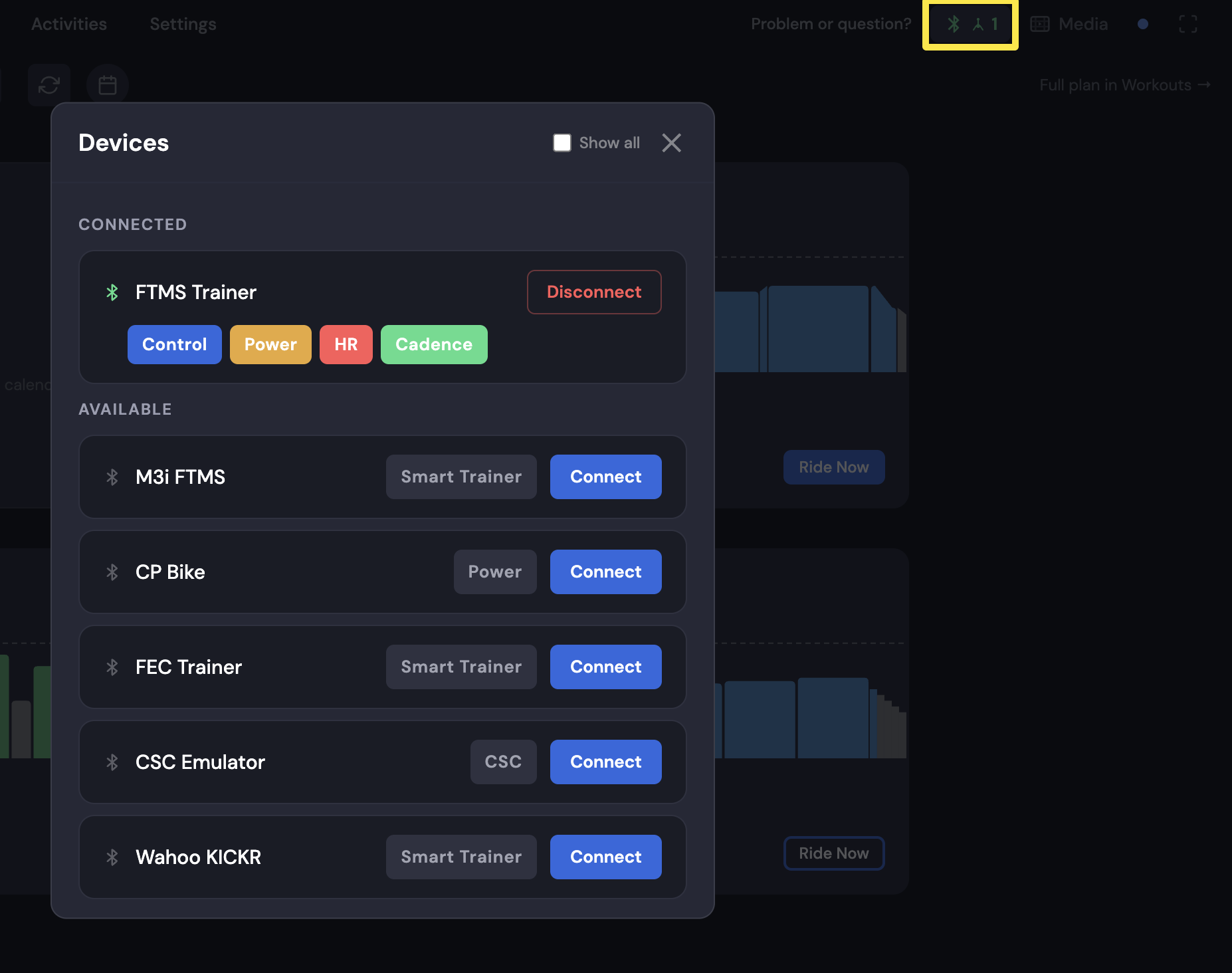 Where: Desktop app · Today tab
- Find your trainer. If it shows Paired · Searching… or Paired · Found, can't connect with a pulsing blue Bluetooth icon, it is remembered but not connected.
- Click Not connecting? under its name and answer the questions. Try what it lists: pedal to wake the trainer, close Zwift and other apps, unplug the trainer for 10 seconds, remove it from the computer's Bluetooth settings, restart.
- If it still fails, open Devices again, click Forget, wake the trainer and connect it again from AVAILABLE.
In the mobile app:
- Open the Settings tab and tap Add Devices.
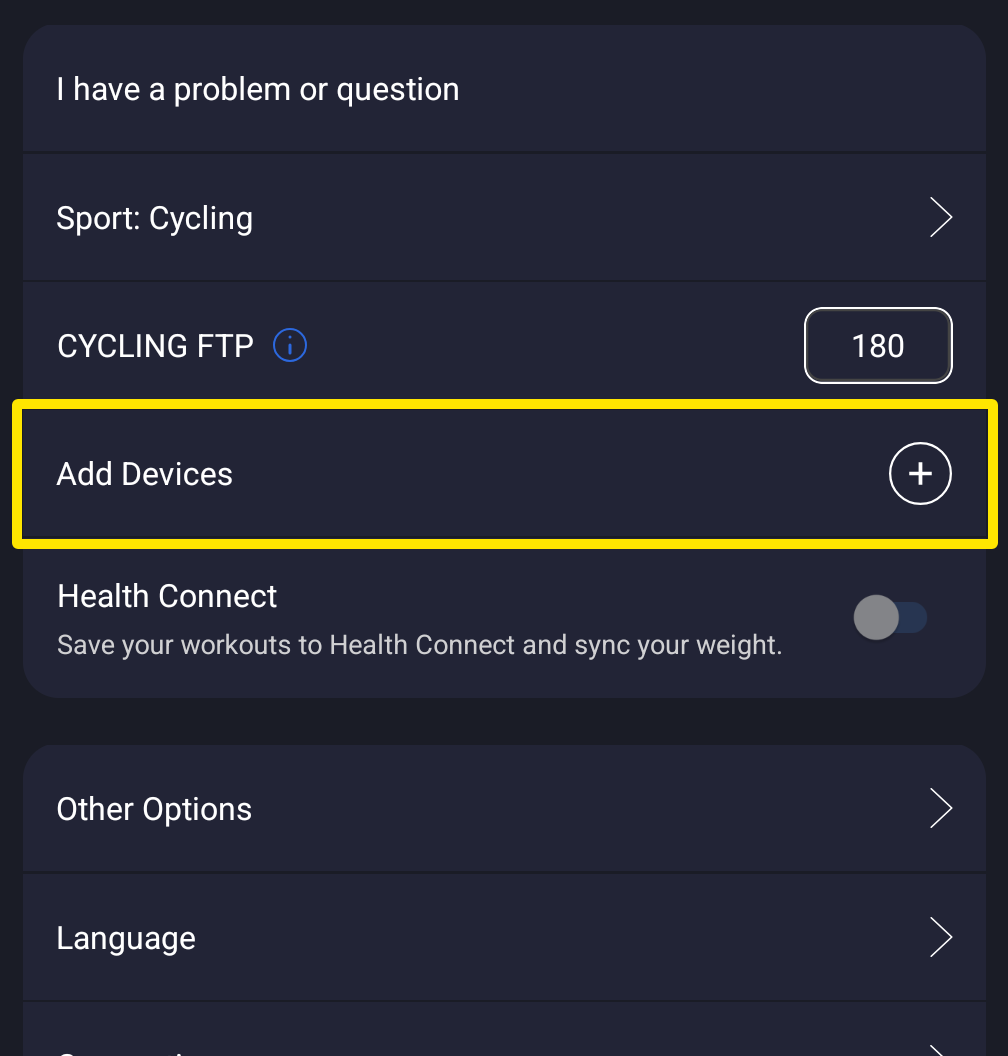 Where: Mobile app · Settings tab
- Your trainer is under Not in range. Tap − to remove it, then add it again from Available.
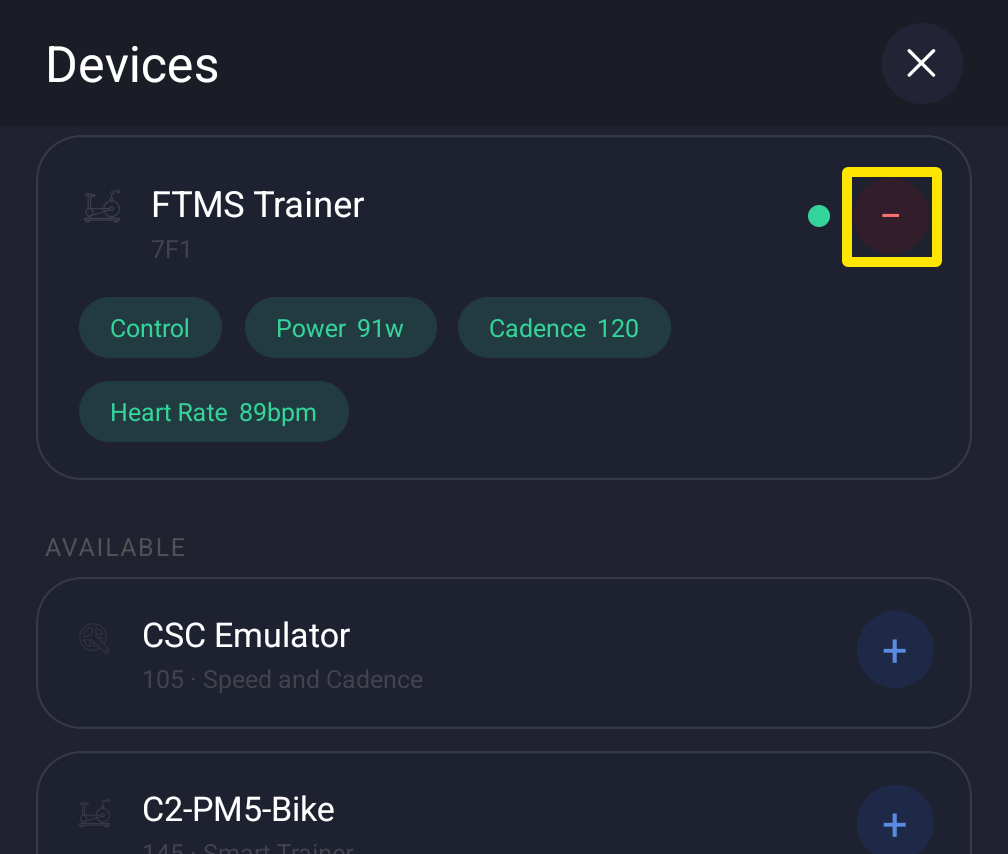 Where: Mobile app · Settings tab → Add Devices
Good to know: A trainer connects to only one app at a time, so close the mobile app when riding with the desktop app, and pair devices only inside TrainerDay.
Works on: desktop app and mobile app, not the website.