

How do I pair my trainer and sensors in TrainerDay instead of my phone's Bluetooth settings?
Pair your trainer and sensors inside the TrainerDay mobile or desktop app, not in your phone's Bluetooth settings: first forget any device already paired there, then add it from TrainerDay's Settings tab under Add Devices.
- Before opening TrainerDay, open your phone's own Settings app → Bluetooth. If your trainer or sensor is already paired there, tap Unpair or Forget.
- Open the TrainerDay mobile app, go to the Settings tab and tap Add Devices. Allow Bluetooth if asked.
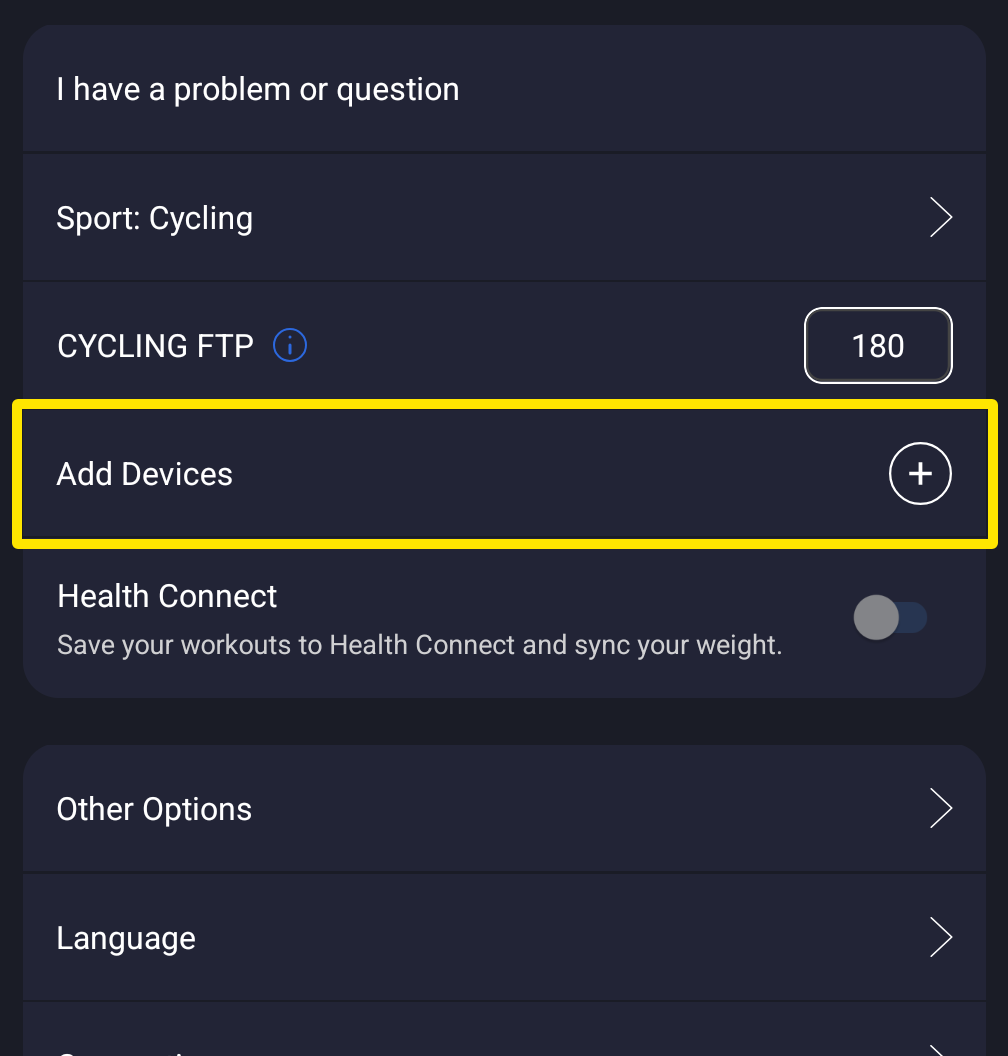 Where: Mobile app · Settings tab
- Wake the trainer or sensor. When it appears under Available, tap the + next to it.
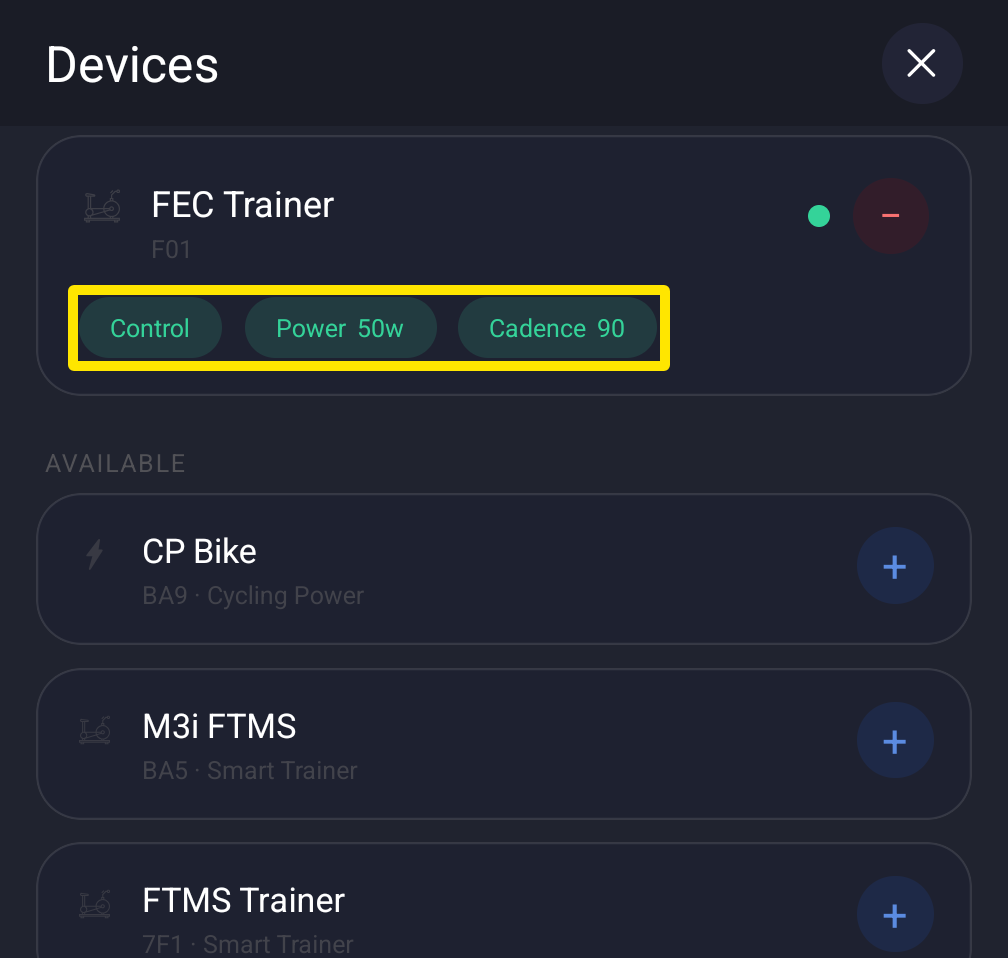 Where: Mobile app · Settings tab → Add Devices
- Repeat for each device, then tap Done.
In the desktop app instead:
- In the desktop app, click the Bluetooth/ANT+ button at the top right. In the Devices window, click Connect next to each device.
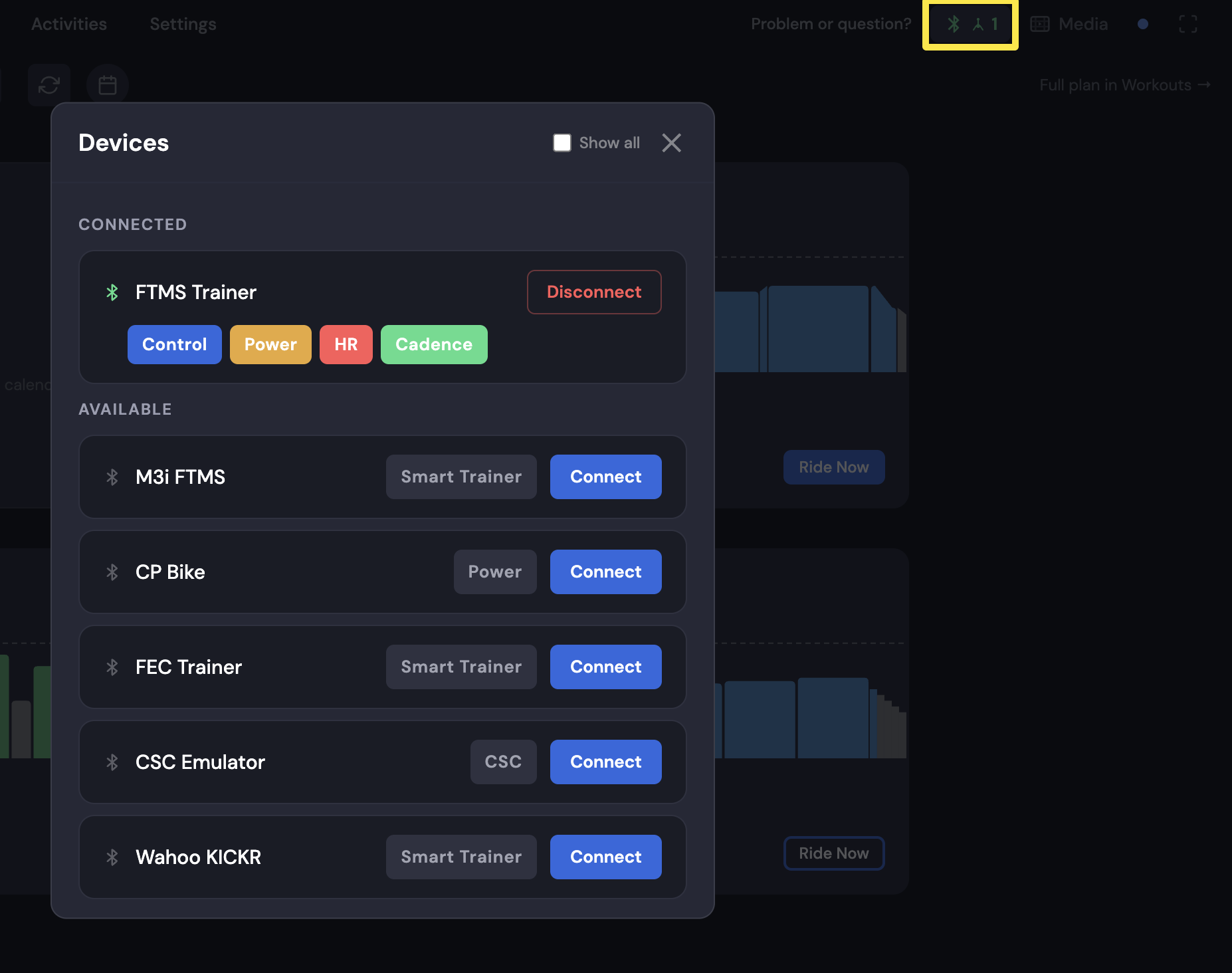 Where: Desktop app · Bluetooth/ANT+ button at the top right → Devices
Good to know: A trainer connects to only one app at a time, so close the mobile app and apps like Zwift when riding with the desktop app.
Works on: Mobile app and desktop app (ANT+ only in the Mac and Windows desktop app with a USB ANT+ adapter); not the website.