

How do I remove a device and connect it again in TrainerDay?
In the mobile app, open the Devices screen from Settings → Add Devices, tap − to forget the device, then tap + under Available to connect it again (desktop app: Devices → Forget, then Connect).
- In the mobile app, open the Settings tab and tap Add Devices. During a workout, tap the device counter at the top instead. It opens the same Devices screen.
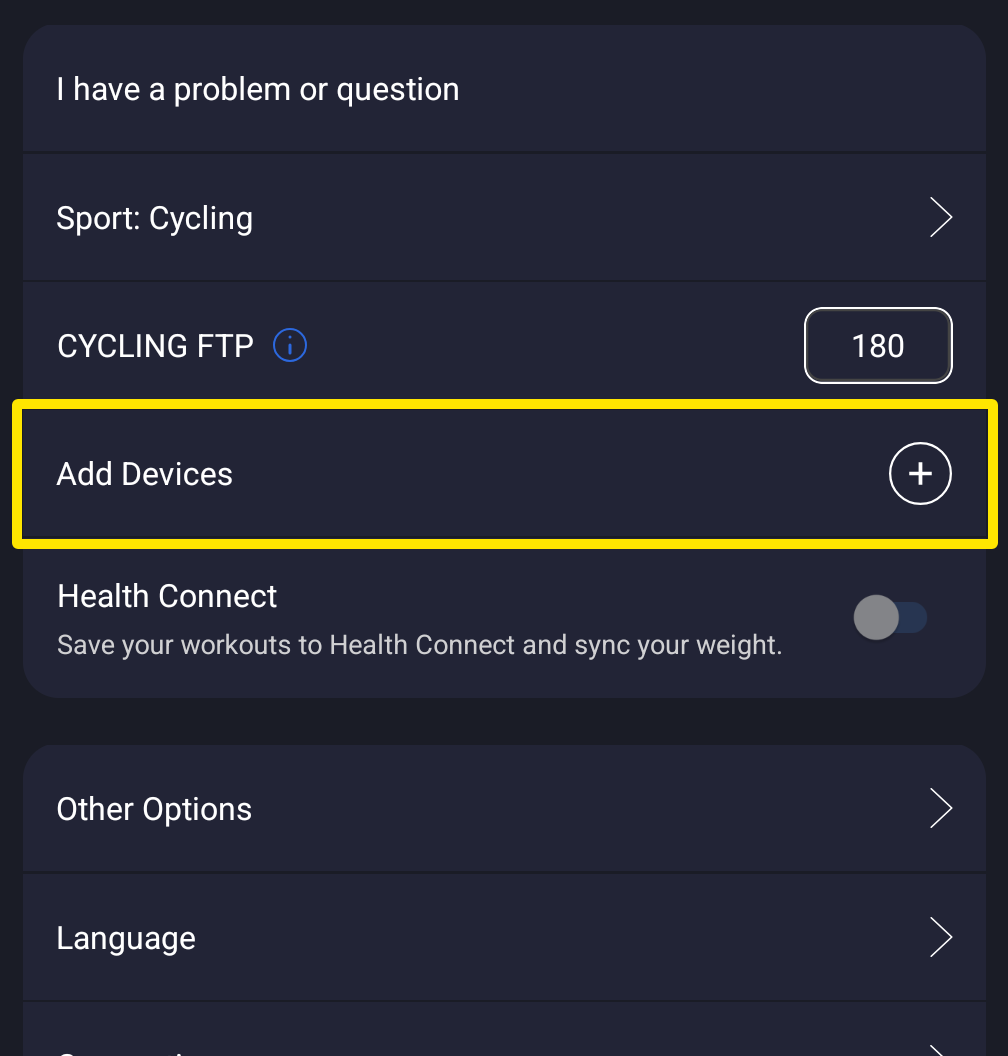 Where: Mobile app · Settings tab
- On the Devices screen, tap the − next to the device. It is disconnected and forgotten.
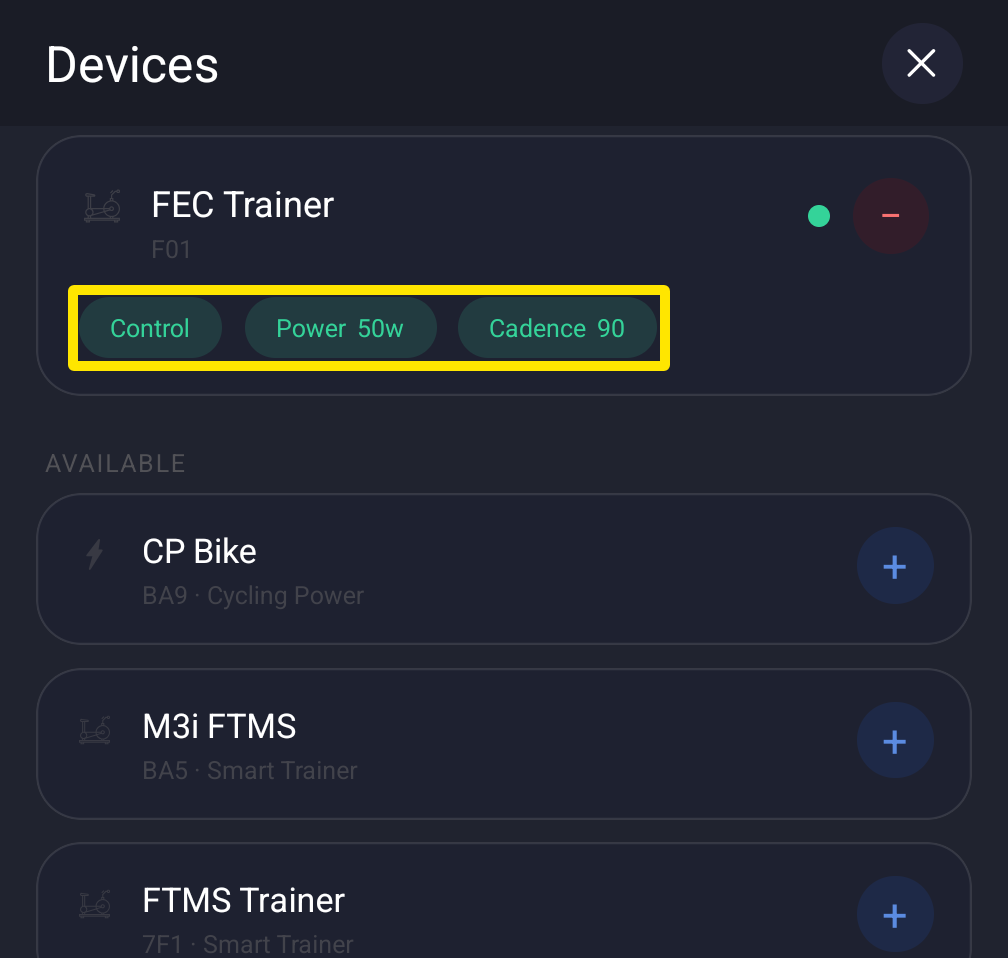 Where: Mobile app · Settings tab → Add Devices
- Wake the device: pedal, or put the strap on. It appears under Available.
- Tap + next to it to connect it again, then tap Done.
In the desktop app:
- Click the Bluetooth/ANT+ button at the top right to open Devices.
- Click Disconnect on a connected device, or Forget on a paired one.
- Click Connect next to the device under AVAILABLE.
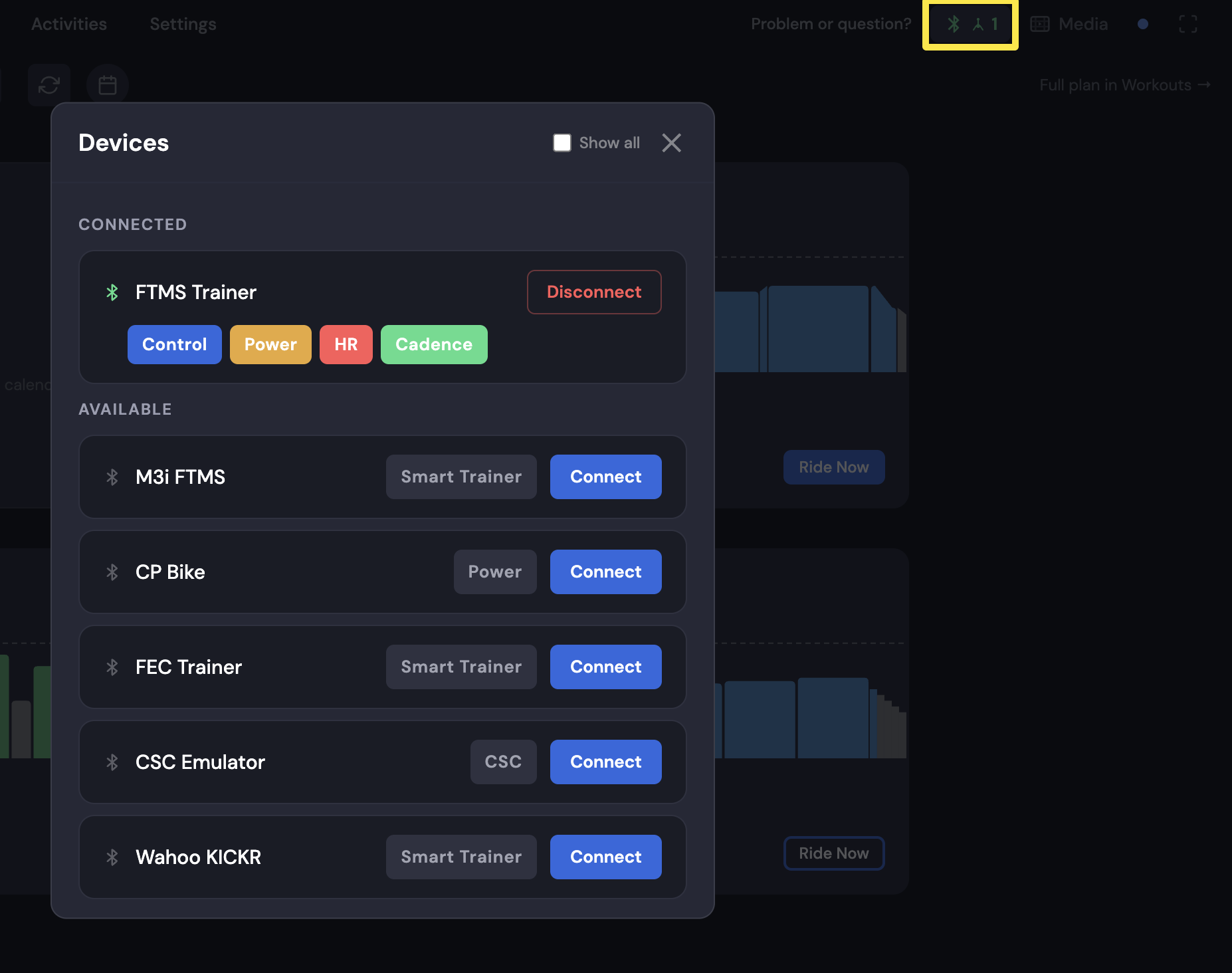 Where: Desktop app · Bluetooth/ANT+ button at the top right → Devices
Good to know: A trainer connects to only one app at a time, so close Zwift or other apps first. Pair devices only inside TrainerDay, not in your phone or computer Bluetooth settings.
Works on: Mobile app and desktop app. Not available on the website.