

How do I check a Bluetooth connection in the Linux desktop app?
Open Devices from the Bluetooth button in the Linux desktop app, read the Bluetooth status line, and connect your device to see whether it moves to CONNECTED.
- Install TrainerDay on Linux from the Linux (.deb) download at trainerday.com/download. The AppImage version cannot use Bluetooth.
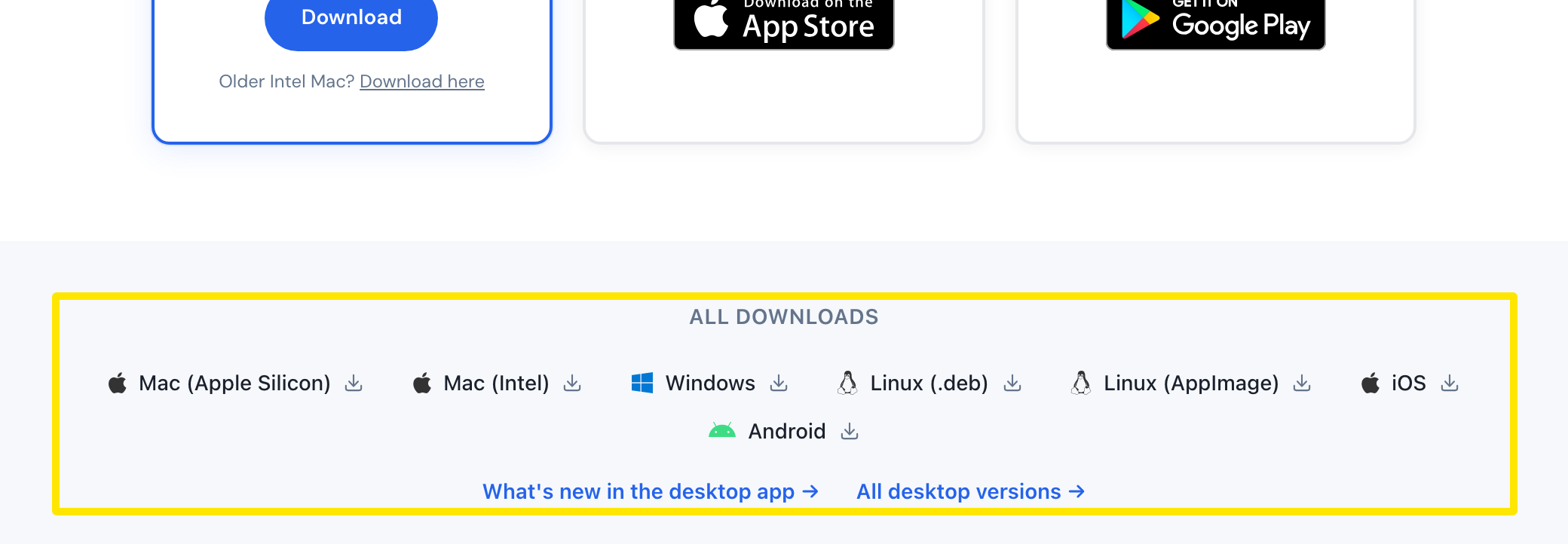 Where: Website · trainerday.com/download · open it
- In the desktop app, click the Bluetooth button at the top right to open Devices.
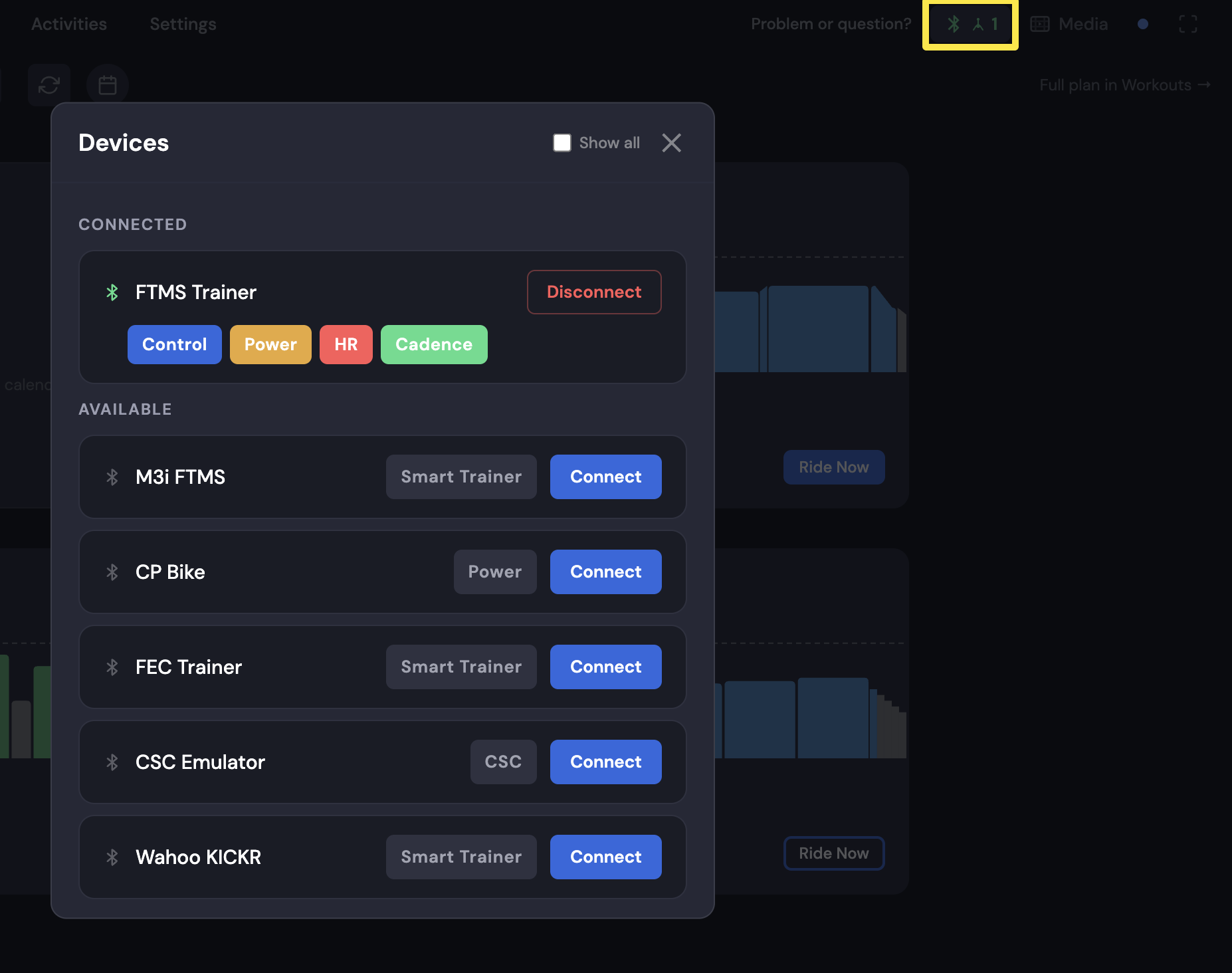 Where: Desktop app · Today tab
- Read the status line at the top of Devices. A green Bluetooth ready means Bluetooth works. Bluetooth off, Bluetooth not allowed, No Bluetooth or Bluetooth starting… mean it does not work yet.
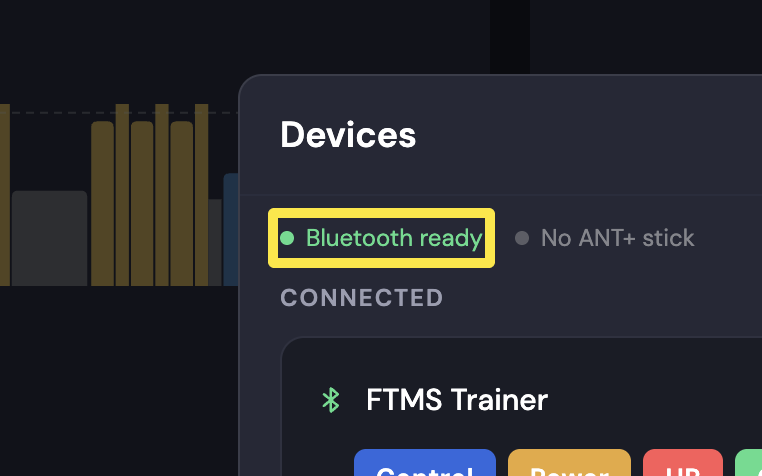 Where: Desktop app · Today tab
- Click Connect next to your device under AVAILABLE. If it works, the device moves to CONNECTED and shows Control, Power, HR or Cadence. If it shows Paired · Found, can't connect, the connection is failing.
 Where: Desktop app · Today tab
- If your device is missing or will not connect, click Can't find your device? or Not connecting? in Devices to see the checklist.
Good to know: Pair your trainer and sensors only inside TrainerDay, not in your computer's Bluetooth settings. Pairing them there can block the TrainerDay connection.
Works on: The Linux, Mac and Windows desktop apps use the same Devices window. The mobile app has its own Devices screen (Settings → Add Devices).