

How do I connect sensors on the Linux desktop app?
Install the Linux .deb version of the TrainerDay desktop app, then click the Bluetooth / ANT+ icon at the top right to open Devices and click Connect next to each sensor.
- Go to trainerday.com/download, download Linux (.deb) and install it.
 Where: Website · trainerday.com/download · open it
- Open the desktop app and click the Bluetooth / ANT+ icon button at the top right. The Devices window opens and starts scanning.
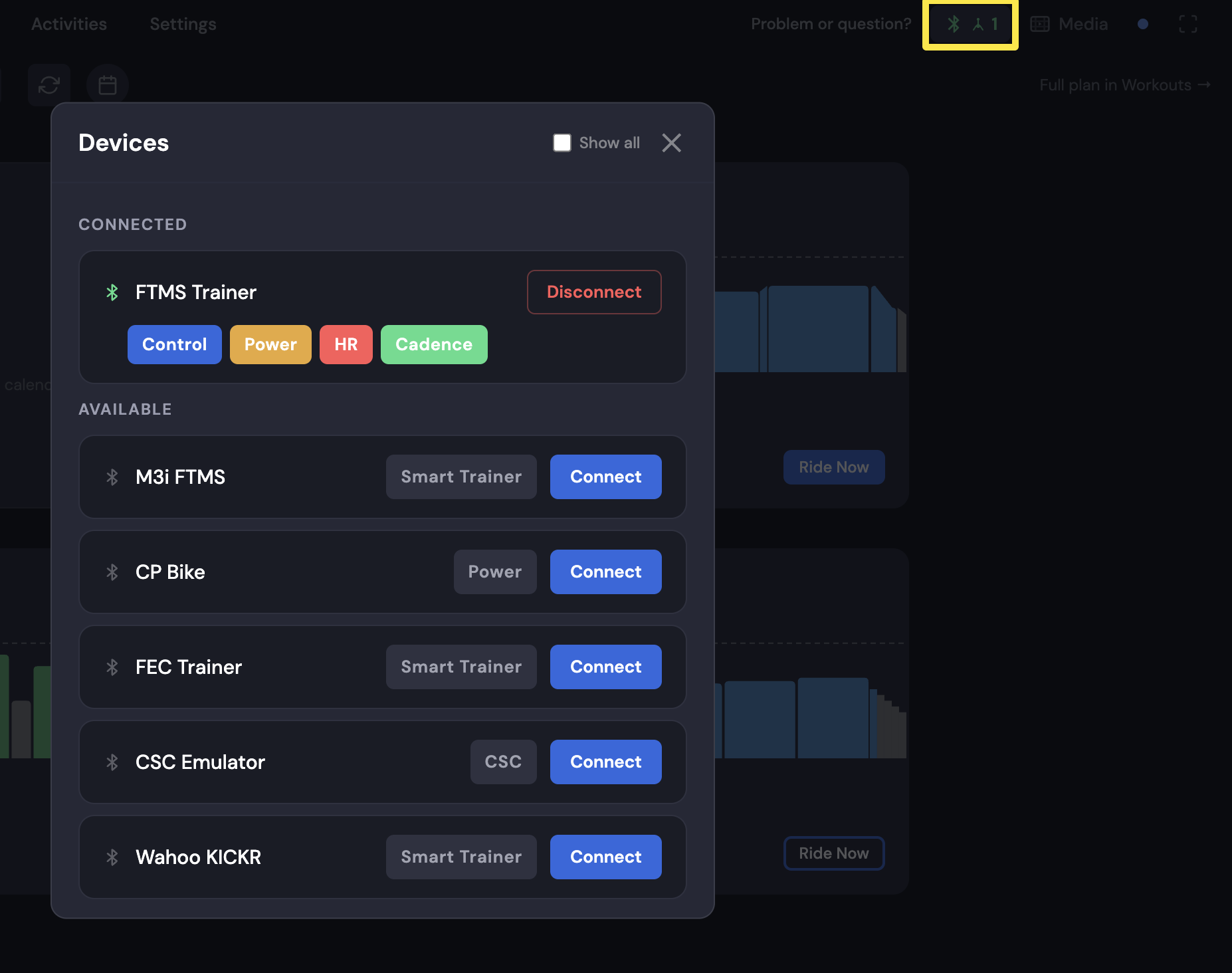 Where: Desktop app · Today tab
- Wake your sensors and click Connect next to each one.
 Where: Desktop app · Today tab
- Nothing shows up? Plug in a USB Bluetooth adapter. The app uses it automatically.
- ANT+ USB stick: run once in a terminal
curl -fsSL https://download.trainerday.com/linux/setup-antplus.sh | sudo bash, then unplug and replug the stick and restart TrainerDay.
Good to know: The AppImage version cannot use Bluetooth. Use the .deb.