

How do I connect ANT+ sensors through a CABLE bridge?
Set up your CABLE bridge in CABLE's own app, then connect it in TrainerDay's desktop or mobile app as a Bluetooth smart trainer named ">CABLE" and assign the sensor functions you need.
- In CABLE's own app, set up the CABLE bridge with your ANT+ sensors.
- Close Zwift and any other app that could be connected to CABLE. It talks to one app at a time.
- Desktop app: click the Bluetooth / ANT+ icon button at the top right to open Devices.
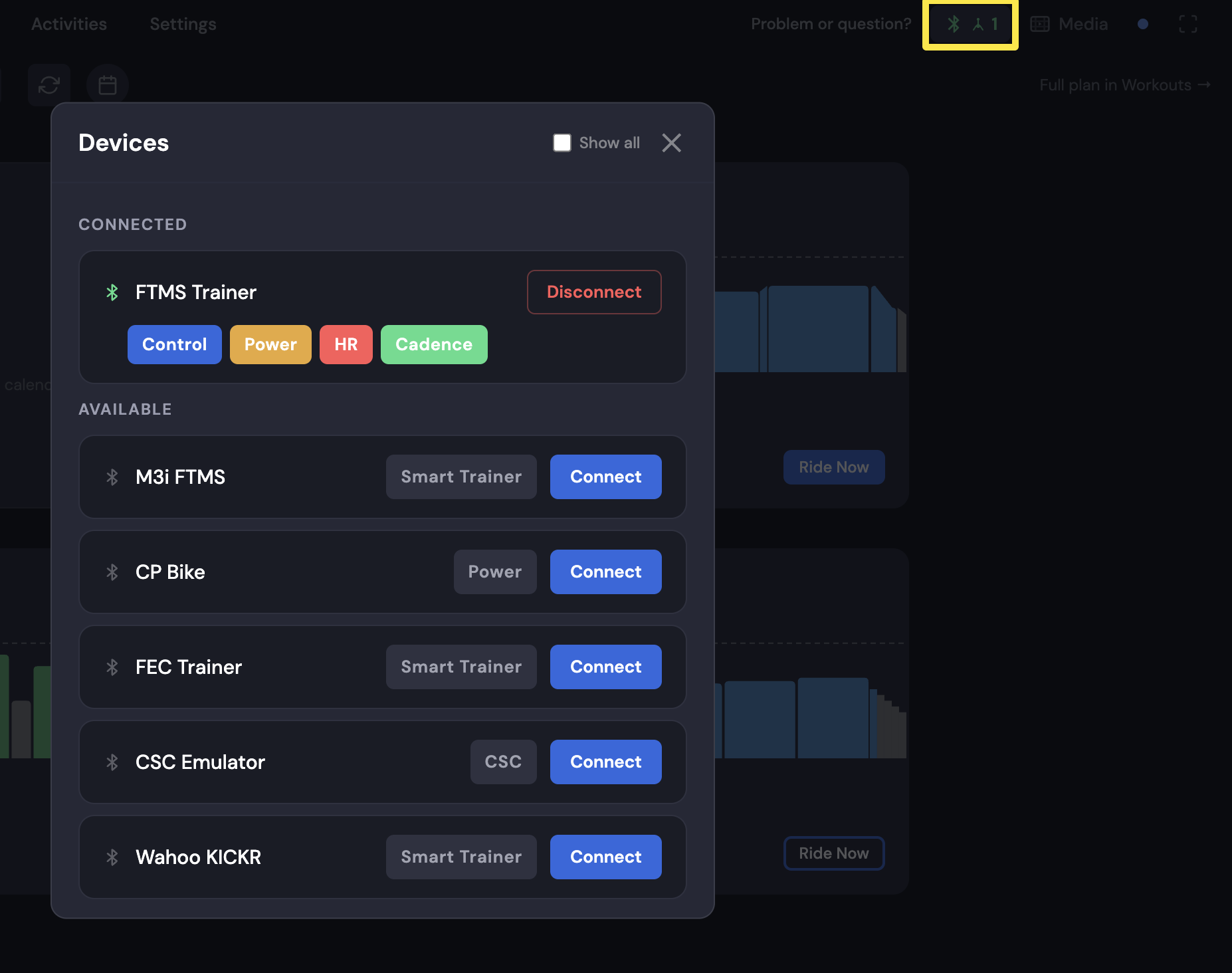 Where: Desktop app · Today tab → Bluetooth / ANT+ icon → Devices
Mobile app: open the Settings tab, then tap Add Devices to open Devices.
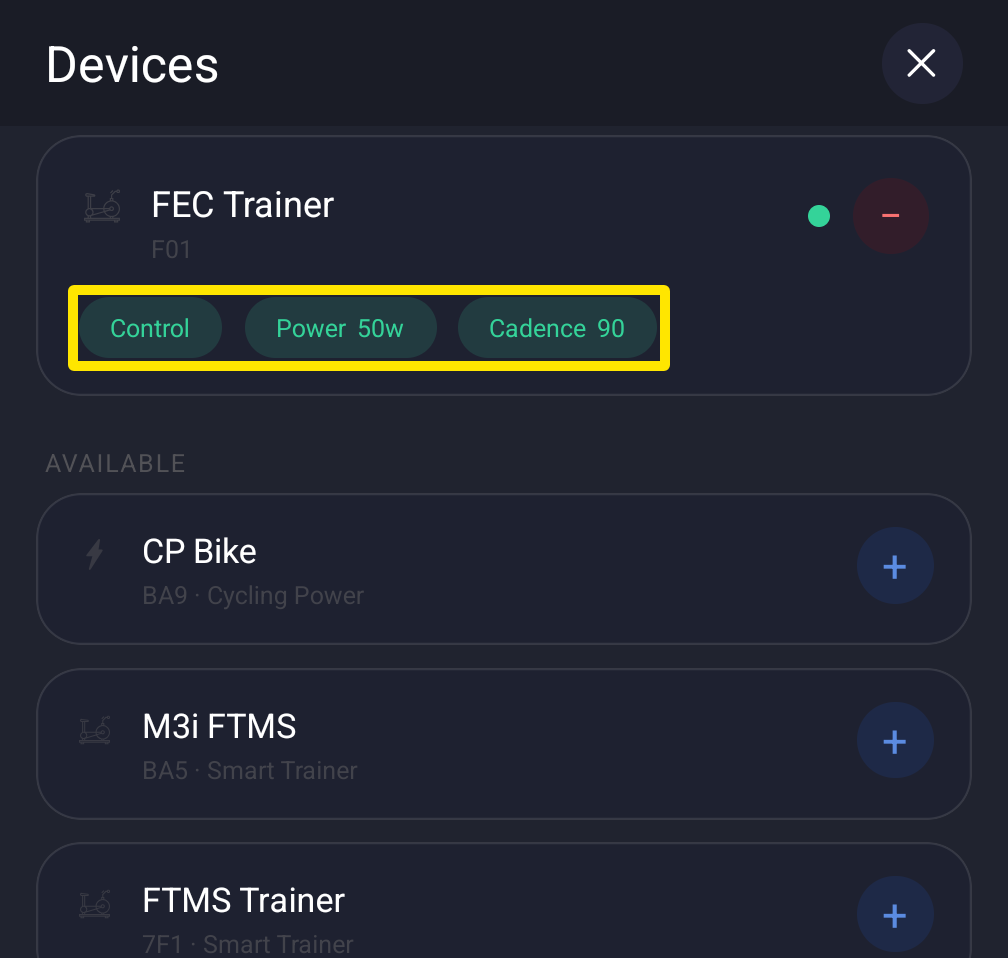 Where: Mobile app · Settings tab → Add Devices → Devices
- CABLE shows up as a Bluetooth smart trainer named >CABLE. Desktop: click Connect. Mobile: tap +.
 Where: Desktop app · Today tab → Bluetooth / ANT+ icon → Devices
- In the same Devices window, check that the sensor functions you need are assigned: Power, Cadence, Heart Rate for a heart rate strap, and Control if CABLE bridges a smart trainer. An unassigned sensor function shows a +. Tap it to assign it.
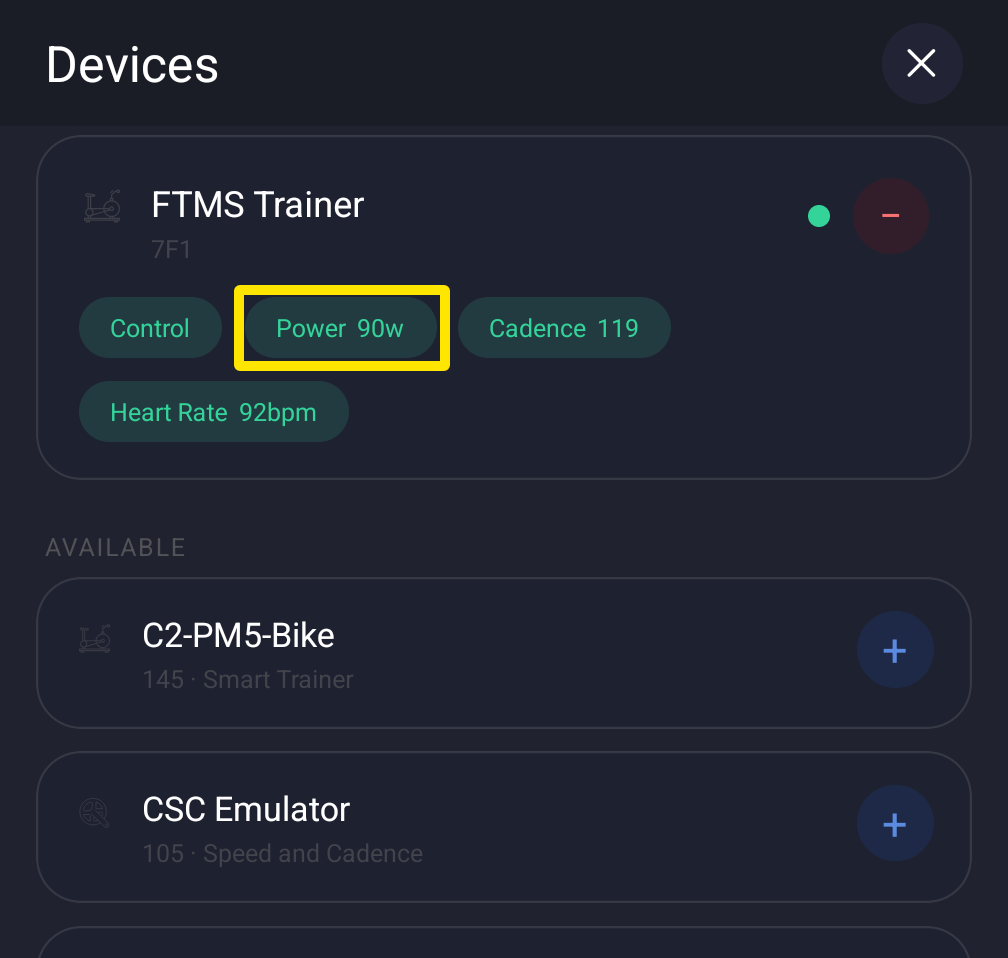 Where: Mobile app · Settings tab → Add Devices → Devices
Good to know: TrainerDay has no CABLE-specific setting. Without CABLE, ANT+ sensors need the desktop app with an ANT+ USB stick.
Works on: desktop app and mobile app, the same way.