

How do I pick a Bluetooth adapter for the desktop app?
In the desktop app, open the Devices window to check whether your computer's own Bluetooth works; if it says "No Bluetooth", plug in any USB Bluetooth adapter that supports Bluetooth Low Energy, since TrainerDay has no list of approved adapters.
- In the desktop app, click the Bluetooth / ANT+ icon button at the top right. The Devices window opens and starts scanning.
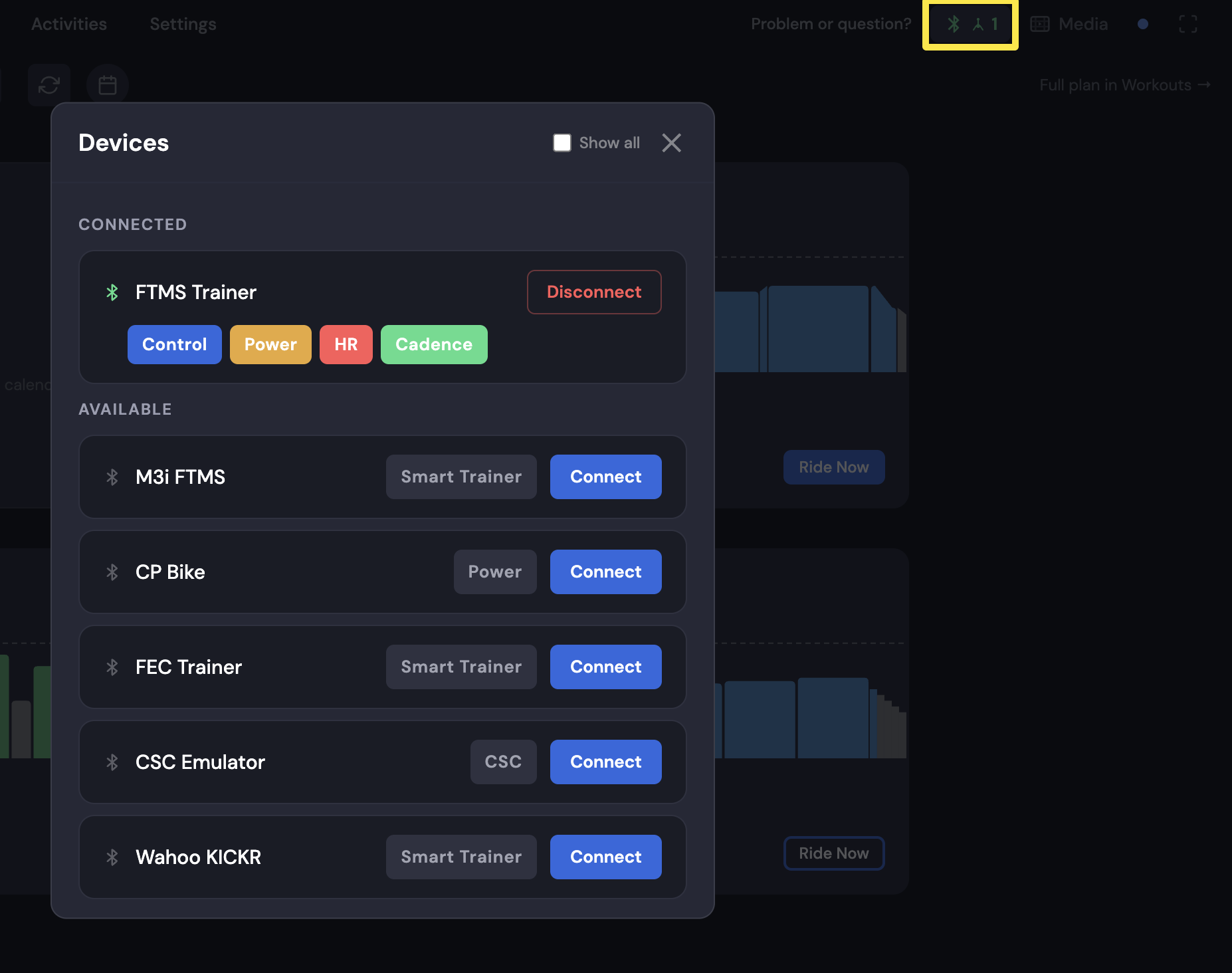 Where: Desktop app · Today tab
- Check the top line of the Devices window. If it says Bluetooth ready, your computer's own Bluetooth works and you don't need an adapter.
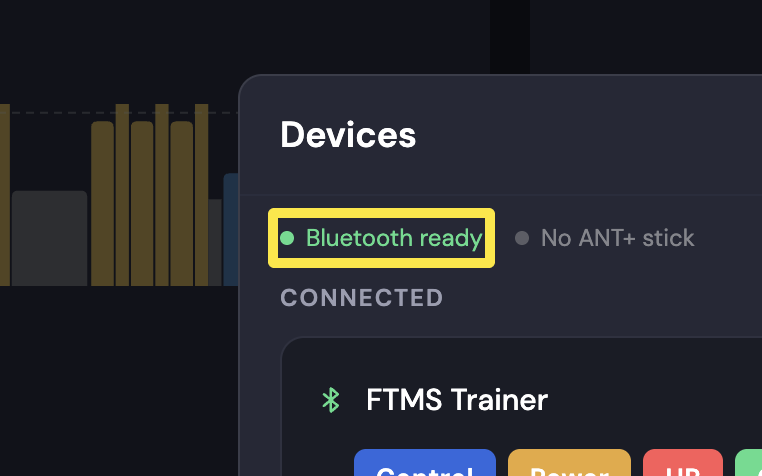 Where: Desktop app · Today tab
- If it says No Bluetooth, plug in a USB Bluetooth adapter that supports Bluetooth Low Energy (Bluetooth 4.0 or newer).
- On Windows, open Settings > Bluetooth & devices and check that Bluetooth can be switched on. If you have two adapters, keep only one enabled. On Linux, the app uses the USB adapter automatically.
Good to know: No specific adapter is required. The app uses whatever Bluetooth adapter your computer uses, so any adapter with Bluetooth Low Energy works. For ANT+ devices, you can use an ANT+ USB stick instead.