

How do I show a message on screen for an interval?
Add a note to the interval in the Create Workout editor on the TrainerDay website, save the workout, and the message pops up on screen when you ride it in the mobile or desktop app.
- On the website, click Create Workout in the left sidebar (app.trainerday.com/workouts/create), or open one of your workouts in the editor.
- Build the intervals, then click the Notes cell of the row where the message should show. The Notes panel opens.
- Click Add note. Type the offset in seconds from the start of the interval (0 = right at the start) and the message text. Add more notes the same way.
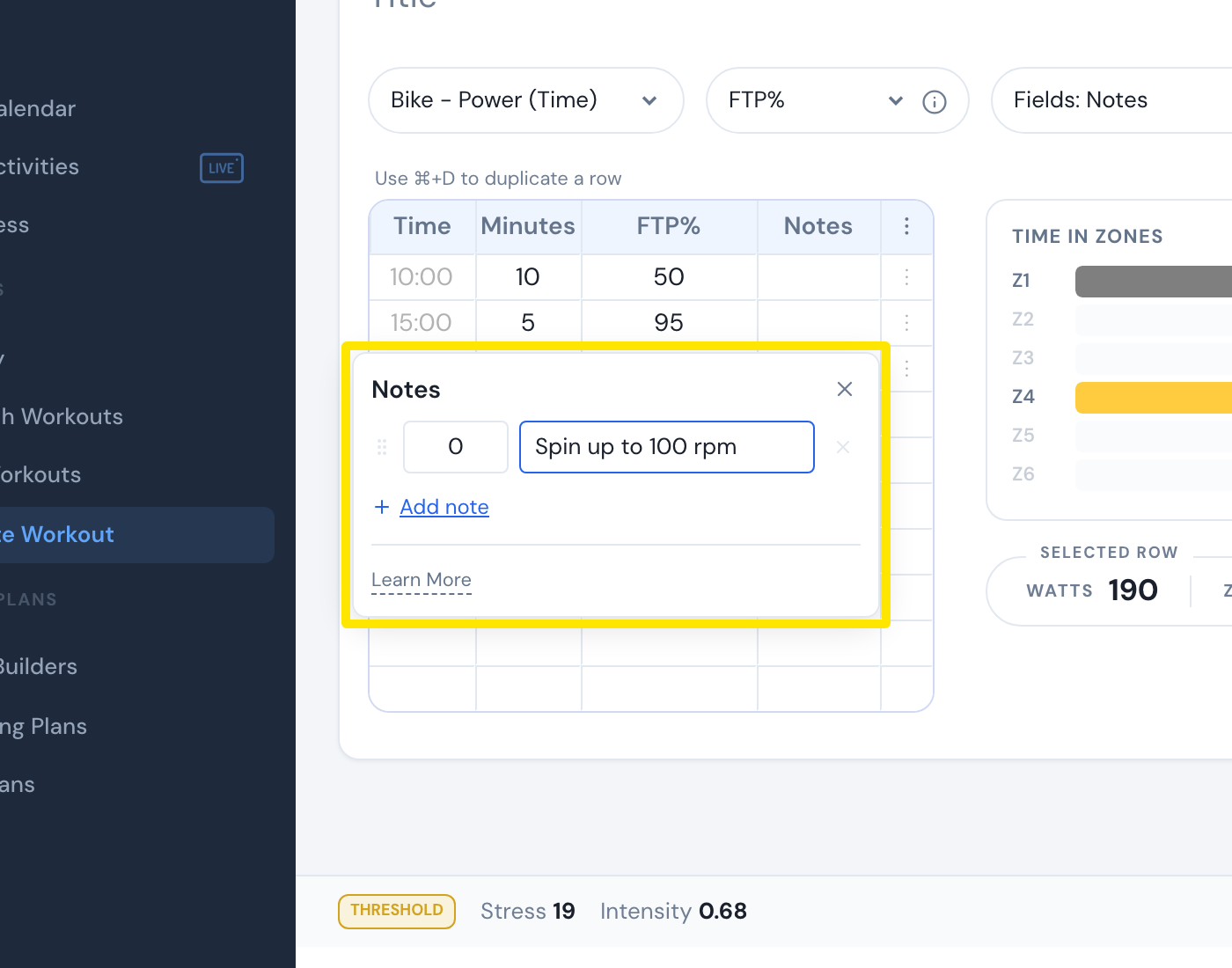 Where: Website · Create Workout → a row's Notes cell · open it
- Click Save workout.
- Ride the workout in the mobile or desktop app. The message pops up on screen at that second, and dots on the chart show where the notes are.
Good to know: Messages show for a few seconds, not the whole interval. In the desktop app, Settings → Long-Lasting Comments keeps each message on screen until the interval ends.
Works on: Notes are written only on the website; they show in the mobile and desktop apps, and also go to Zwift/MyWhoosh in ZWO files.