

How do I see the next interval's target during a ride?
During a ride in the TrainerDay mobile or desktop app, the next interval's length, target and zone badge show on the workout screen: in the bar under the Target and Watts tiles on mobile, and in the NEXT tile on desktop.
- In the TrainerDay mobile or desktop app, start a workout with Ride Now.
- Mobile app: on the workout screen, look under the Target and Watts tiles. The next interval shows its length, its target and a zone badge. The target is in watts (a range for a ramp), BPM for an HR+ interval, or slope % for a slope interval.
- Mobile app: tap the Target or Watts tile to switch the next target between watts and % of FTP.
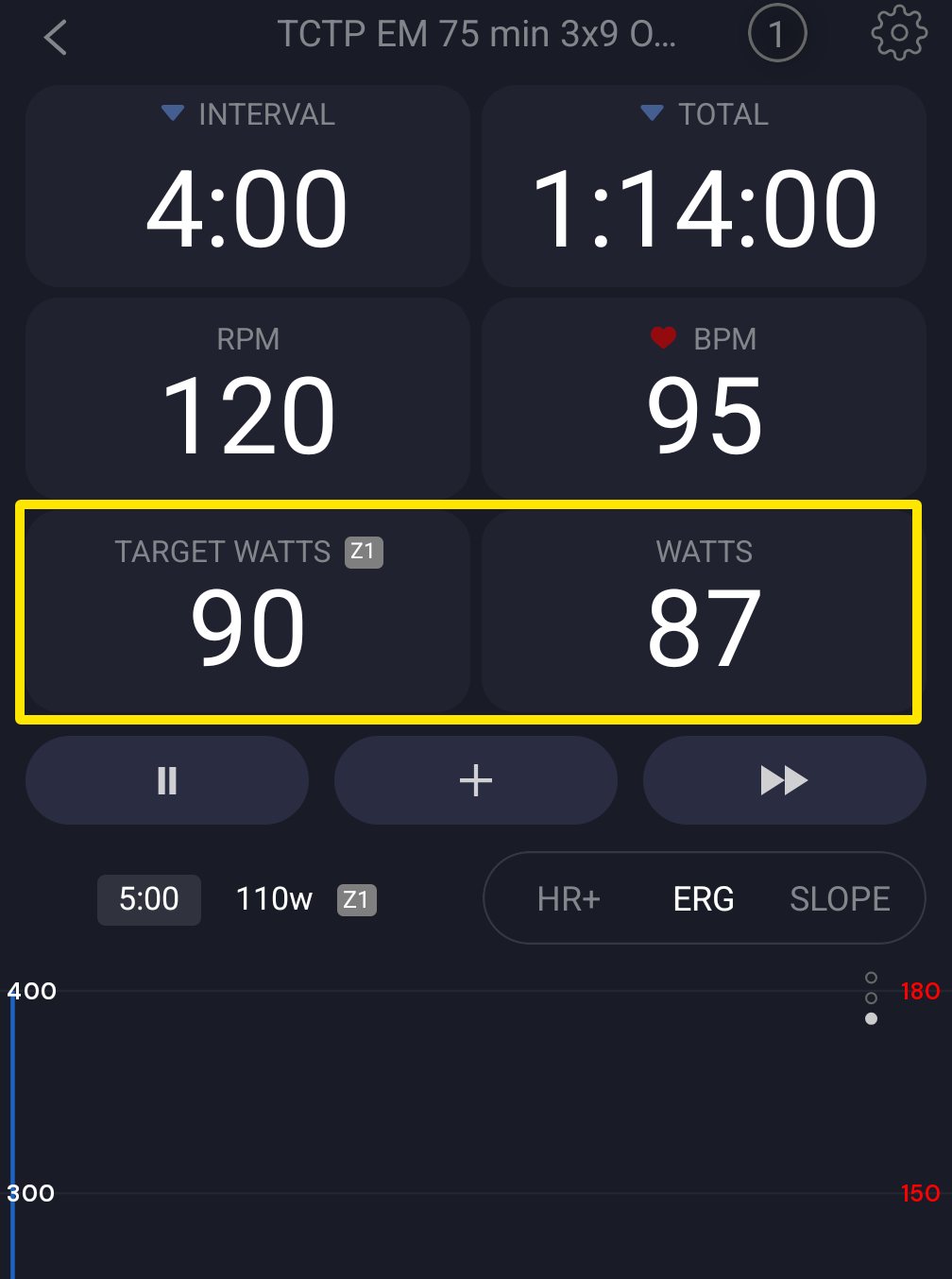 Where: Mobile app · the workout screen during a ride
- Desktop app: on the workout screen, look at the NEXT tile. It shows length @ target, for example "5:00 @ 110 W", with a zone badge.
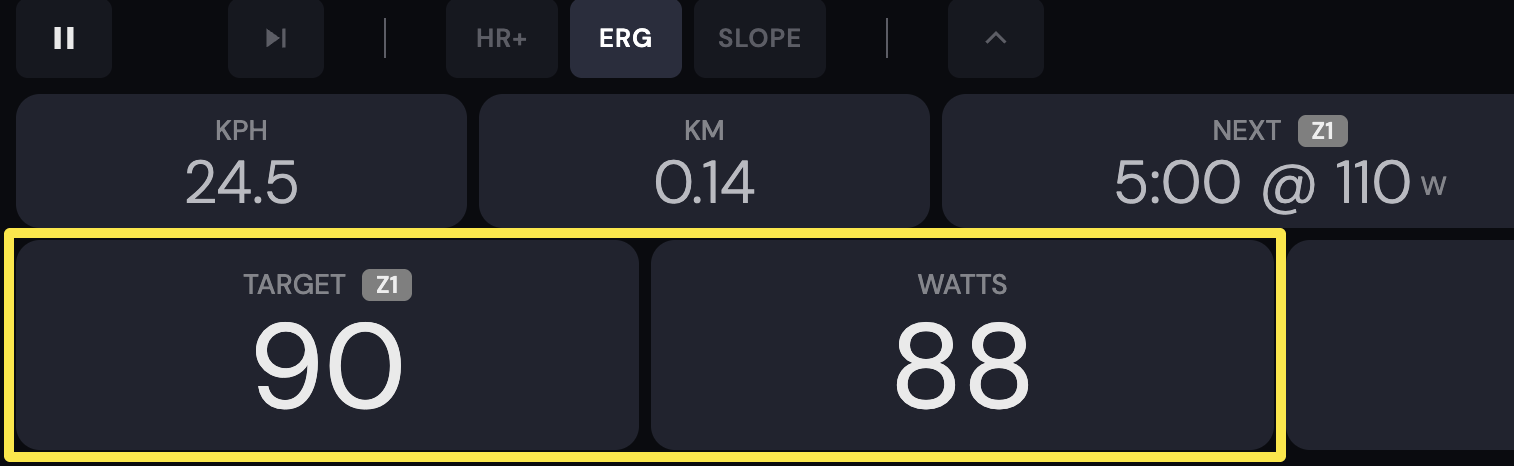 Where: Desktop app · the workout screen during a ride (Today tab → Ride Now)
Good to know: The desktop NEXT tile blinks in the last 5 seconds of an interval and is hidden on the last interval. Only mobile can show % of FTP.
Works on: Mobile app and desktop app. The website has no workout player.