

How do I see my cadence target while I ride?
While you ride a workout with cadence targets in the TrainerDay mobile or desktop app, the target shows as two small numbers in the bottom corners of the RPM tile, and your cadence turns red when you are outside it.
If your workout doesn't have cadence targets yet, add them first: see How do I add a cadence target to a workout?
- In the mobile app, open the Settings tab, tap Add Devices and connect a cadence source (trainer, power meter or cadence sensor). Its card shows a Cadence tag.
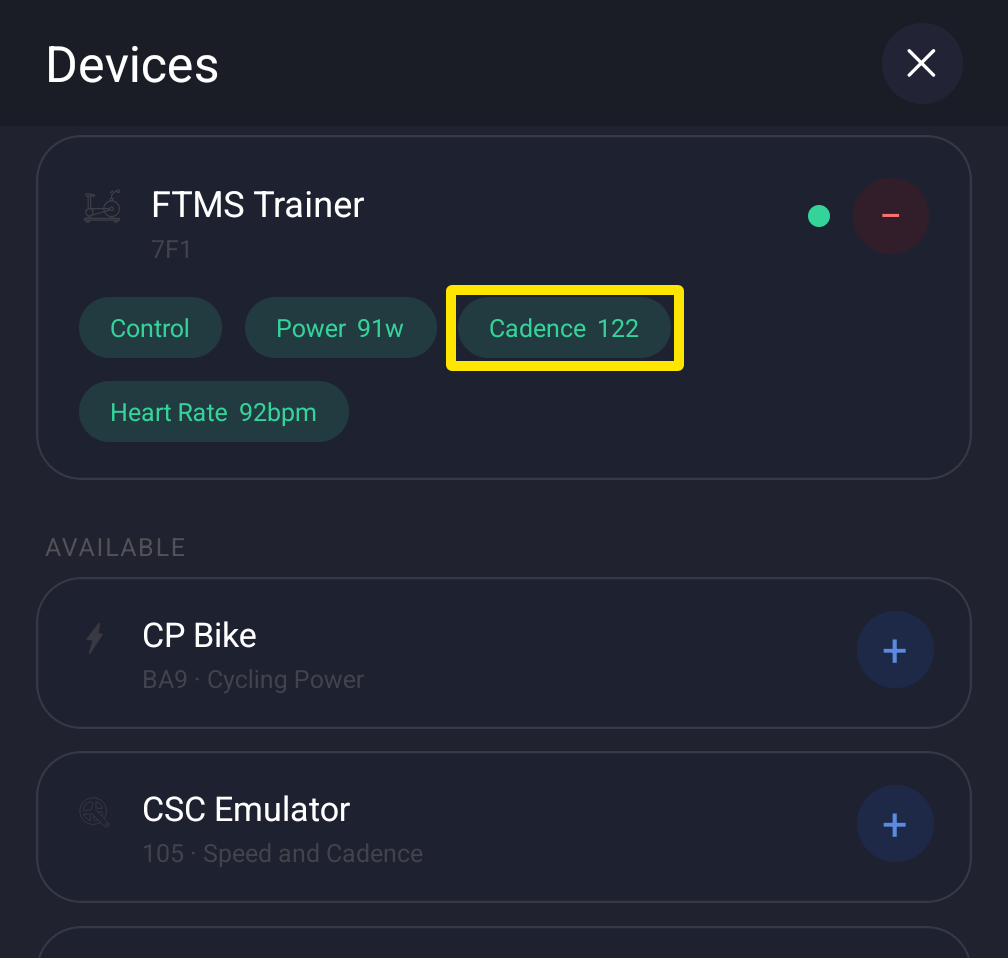 Where: Mobile app · Settings tab → Add Devices
- Close Devices and ride a workout that has cadence targets.
- During an interval with a cadence target, look at the RPM tile: the low target is the small number at the bottom left, the high target at the bottom right. A single target like 90 shows as 81 and 99.
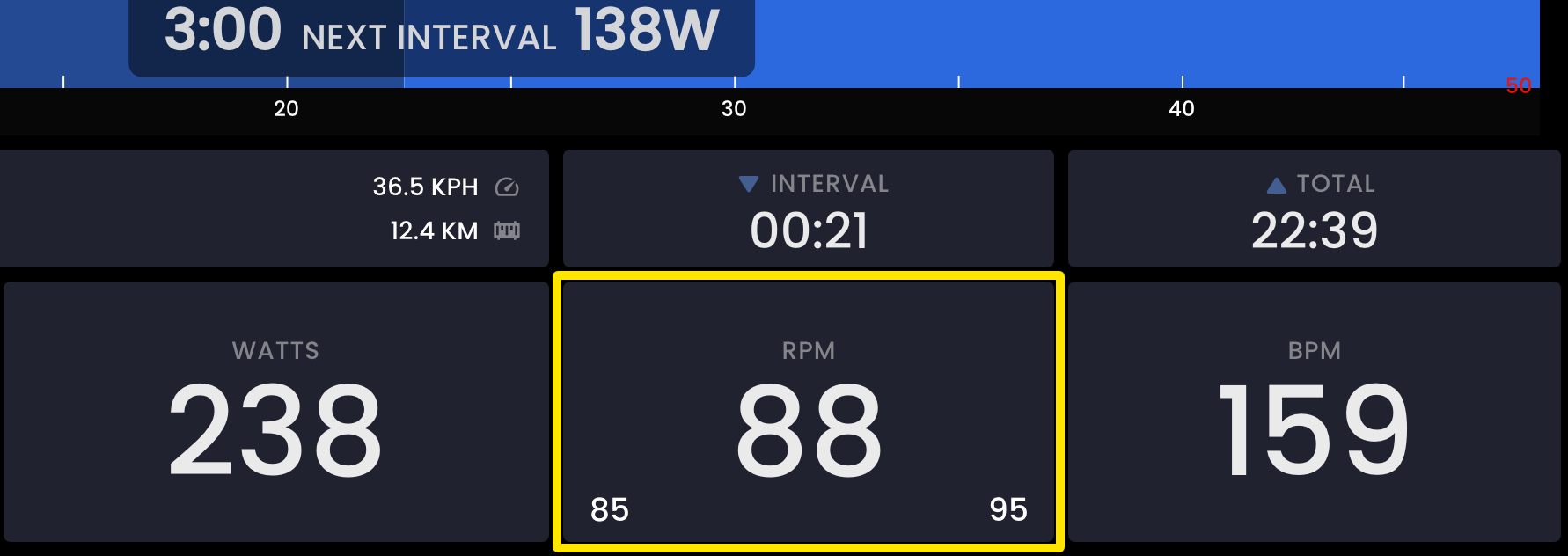 Where: Website · Live viewer · open it
- Your cadence number turns red when it is outside that range.
Good to know: Only the current interval's cadence target shows, not the next one's.
Works on: mobile and desktop apps (desktop shows the same two numbers and red cadence).