

我要怎麼把 TrainerDay 日曆連接到 Google 日曆?
在 TrainerDay 網站的連接中連上 Google 日曆,再從我的計劃把計畫傳送到 Google 日曆,它會以一次性副本的形式放在獨立的日曆裡。
如果你希望 TrainerDay 訓練有變動時 Google 日曆也跟著更新,請改用 TrainerDay 日曆的 .ics 訂閱連結,而不是傳送一次性的副本:我要怎麼用 .ics 訂閱把 TrainerDay 訓練加到 Apple 行事曆或其他日曆 App?
- 在 TrainerDay 網站上,打開左側欄底部的設定選單(齒輪圖示),點 連接(app.trainerday.com/apps-and-devices),然後連接 Google 日曆。
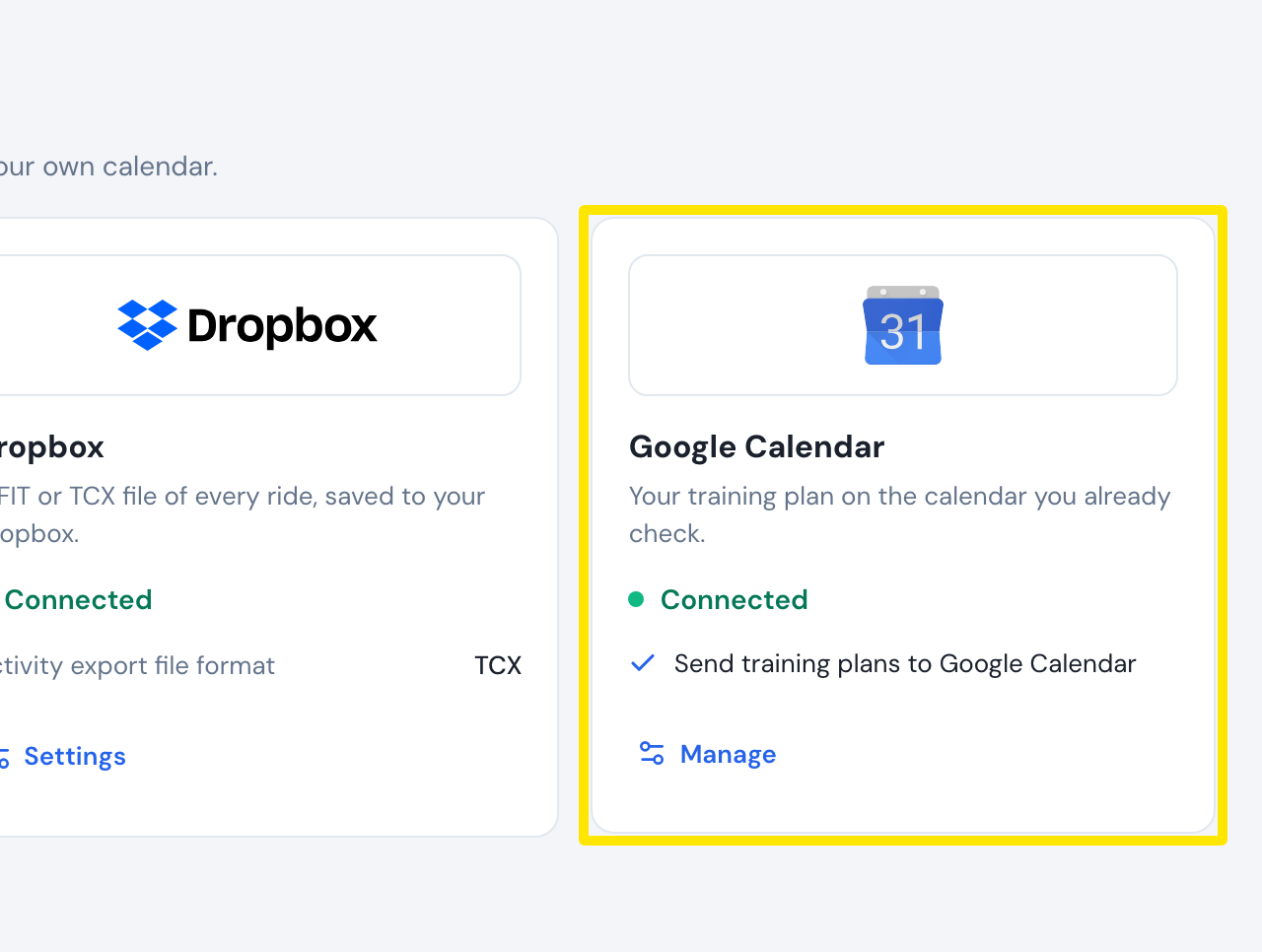 位置:網站 · 連接 · 前往
- 打開 我的計劃(app.trainerday.com/plans),點該計畫的三點按鈕,選擇 Send or Download。
- 在 發送計畫 視窗中選 傳送,把 目的地 設為 至 Google 行事曆,選好 開始週日期,再點 發送計畫。
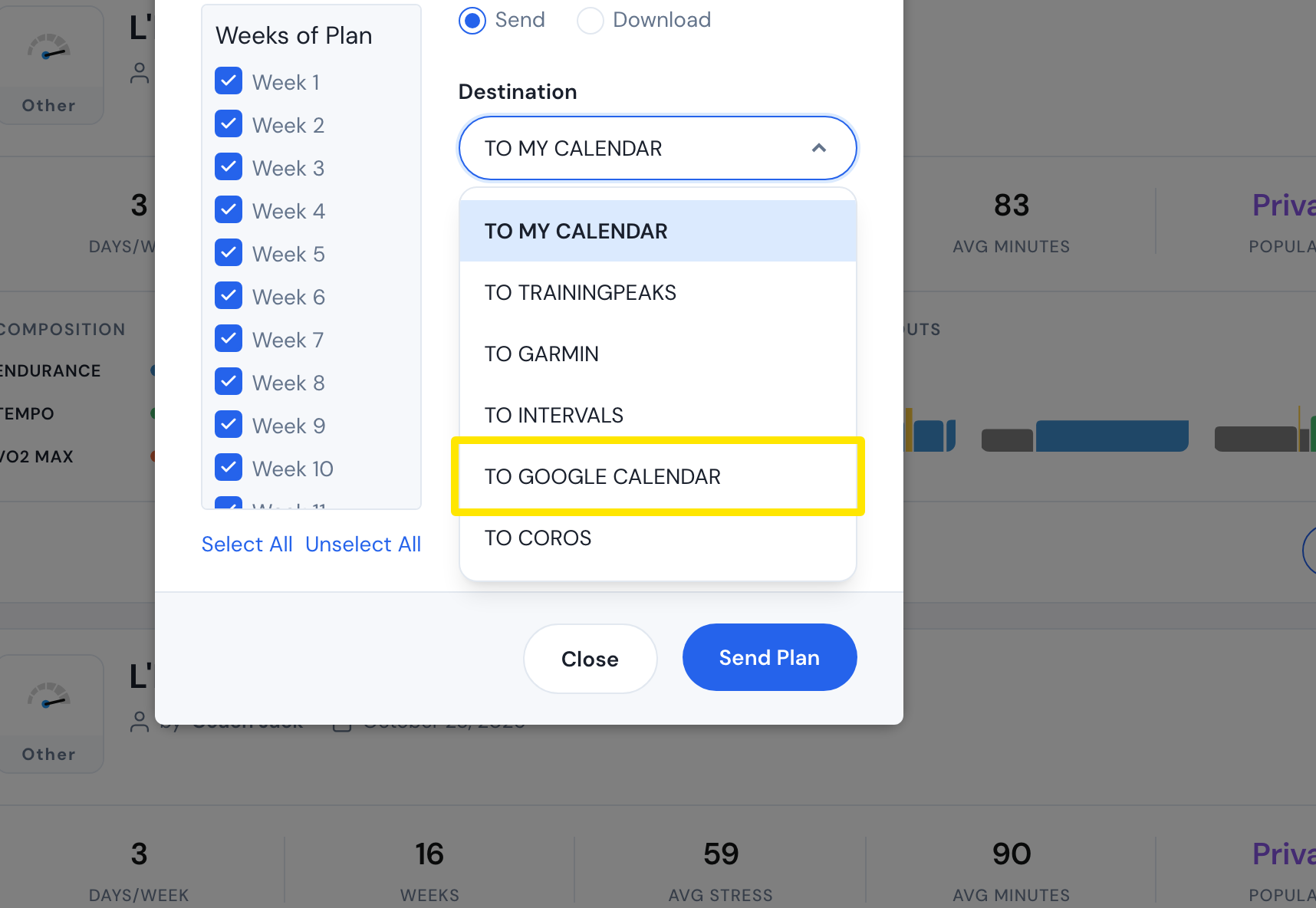 位置:網站 · 我的計劃 → 發送計畫視窗 · 前往
- 打開 Google 日曆,啟用新的日曆 TrainerDay: <計畫名稱>。
小提醒: 訓練會以全天活動的形式出現,附上訓練說明和訓練連結。之後在 TrainerDay 做的修改不會更新到 Google 日曆。
適用於: 僅限網站。