

Use Your TrainingPeaks Calendar in TrainerDay
Alex VanLaningham · Founder of TrainerDay ·
If your coach or your own plan lives in TrainingPeaks, you don't need to rebuild those workouts in TrainerDay. Connect the two accounts once, turn on Workout of the Day, and your upcoming TrainingPeaks workouts appear in the TrainerDay mobile and desktop apps, ready to ride.
Where to find it:
- Website → gear icon in the left sidebar → Connections → TrainingPeaks card · open it
- Mobile app: Settings → Connections → TrainingPeaks card, Connect (Workout of the Day is turned on from the website)
- Desktop app: TrainingPeaks is listed in the Connections panel
Connect TrainingPeaks
- On the website, click the gear icon in the left sidebar and choose Connections.
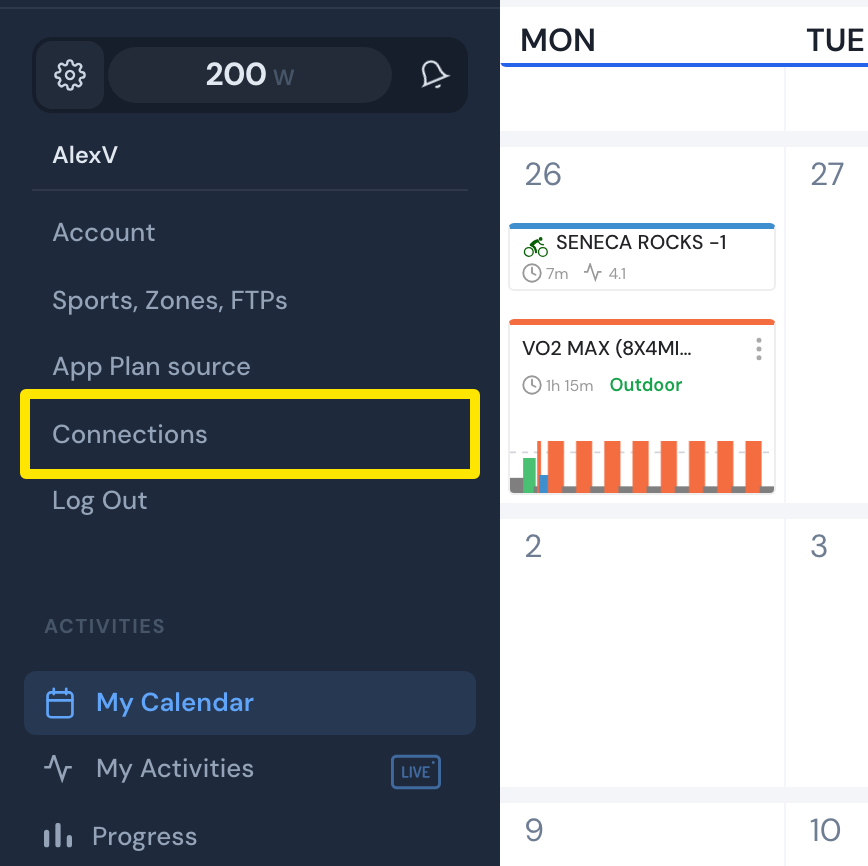 Where: Website · gear menu in the left sidebar (opened here from My Calendar) · open it
- On the TrainingPeaks card, click Connect.
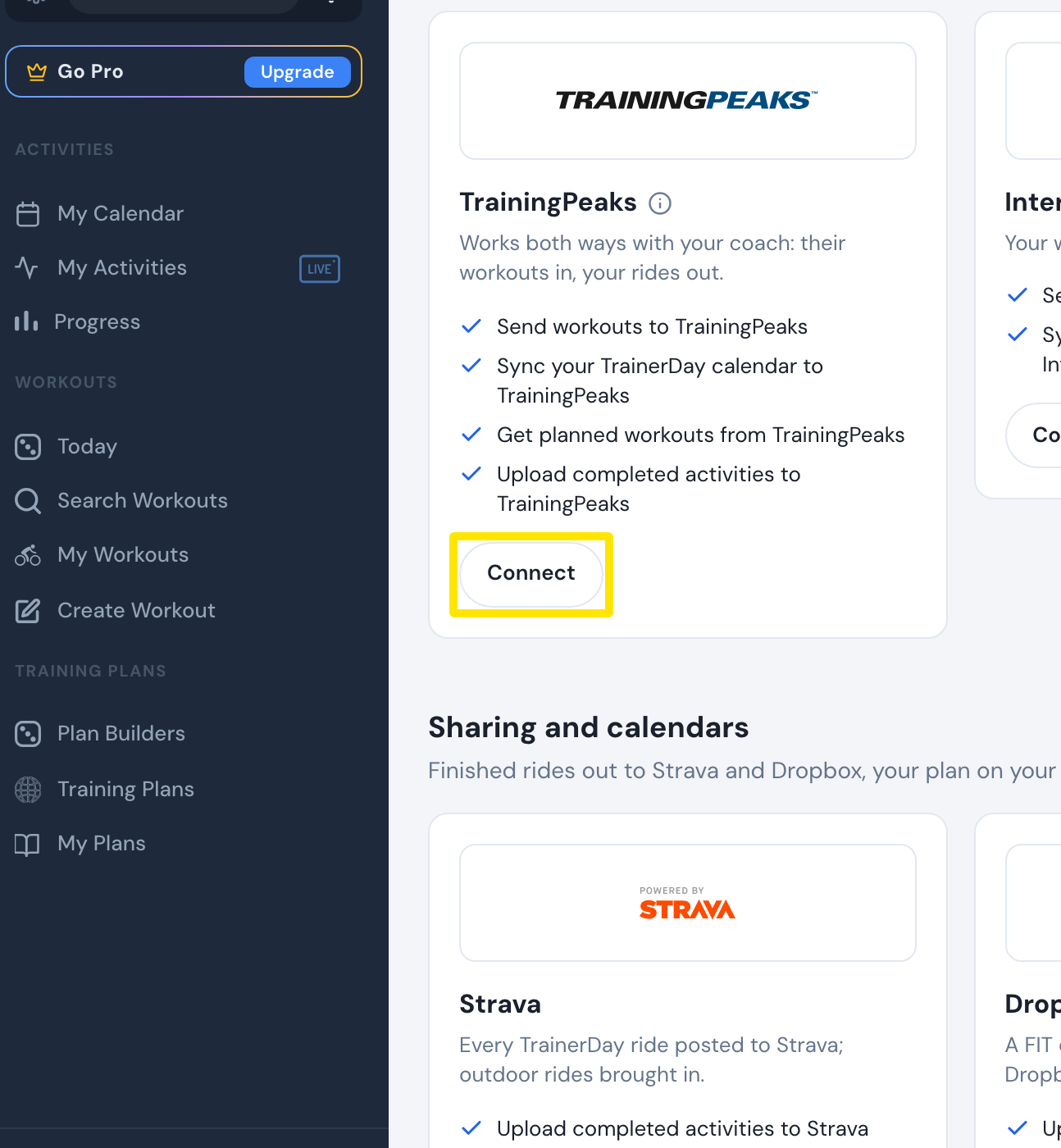 Where: Website · Connections · open it
- TrainingPeaks opens its sign-in page. Sign in and allow every permission.
- You come back to Connections, with TrainingPeaks marked Connected. The tile now has Calendar Sync, Upload Activities and Workout of the Day settings.
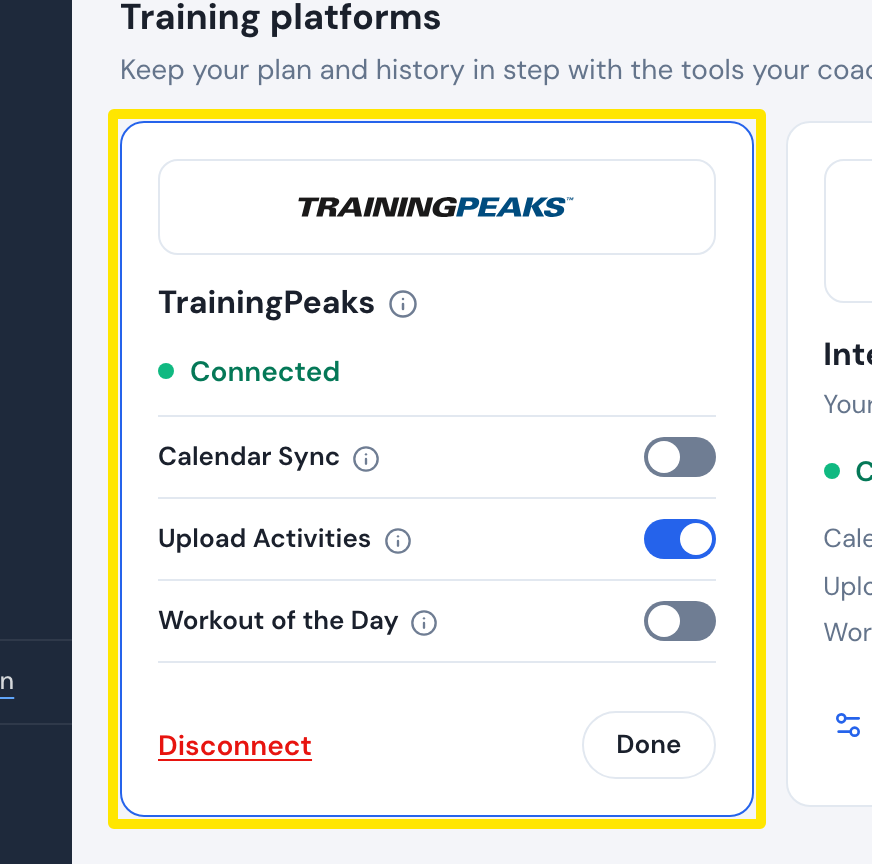 Where: Website · Connections · open it
Turn on Workout of the Day
- On the TrainingPeaks card, click Settings and turn Workout of the Day on.
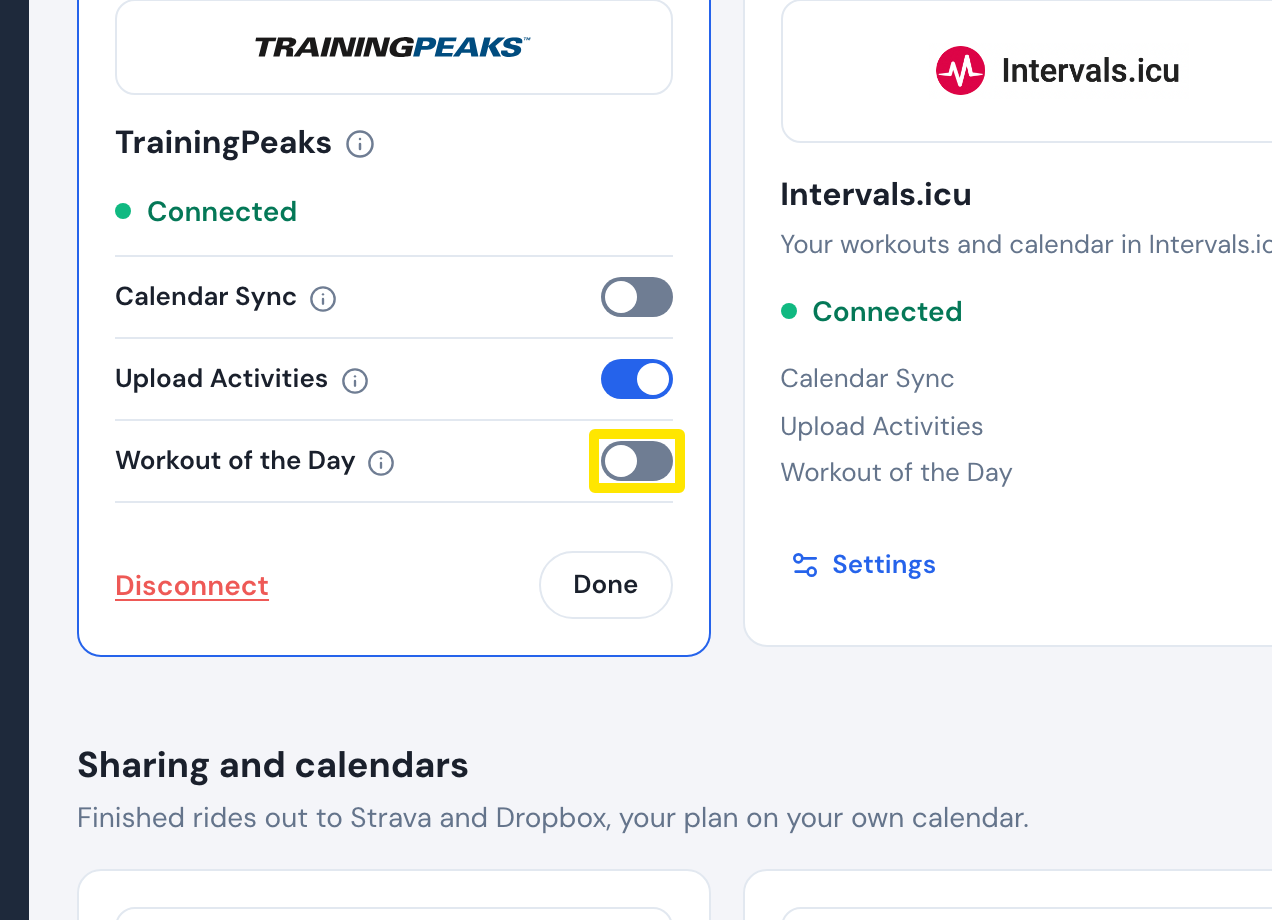 Where: Website · Connections · open it
- Or use the settings menu → App Plan source → TrainingPeaks WOD → Save.
Workout of the Day needs a paid TrainerDay account.
Make sure there is something to ride
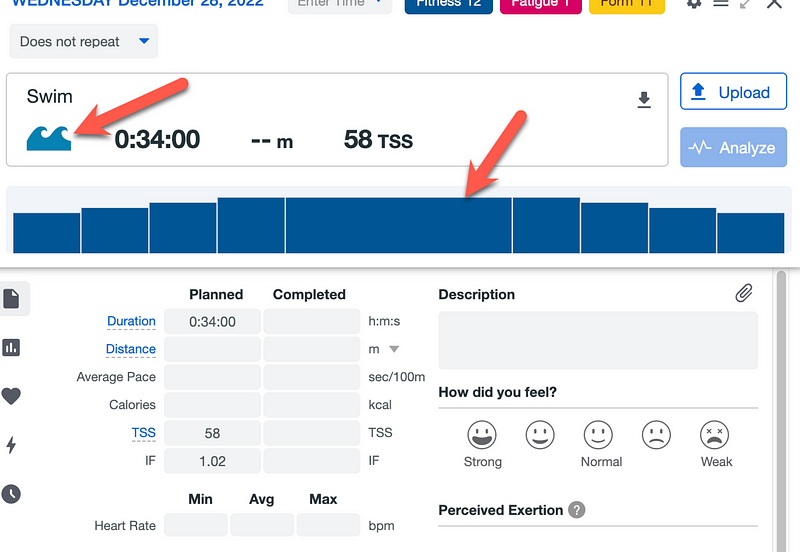
Workout of the Day shows workouts that are not completed yet, from yesterday through the next 5 days. Put a structured workout on your TrainingPeaks calendar in that window, something like this:
Ride it in the app
- Open the TrainerDay mobile or desktop app.
- Your workouts show as the plan list TrainingPeaks - Workout of the Day, with today's workout on the Today page.
- If you don't see a recent change yet, refresh. In the mobile app, pull the Today tab down or tap the refresh button (circular arrow). In the desktop app, use Refresh workouts on the Today page.
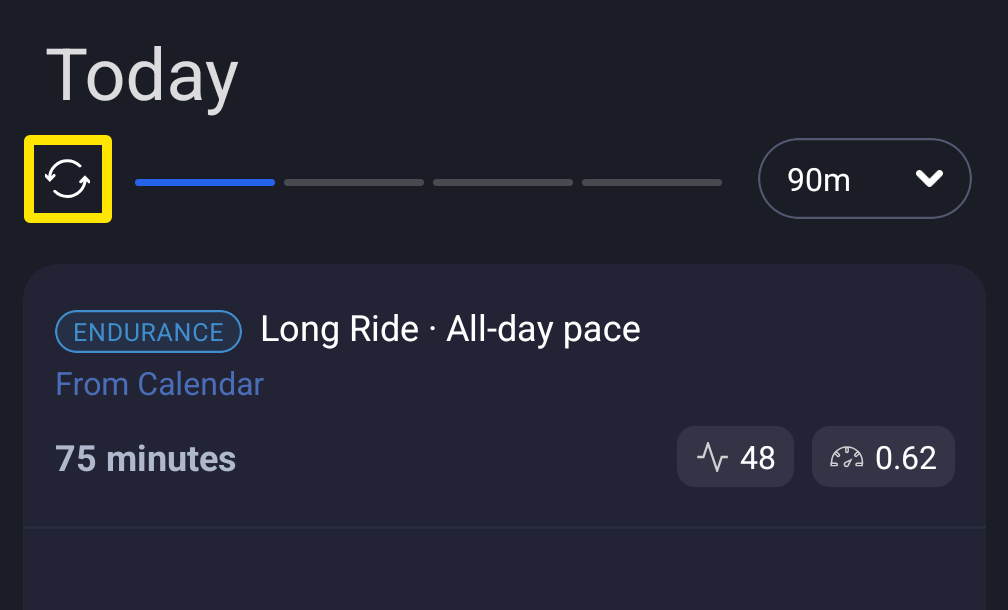 Where: Mobile app · Today tab
These TrainingPeaks workouts appear only in the apps. They do not show on the website's calendar or in My Workouts.
Switching back to your TrainerDay calendar
If you later want the apps to follow your TrainerDay calendar again, open My Calendar on the website, click the menu (≡) at the top right, and click Activate in Mobile App. In Mobile App Plan Source, keep My calendar selected and click Save.
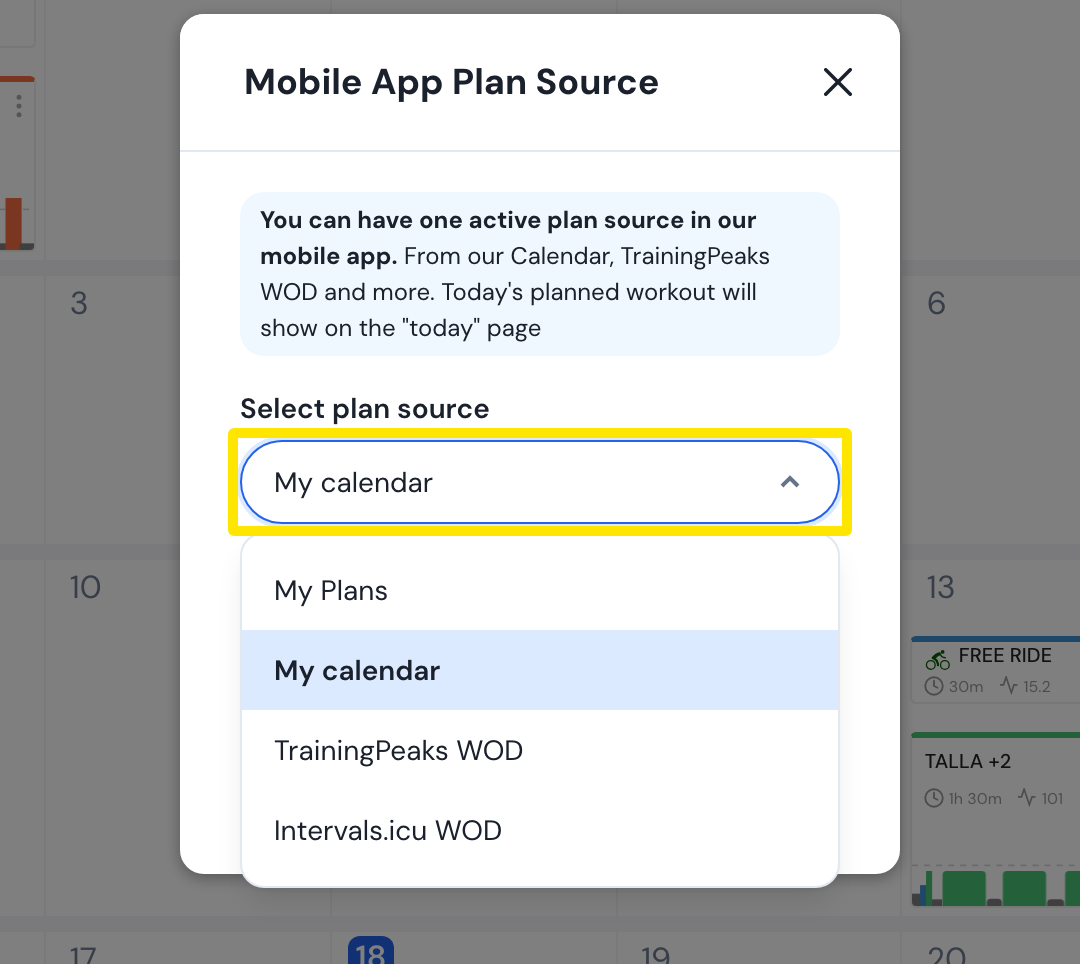 Where: Website · My Calendar · open it