

How do I reset my password when the email link shows an error?
A reset link that shows an error has usually expired or already been used, so request a fresh one from Forgot Password on the TrainerDay login page and open it once, within 8 hours.
- Go to trainerday.com/login and click Forgot Password.
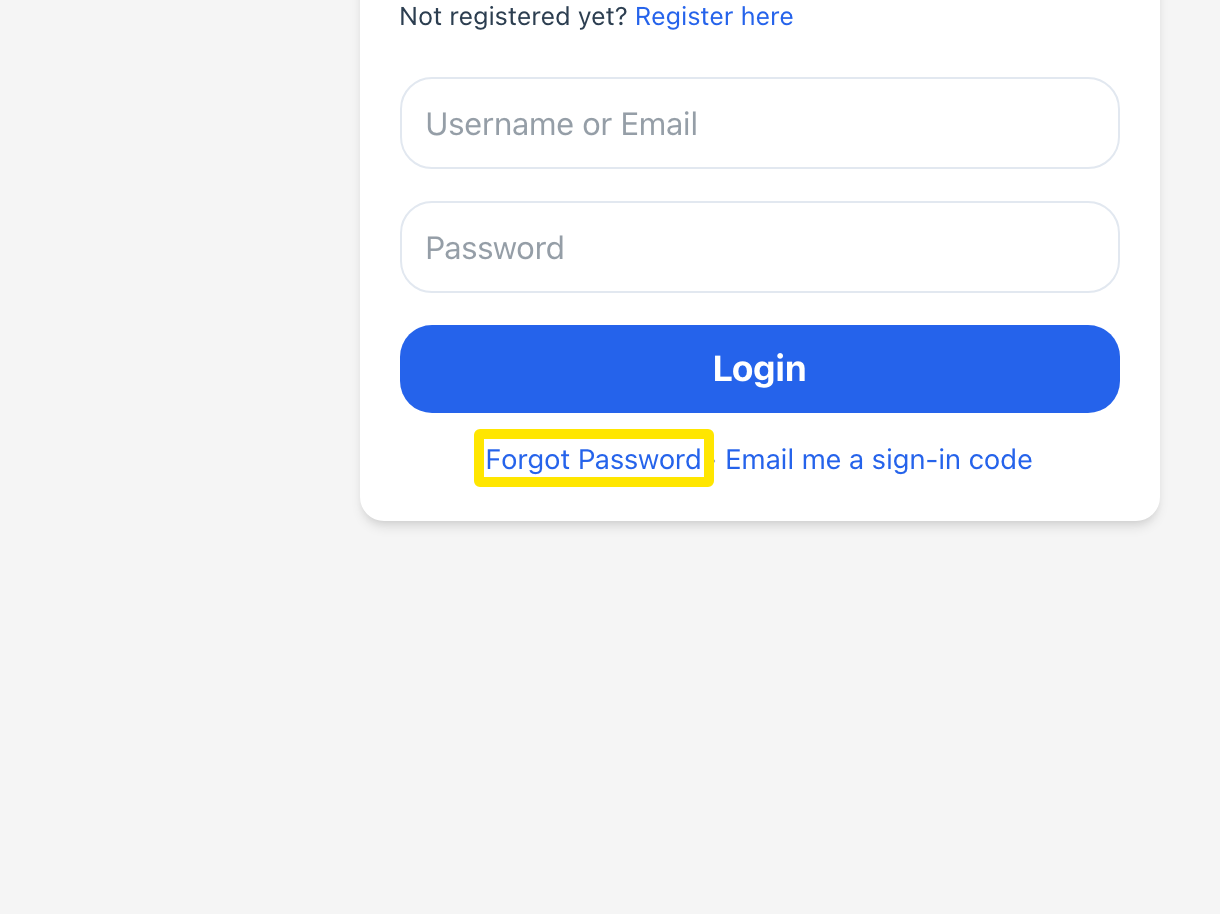 Where: Website · trainerday.com/login · open it
- Type your username or email in Username or Email and click Reset Password.
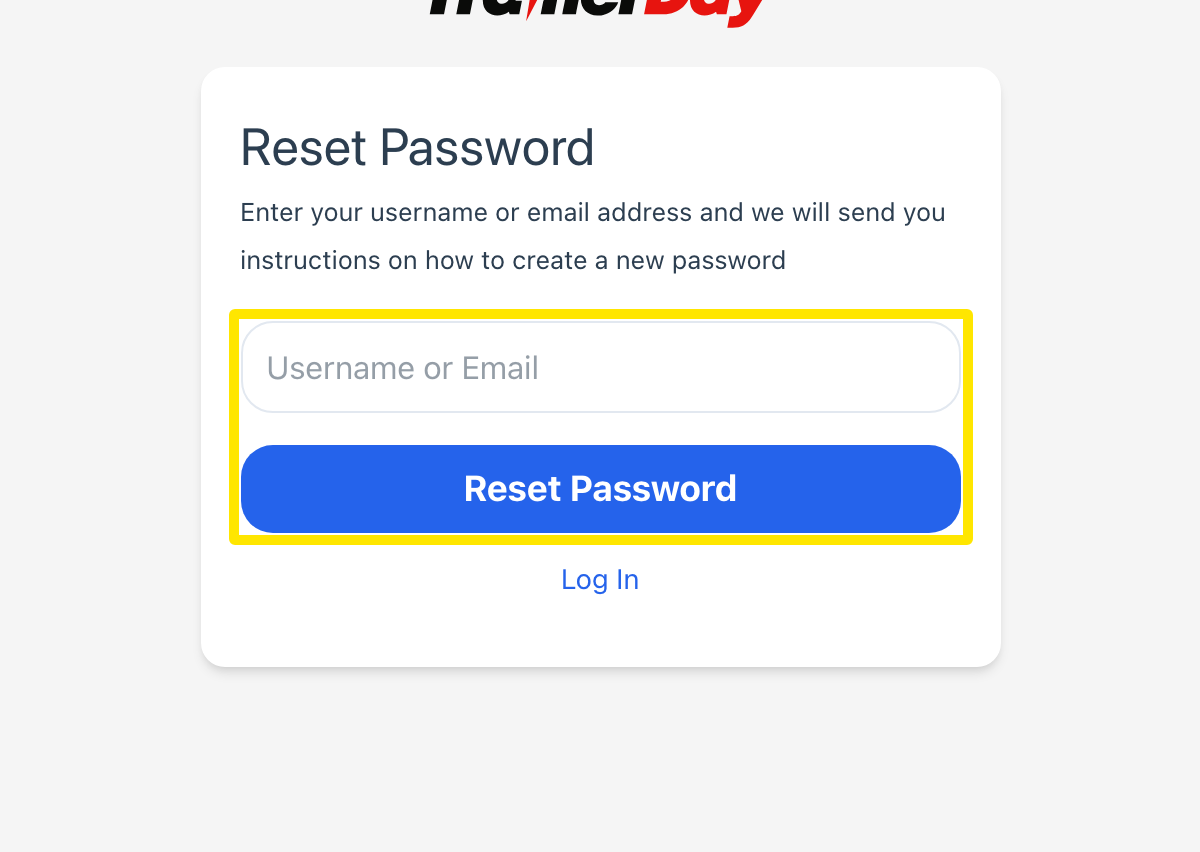 Where: Website · trainerday.com/login → Forgot Password · open it
- Open the newest email from [email protected] with the subject "Change of Password Request". Click its link. A correct link opens https://trainerday.com/reset-password/ over HTTPS. If the page shows Error. Page unavailable, the link has expired or was already used. Go back to step 1.
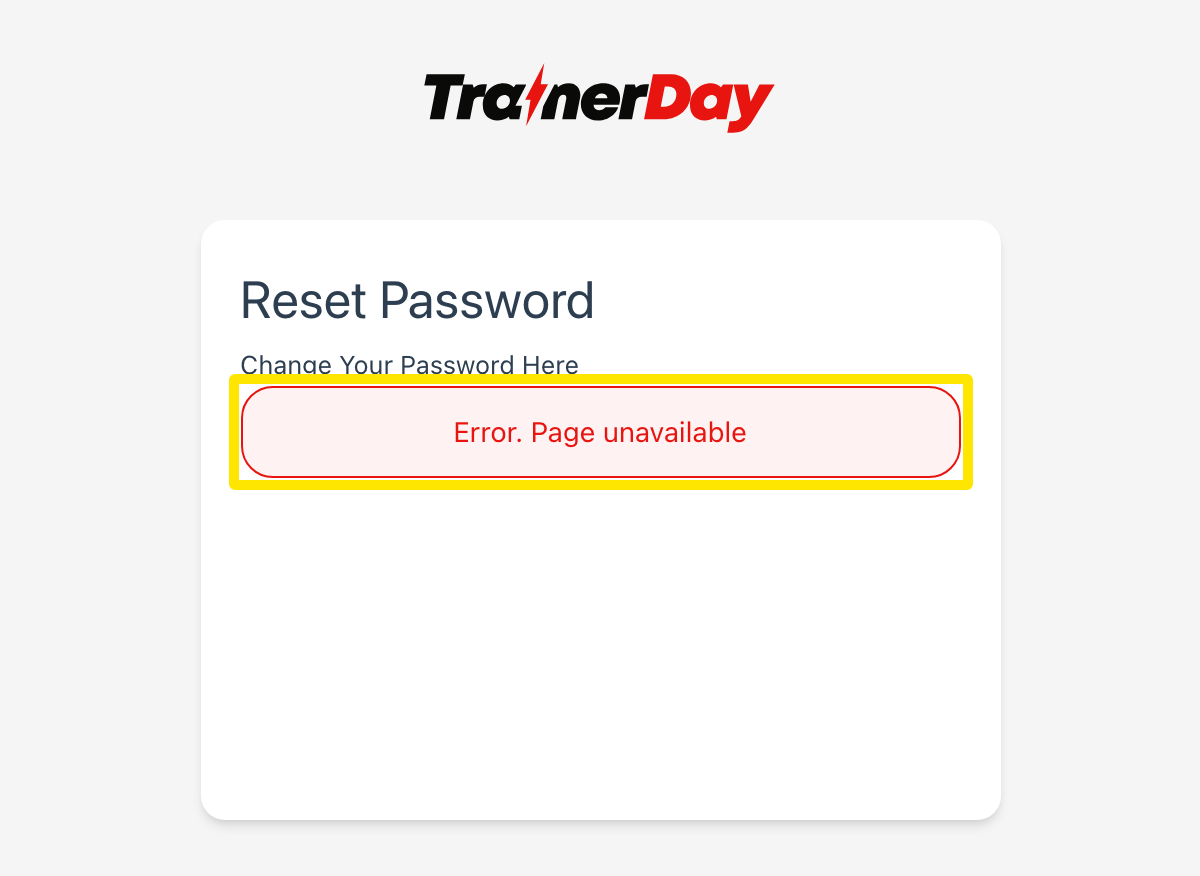 Where: Website · trainerday.com/reset-password (the link in the email)
- Type your new password in Password and Confirm Password. It must be at least 4 characters. Click Reset Password.
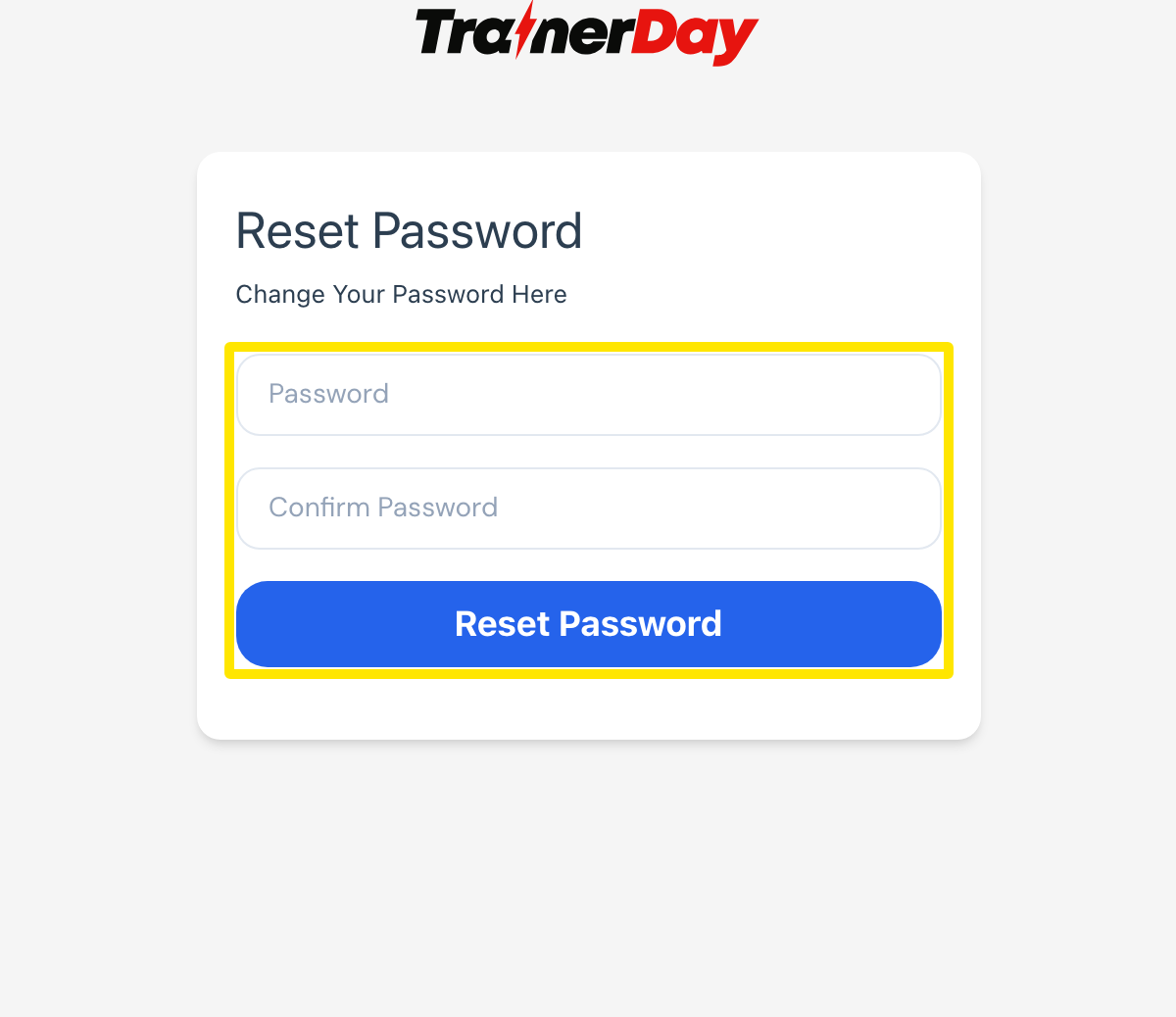 Where: Website · trainerday.com/reset-password (the link in the email)
Good to know: A link works only once and for 8 hours. If you ask again within those 8 hours, you get the same link again.
Works on: Website, mobile app and desktop app. Forgot Password on the app login screen sends the same email, and the link always opens the reset page on the website.