

How do I check which account my subscription is on?
On the TrainerDay website, open Account from the gear icon to see the username and email of the account you're logged in to, then click Manage your subscription to see whether the subscription is on this account.
- On the website, click the gear icon at the top of the left menu and choose Account (app.trainerday.com/account/settings).
- Under Account Information you see your Username. Under Personal you see the account's Email.
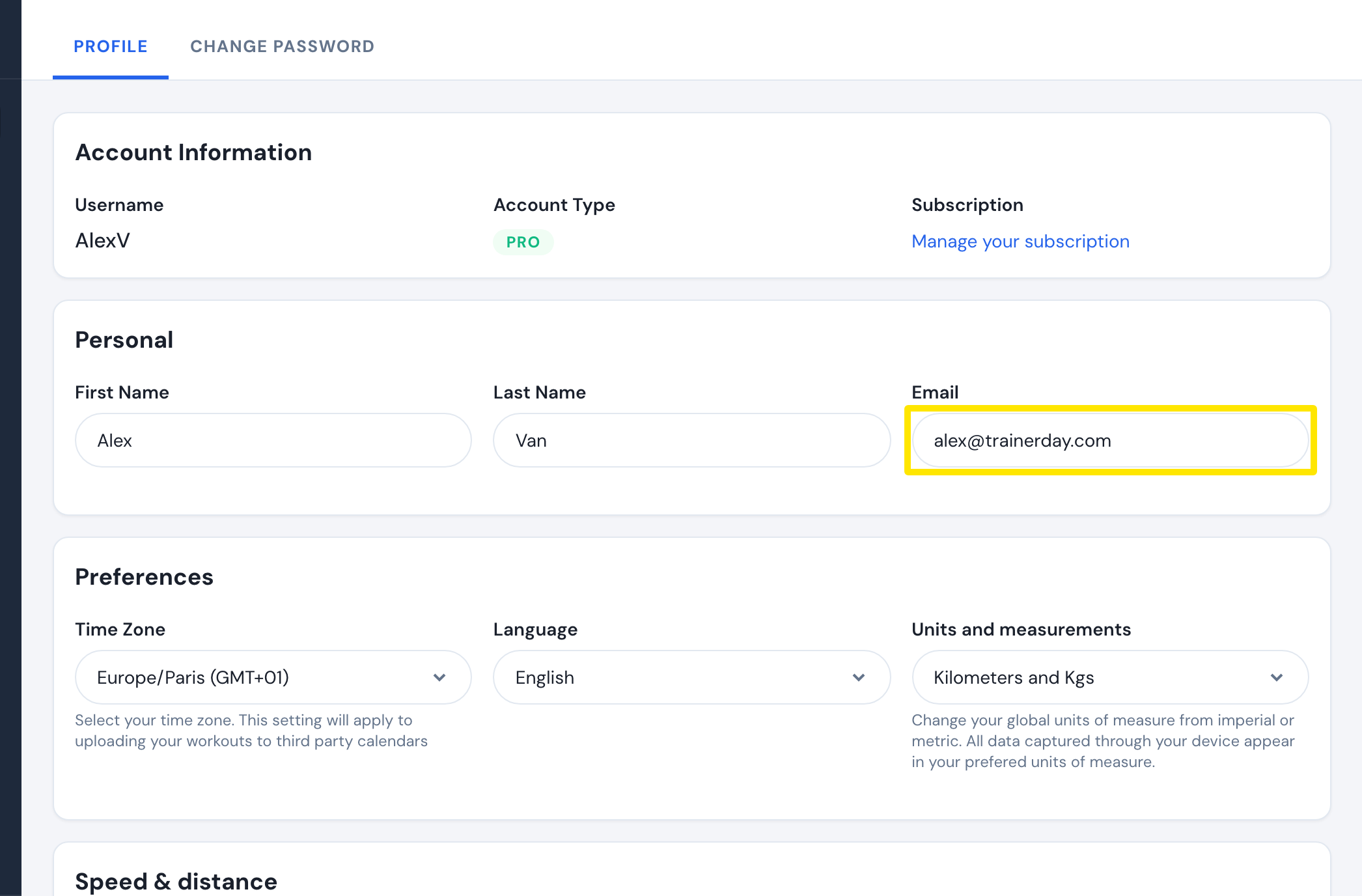 Where: Website · Account · open it
- Under Account Information, click Manage your subscription. Any subscription on this account is listed there. An App Store or Google Play subscription is marked iOS App Subscription or Android App Subscription. If the list is empty, this account has no subscription. Log in with your other account and check again.
Good to know: An App Store subscription stays with the account that bought it. Creating a new account won't fix missing premium. Log in with the account that has the subscription.
Works on: Website. The mobile app shows only the username (Settings → User Account Info) and Subscription Status: Active in Settings. The desktop app has no account page.