

How do I cancel a subscription I paid for with PayPal?
Cancel a PayPal-paid TrainerDay subscription from the Manage your subscription page on the website, or directly in PayPal.
- On the website, click the gear icon at the top of the left menu, choose Account, then click Manage your subscription.
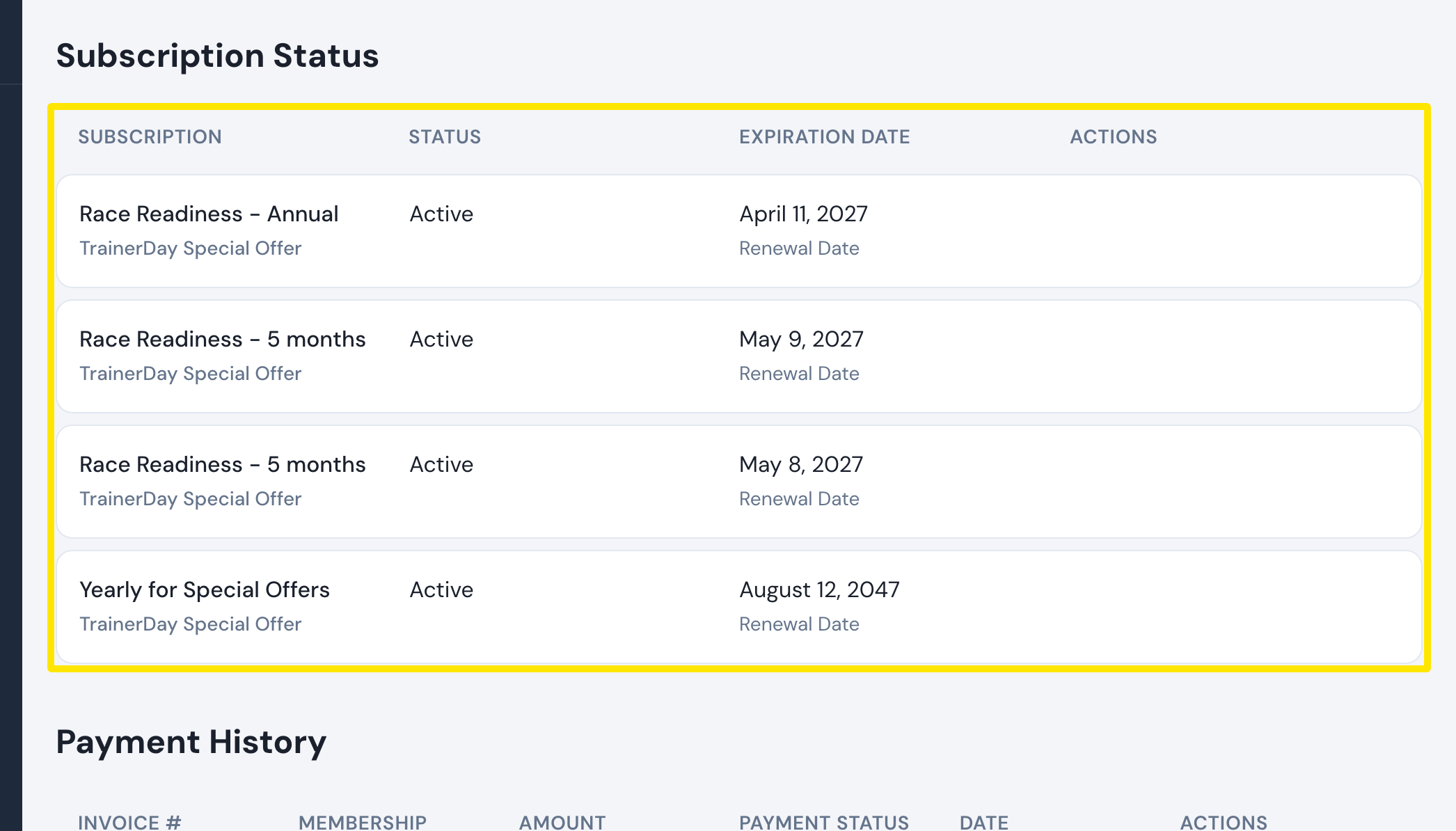 Where: Website · Manage your subscription · open it
- Find the row that says Billed via PayPal. Click Cancel subscription in the Actions column, then confirm. No more payments are taken. You keep Pro until the Expiration Date.
Good to know: You can also cancel it in PayPal under Automatic payments. TrainerDay then marks the subscription Canceled and emails you.
Works on: Website only. In the mobile app, Unsubscribe sends you to your website account.