

How do I update my card or payment details?
You can change the card for your TrainerDay subscription without cancelling: on the website, open your subscription page and click Update Payment Card.
- On the website, click the gear icon at the top of the left menu and choose Account.
- Under Account Information, click Manage your subscription.
 Where: Website · Account · open it
- Your subscription page opens. In the Actions column, click Update Payment Card. You don't need to cancel first.
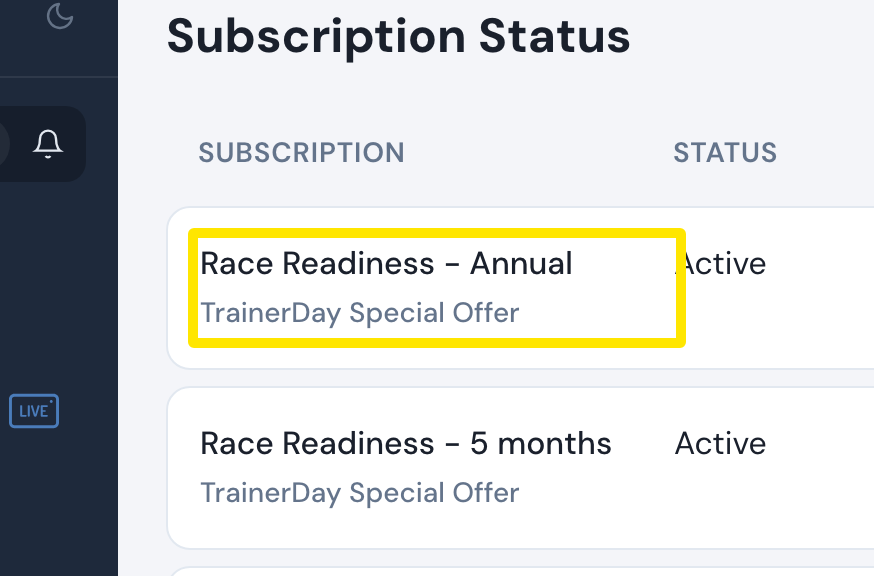 Where: Website · Subscription page · open it
- The Change Payment Method window opens. Pick one of your Saved cards, or open New card and fill it in. Then press Update. Press Keep Existing to leave the current card.
Good to know: For a PayPal or Stripe subscription, Update Payment Card sends you to PayPal's or Stripe's page to change the payment method there.
Works on: Website. For an App Store or Google Play subscription, change the card in your Apple or Google account. The desktop app has no payment settings.