

How do I stop PayPal charges for TrainerDay?
To stop PayPal charges, cancel your PayPal subscription on the TrainerDay website from your account's subscription page; just stopping your use of TrainerDay does not cancel it.
- On the TrainerDay website (app.trainerday.com), click the gear icon at the top of the left menu and choose Account.
- Under Account Information, click Manage your subscription.
 Where: Website · Account · open it
- The Subscription Status page opens. Each subscription shows how it is billed under its name. Find the one marked Billed via PayPal and click Cancel subscription in the Actions column.
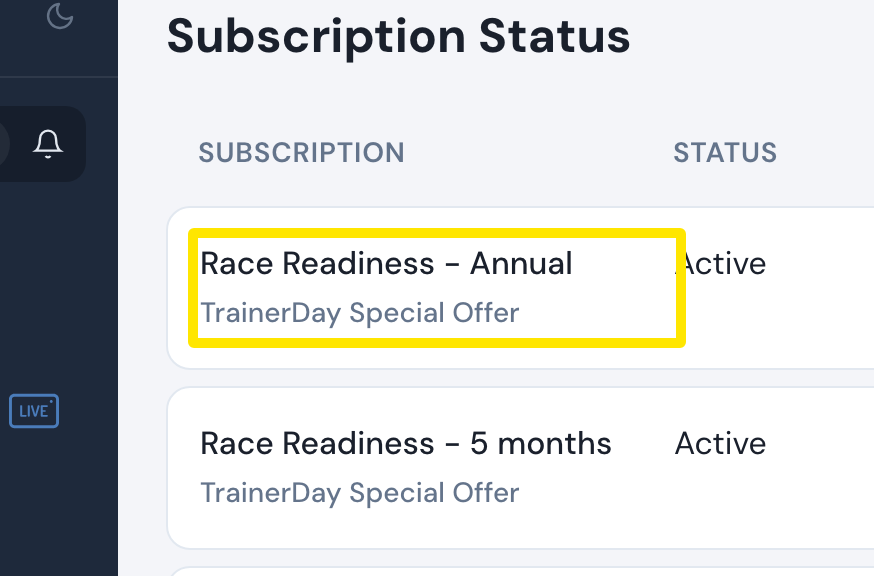 Where: Website · Subscription Status · open it
- In the window that opens, click Cancel Subscription. TrainerDay stops the subscription in PayPal, so nothing more is charged. You keep Pro until the Expiration Date.
Good to know: Stopping your use of TrainerDay does not cancel the subscription. PayPal keeps charging until you cancel it here.
Works on: Website only. The phone and desktop apps cannot cancel a PayPal subscription. In the phone app, Settings → Subscription Status → Unsubscribe opens this website page.