

How do I fix a wrong date in an AI-generated plan?
Fix a wrong date in an AI-generated plan on the TrainerDay website: change the Starting Date in the AI Plan Builder, or ask the chat to move a workout, then send the corrected plan to My Calendar.
- On the website, click Plan Builders in the left sidebar and click Continue AI Plan → on the AI Plan Builder (Beta) card (or open the plan from My Plans).
- If the whole plan starts on the wrong week, click the date after Starting Date above the plan preview and pick the right Monday.
- To change a day or workout, type it in the chat box, for example "move Wednesday's workout to Thursday", and press send. The change becomes a new version.
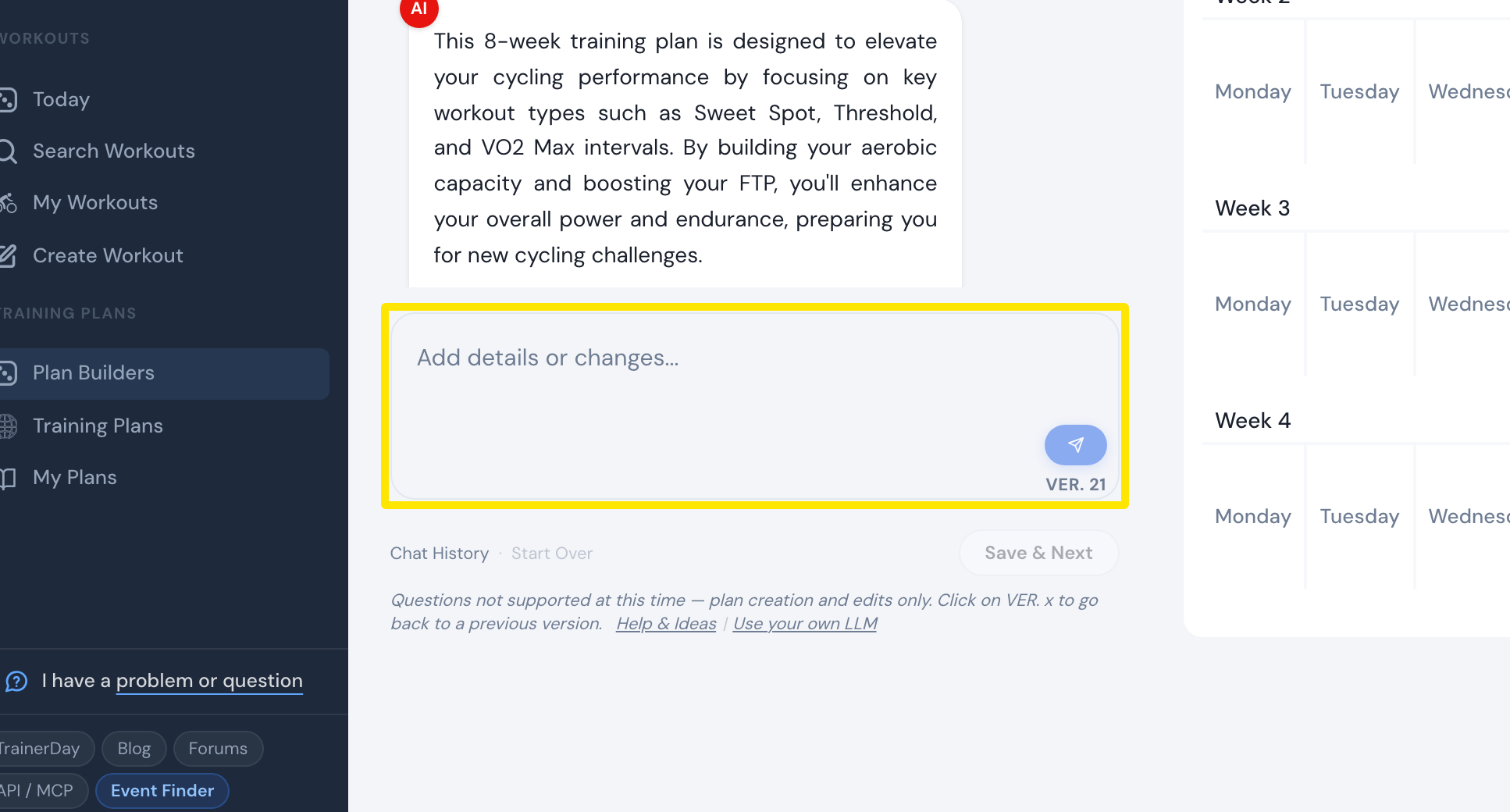 Where: Website · AI Plan Builder
- If a change went wrong, click Undo on the last answer, or click an earlier VER. n button and then Save as Current.
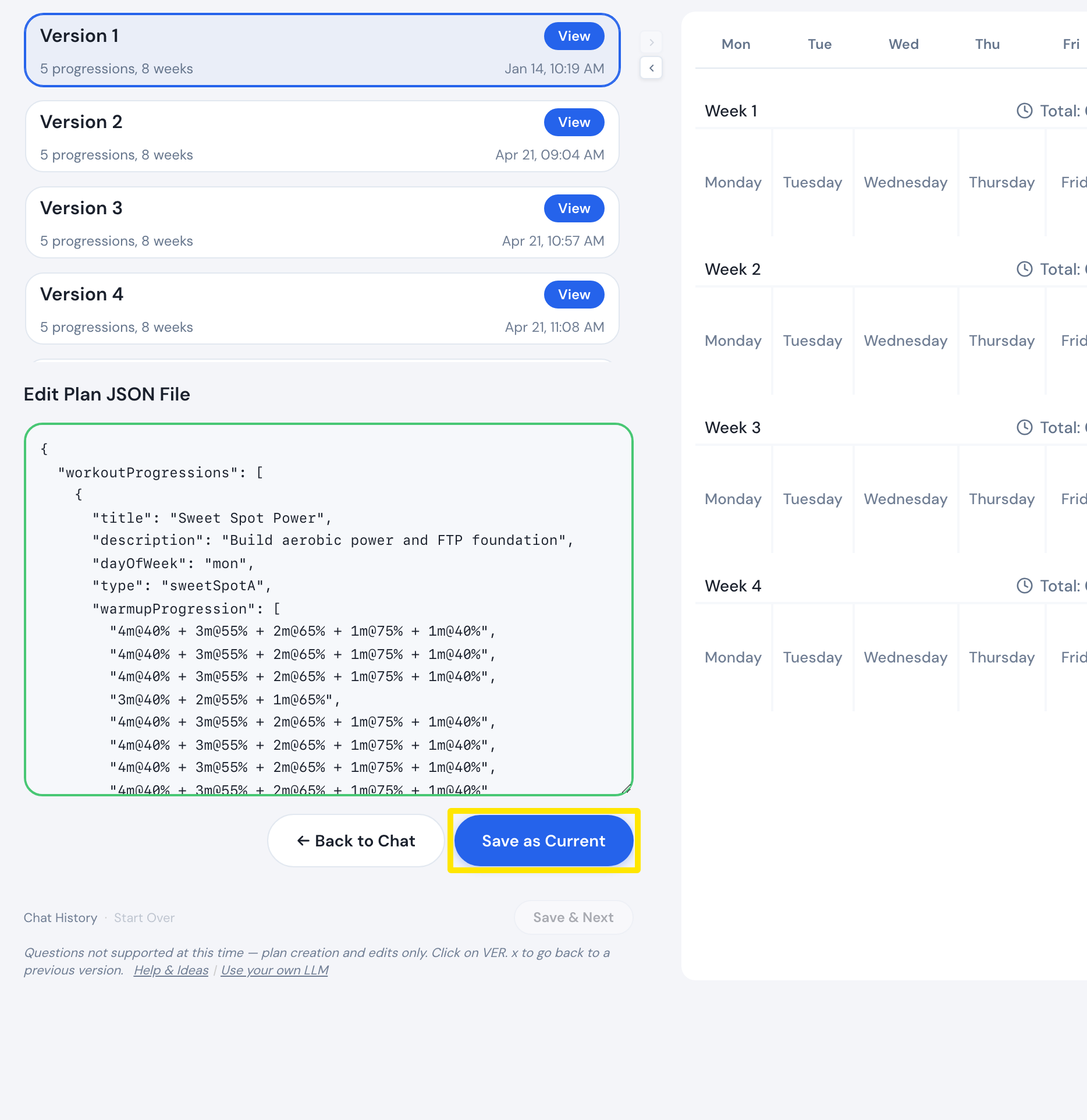 Where: Website · AI Plan Builder
- Click Save & Next and choose Send to My Calendar to put the corrected plan on your calendar.
Good to know: The plan starts on the coming Monday unless you change Starting Date, and that date is used when you send the plan to My Calendar.
Works on: Website only. The mobile and desktop apps have no plan chat.