

How do I get my TrainerDay workouts onto my watch or other training apps?
Connect your watch, bike computer or training app on the TrainerDay website's Connections page, then turn on Calendar Sync or send workouts one at a time with Send To.
Most riders want their workouts on a Garmin watch or bike computer: see How do I send my TrainerDay workouts to Garmin?
- On the TrainerDay website, click the gear icon in the left sidebar and open Connections.
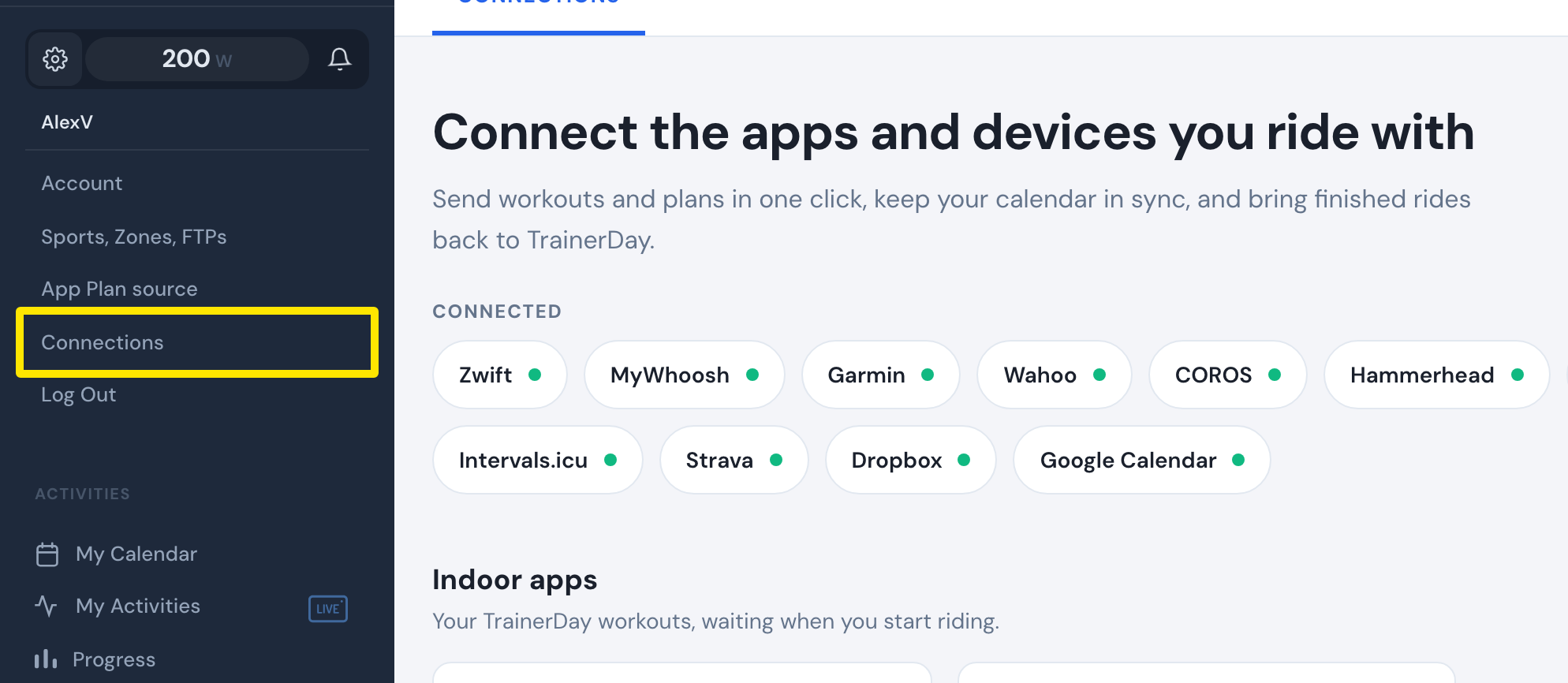 Where: Website · Connections · open it
- On the card for your service (Garmin, Wahoo, COROS, Hammerhead, Zwift, MyWhoosh, TrainingPeaks or Intervals.icu), click Connect and sign in to that service.
- Back on Connections, open the card's Settings and turn on Calendar Sync to send the workouts on your TrainerDay calendar there automatically (Garmin, COROS, Zwift, MyWhoosh, TrainingPeaks, Intervals.icu).
- Or send one workout: open a workout from Search Workouts or My Workouts and click Send To.
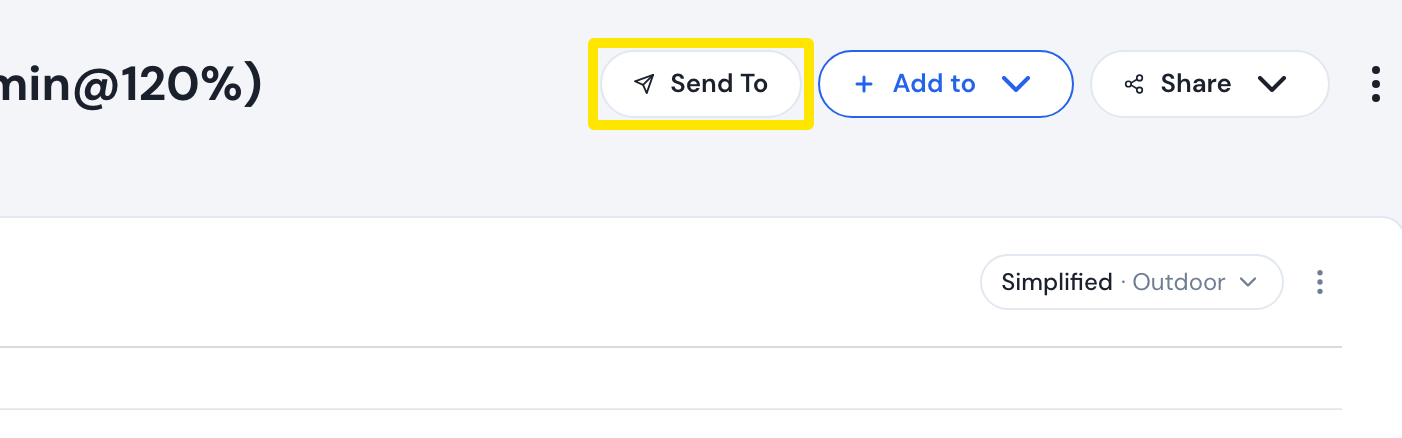 Where: Website · a workout's page
- Pick the service and click Send.
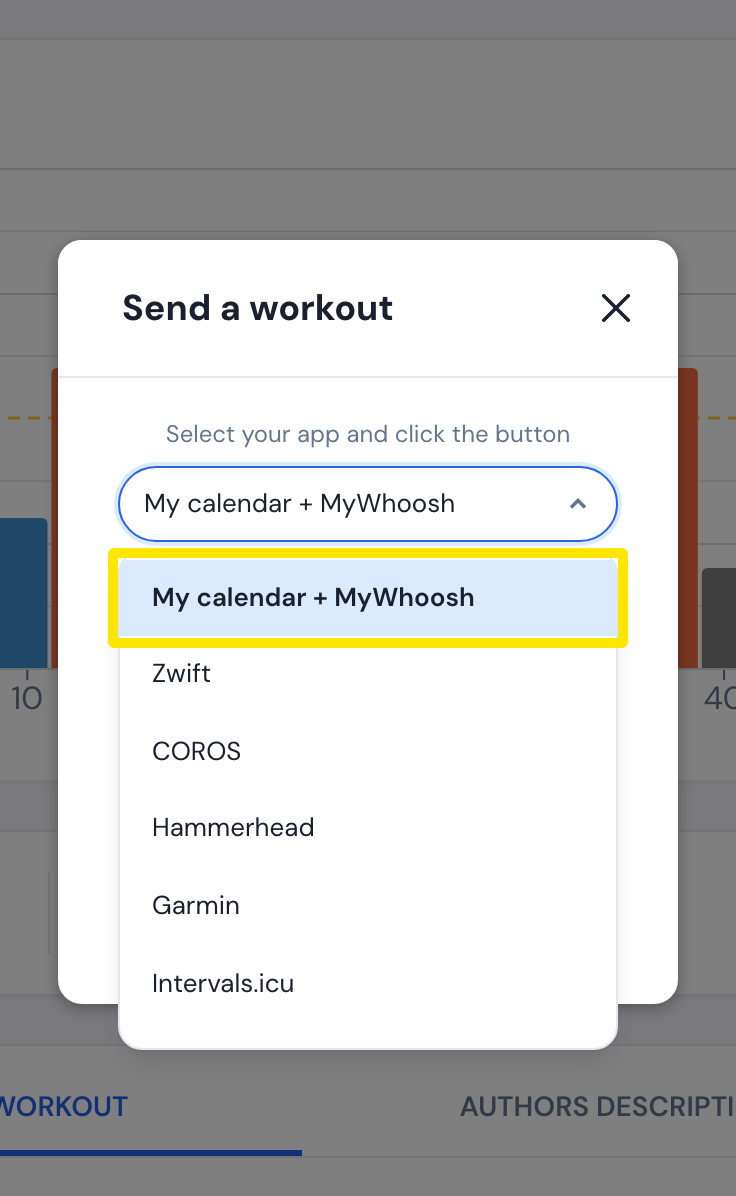 Where: Website · a workout's page
Good to know: Wahoo and Hammerhead only take workouts you send one at a time. There is no Polar Flow integration.
Works on: Website (above); mobile app: Settings → Connections and Send to on a workout; desktop app: the Connections panel.