

How do I connect my own AI (ChatGPT, Claude, Gemini) to TrainerDay?
Connect ChatGPT, Claude or Gemini to your TrainerDay data by adding TrainerDay's server address https://api.trainerday.com/mcp in your AI app and approving access in TrainerDay.
TrainerDay has no built-in AI coach. You get AI help by connecting your own AI assistant, which can then read your TrainerDay data. See What can I do with TrainerDay through MCP with an AI assistant?
- Log in at app.trainerday.com in your normal browser. The API / MCP link at the bottom of the page opens the setup guides.
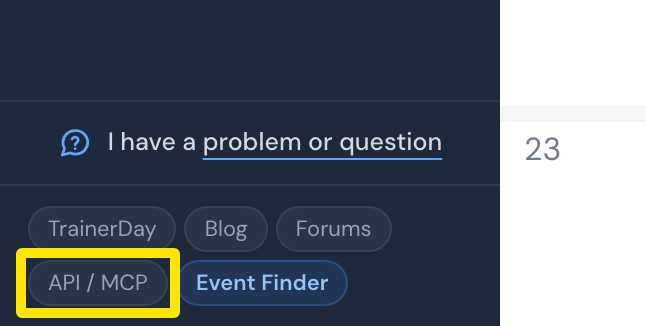 Where: Website · My Calendar · open it
- In your AI app, open the place to add a connection:
- Claude: profile icon → Settings → Connectors → Add → Add custom connector.
- ChatGPT (chatgpt.com): Settings → Plugins → Browse directory → Add → Add custom MCP server.
- Gemini: follow api.trainerday.com/mcp/gemini.html.
- Name it TrainerDay and enter
https://api.trainerday.com/mcp. In ChatGPT, choose Server URL and OAuth. Leave client ID and secret empty. Click Add in Claude. In ChatGPT, tick I understand and want to continue and click Create as a plugin. - TrainerDay opens in your browser. Choose the permissions and click Allow.
- Back in your AI app, start a new chat and ask, "What's on my training calendar this week?" In ChatGPT, if needed, click + and pick TrainerDay.
Good to know: A free TrainerDay account shares only your profile, goals and coach instructions. Your history, activities and calendar, and creating workouts, need a paid TrainerDay subscription. Free ChatGPT or Claude allows only a few requests.