

How do I share an image of my completed ride?
Open your ride under My Activities on the TrainerDay website and choose Download PNG file from the three-dots menu, then share the picture wherever you like; the mobile and desktop apps have their own share buttons.
If you want the picture on your Strava activity, see How do I add my ride image to Strava?
- On the website, click My Activities in the left sidebar (open it).
- Click the ride's name to open it.
- Click the three-dots button at the top right of the ride.
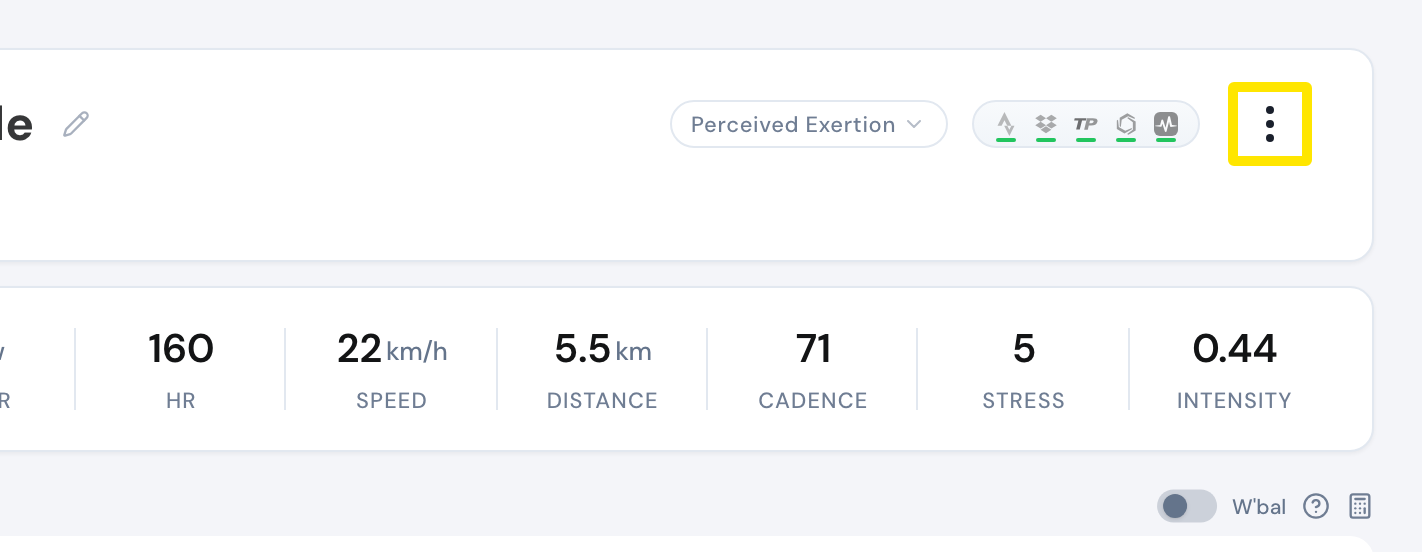 Where: Website · My Activities → click the activity's name · open it
- Choose Download PNG file. The picture downloads as <ride number>.png.
- Share the downloaded picture yourself, for example on Strava, in a message or on social media. TrainerDay does not post it anywhere.
Good to know: Download PNG file is only there for rides recorded with TrainerDay, not for rides imported from Strava, Garmin, MyWhoosh or other platforms.
Works on: Mobile app: open the ride, tap the share button, pick one of the four pictures and share it as a PNG. On iPhone, use Save Image. On Android, save it to Photos or Files from the share options. Desktop app: on the Activities tab, open the ride and click Share Image. This copies the chart to the clipboard, or downloads a PNG if copying fails.