

How do I create a repeating note or event on my calendar?
Create a repeating note on the TrainerDay website's My Calendar by setting Repeat every, By days and an End Date, or make an existing note repeat from its 3-dots menu.
- On the website, click My Calendar in the left sidebar (app.trainerday.com/calendar).
- Point at the first day, click the + at the top of it, then click Add a Note.
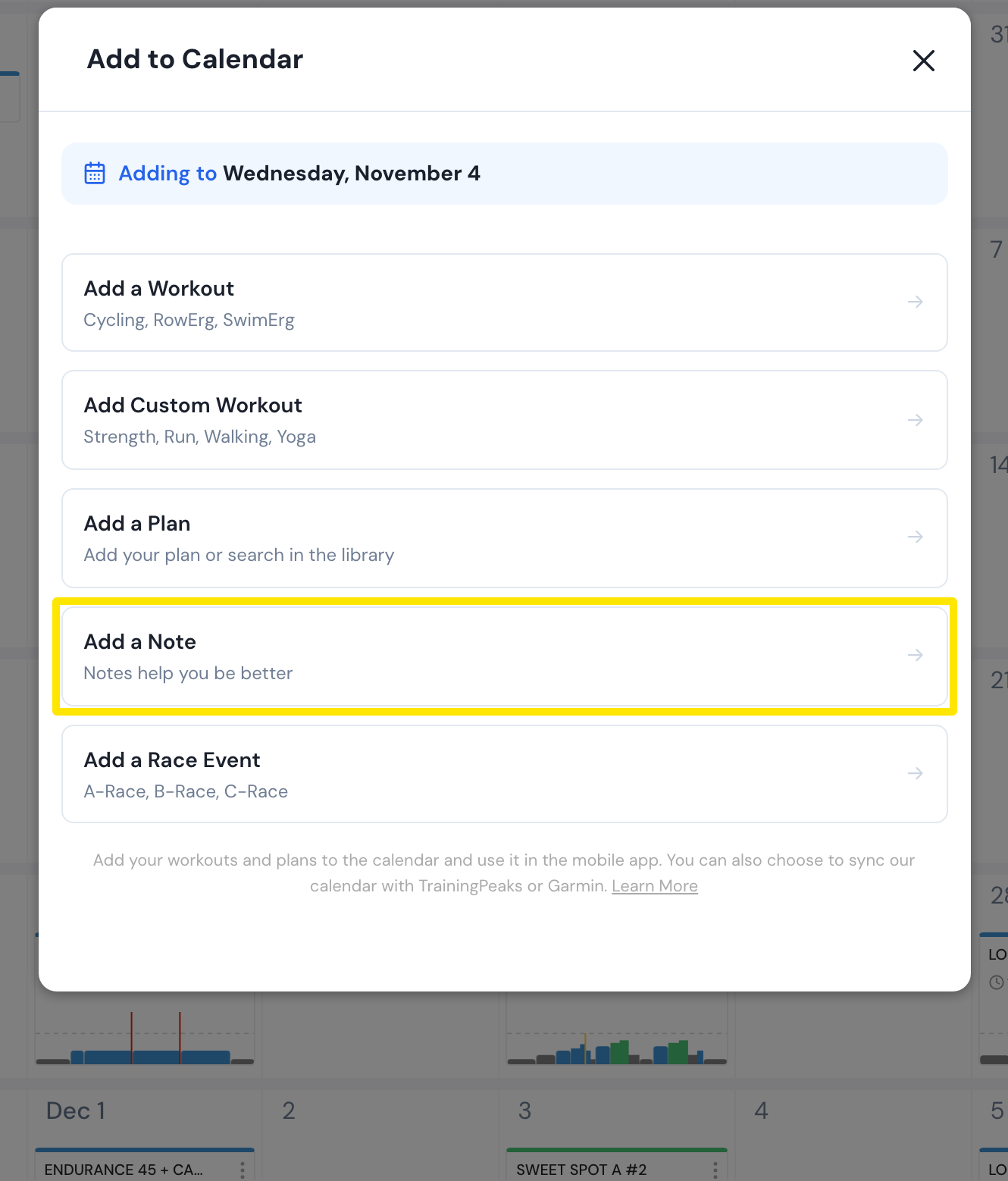 Where: Website · My Calendar · open it
- Type a Title and the Note text.
- Open Repeat every and pick how often it repeats: 1 week up to 12 weeks.
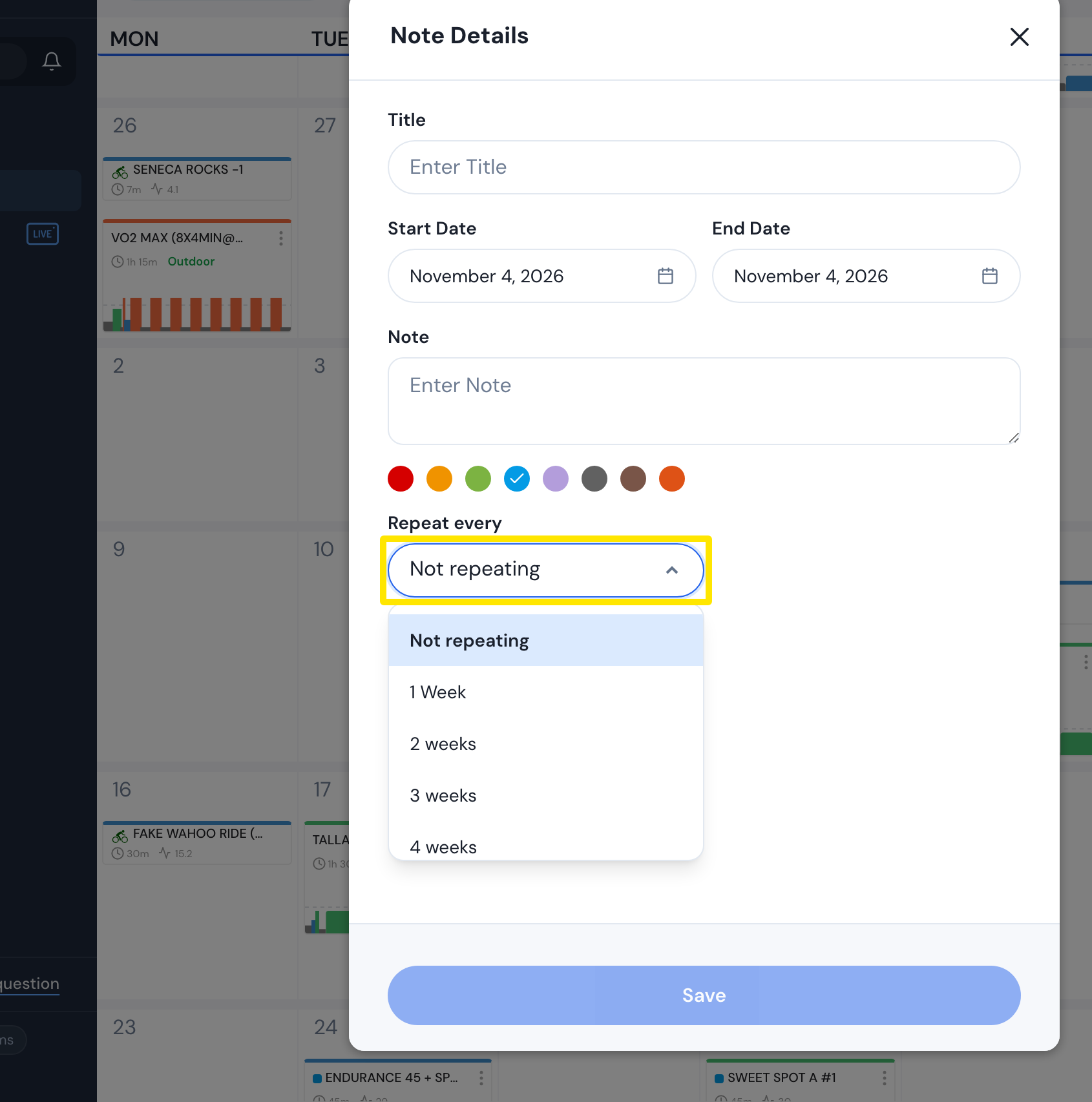 Where: Website · My Calendar · open it
- Under By days, pick the weekdays. Set the End Date and click Save.
- To make an existing note repeat, open its 3-dots menu on the calendar and click Recurrence. Use the same settings, then click Done.
Good to know: The End Date starts 3 months after the note. An existing note's edit window has no repeat setting, so use Recurrence instead.
Works on: Website (as above); mobile app (Repeat in a note's or workout's menu); not the desktop app (no calendar editing).