

How do I connect my TrainerDay calendar to Google Calendar?
On the TrainerDay website, connect Google Calendar in Connections, then send a plan from My Plans to Google Calendar as a one-time copy in its own calendar.
If you want Google Calendar to stay up to date as your TrainerDay workouts change, subscribe to the TrainerDay calendar's .ics subscription link instead of sending a one-time copy: How do I add my TrainerDay workouts to Apple Calendar or another calendar app with the .ics feed?
- On the TrainerDay website, open the settings menu (gear icon) at the bottom of the left sidebar, click Connections (app.trainerday.com/apps-and-devices) and connect Google Calendar.
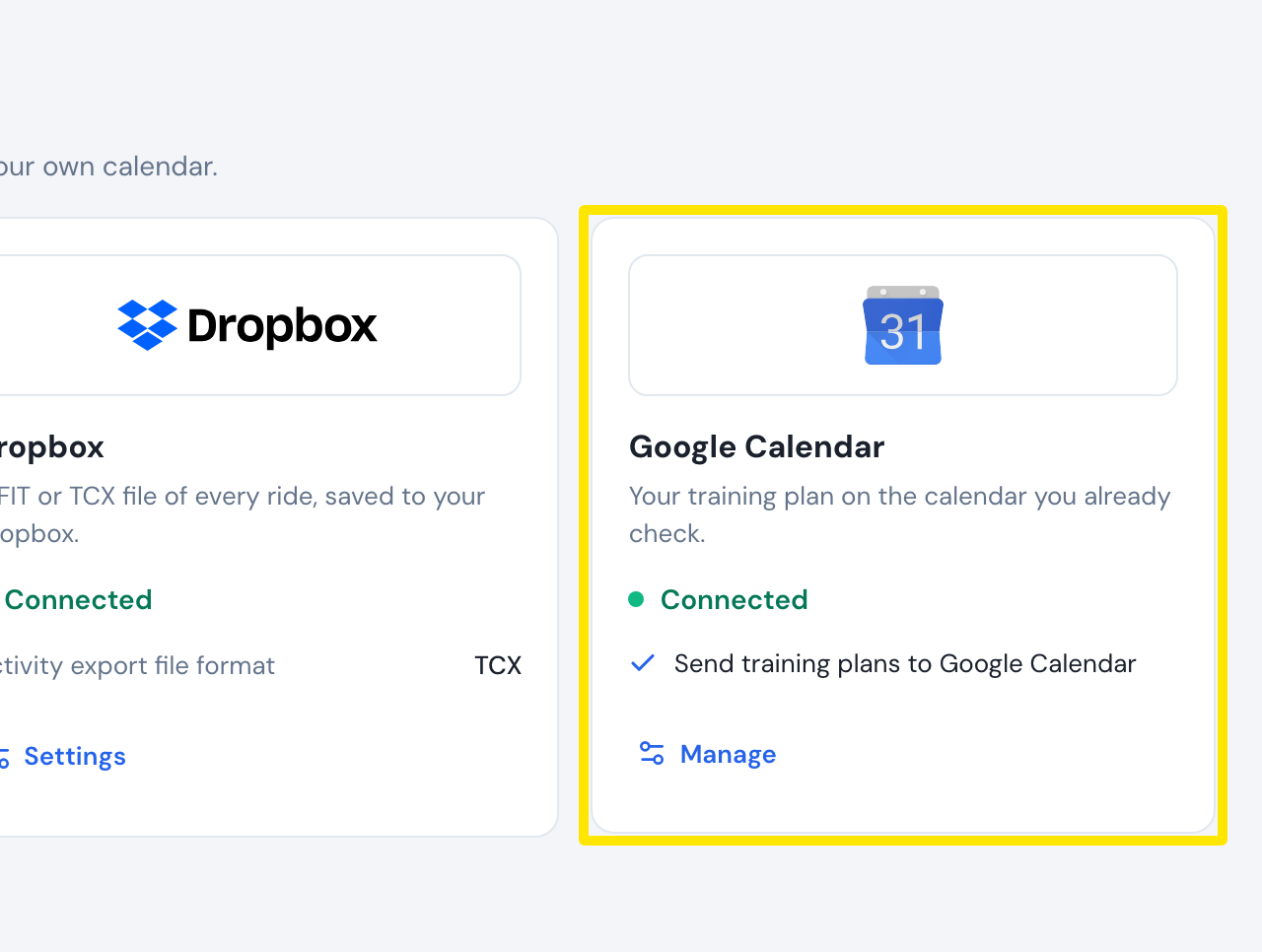 Where: Website · Connections · open it
- Open My Plans (app.trainerday.com/plans), click the plan's 3-dots button and choose Send or Download.
- In the Send Plan window, choose Send, set Destination to TO GOOGLE CALENDAR, pick the Start Week Date and click Send Plan.
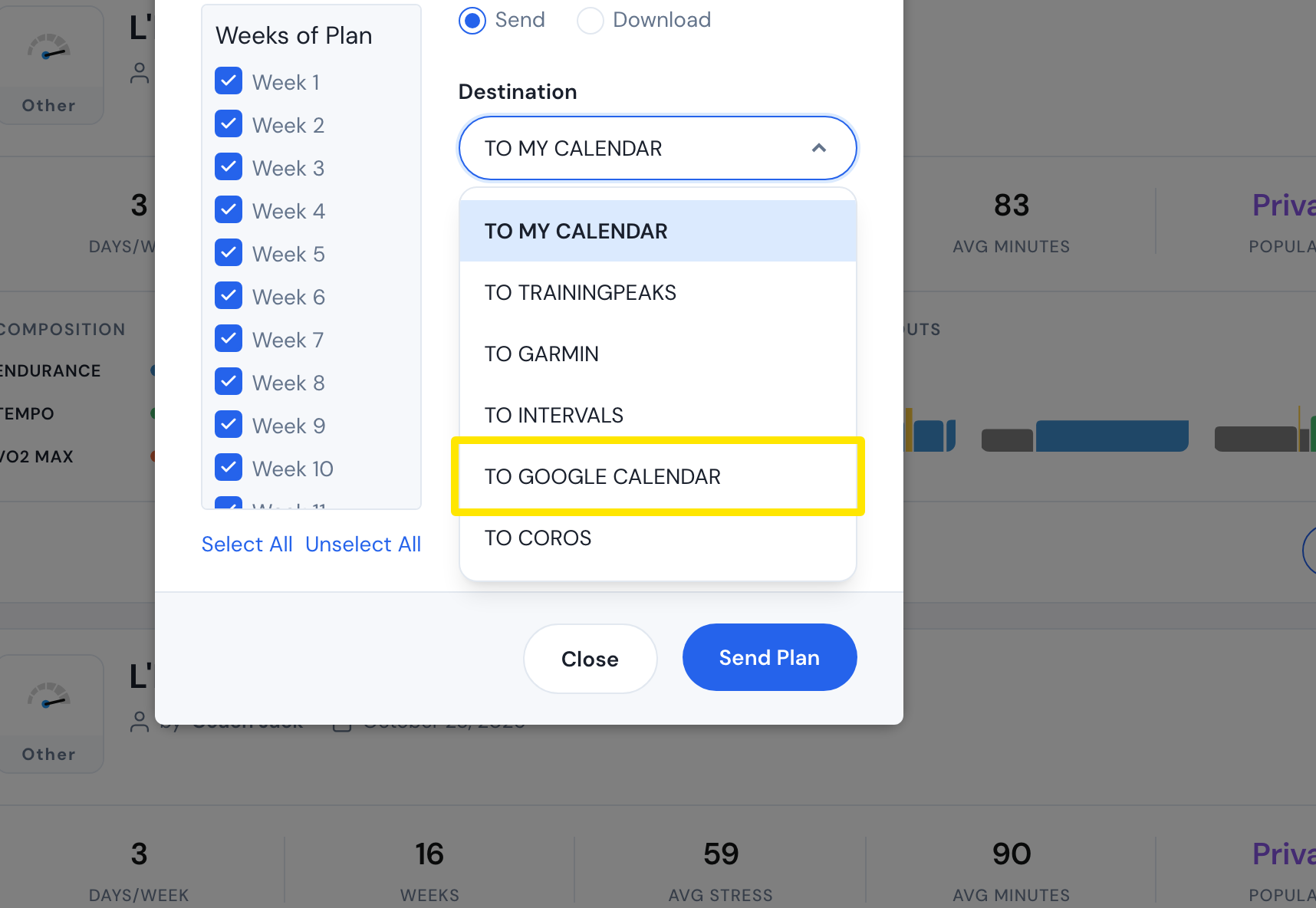 Where: Website · My Plans → Send Plan window · open it
- Open Google Calendar and turn on the new calendar TrainerDay: <plan name>.
Good to know: The workouts arrive as all-day events with the workout's description and a link to the workout. Later changes in TrainerDay do not update Google Calendar.
Works on: website only.