

How do I sync my TrainerDay calendar to TrainingPeaks?
Connect TrainingPeaks on the TrainerDay website's Connections page, turn on Calendar Sync, and put your plan on My Calendar so its workouts go to TrainingPeaks.
- On the website, open the settings menu (gear icon) in the left sidebar and click Connections.
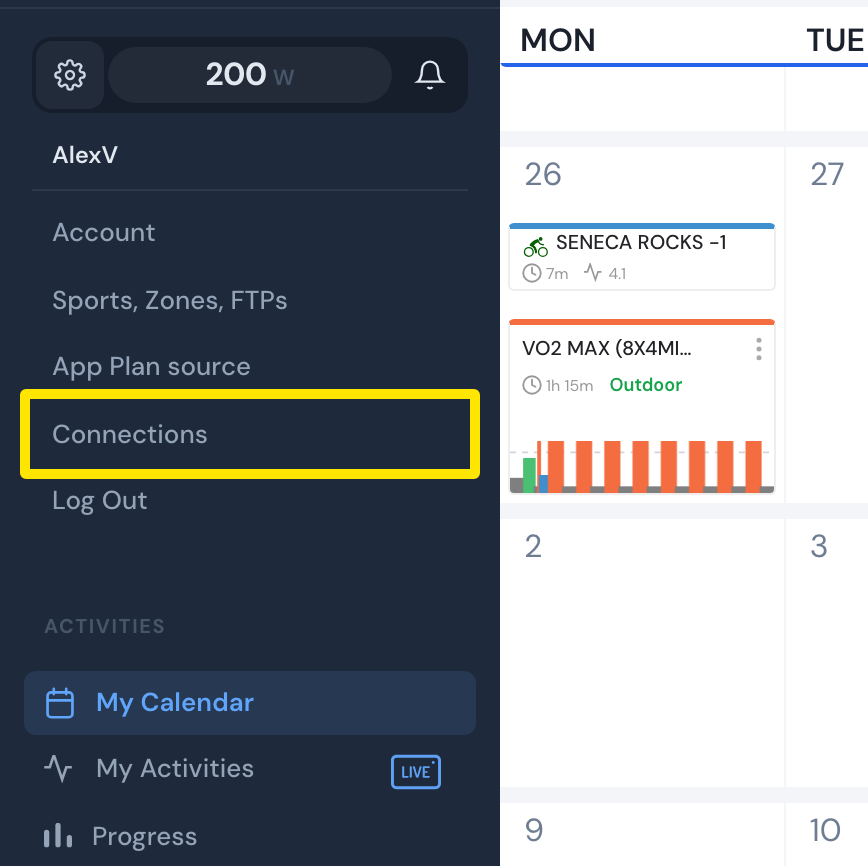 Where: Website · My Calendar · open it
- On the TrainingPeaks card, click Connect, sign in and allow every permission.
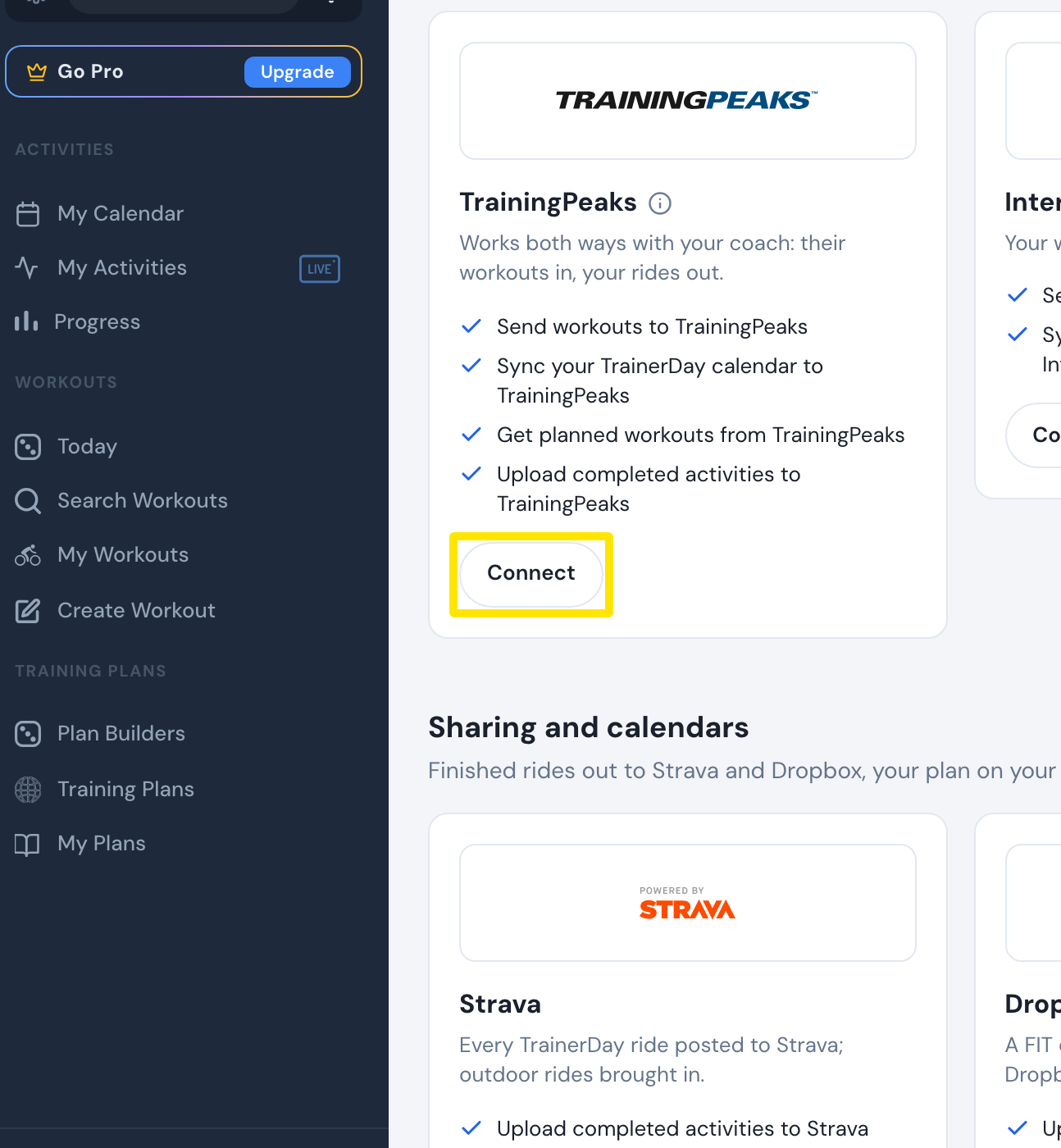 Where: Website · Connections · open it
- Back on Connections, click Settings on the TrainingPeaks card and turn Calendar Sync on. If it asks you to reconnect, reconnect and allow every permission.
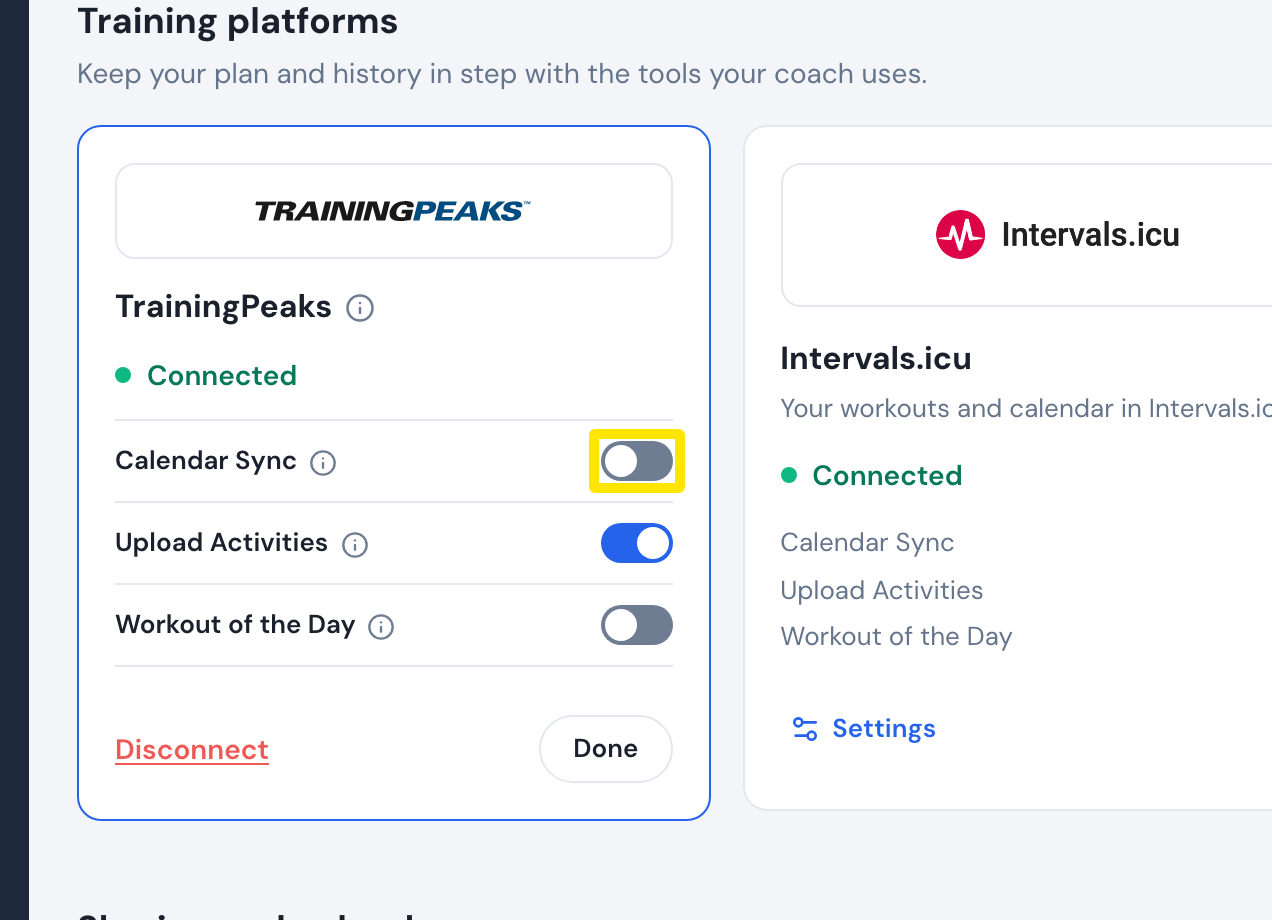 Where: Website · Connections · open it
- In the left sidebar, click My Plans. Open your plan's menu, click Send plan, choose TO MY CALENDAR, pick the Start Week Date and click Send Plan.
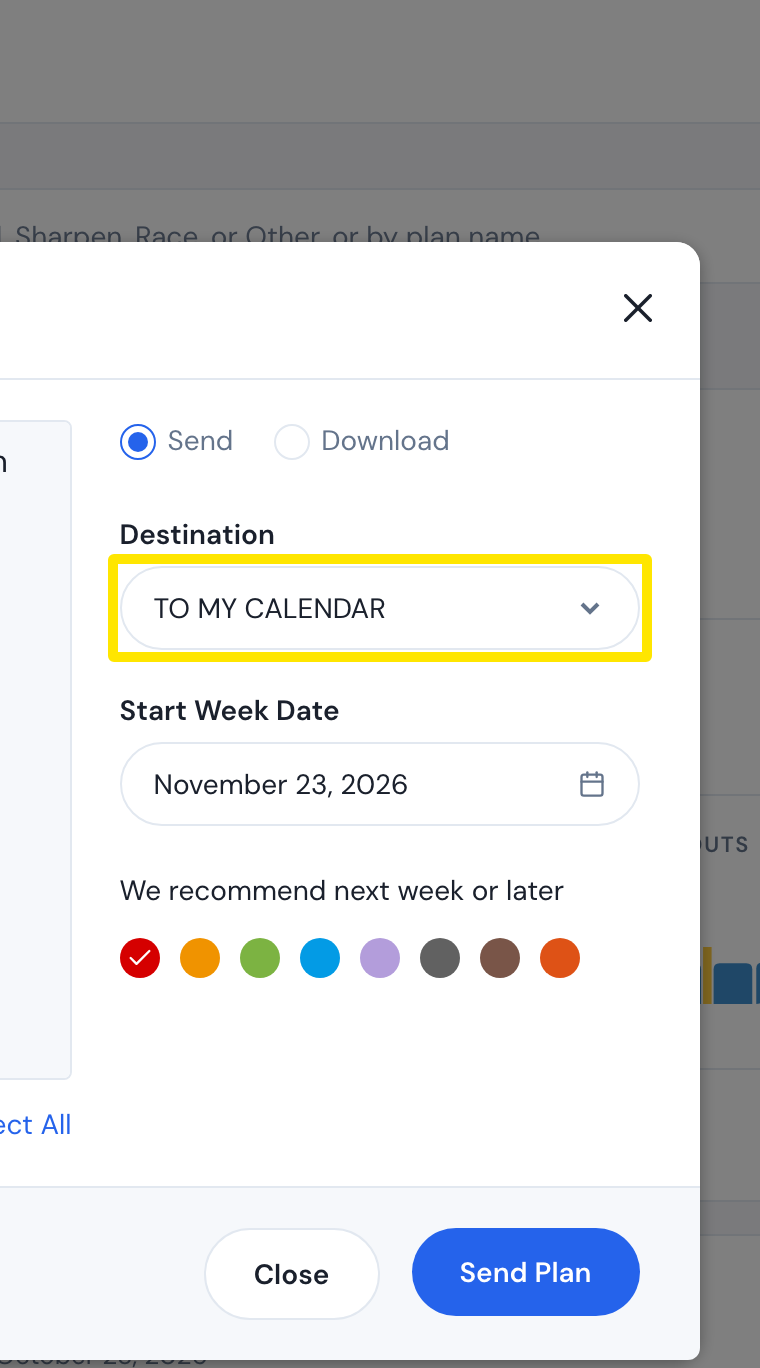 Where: Website · My Plans → a plan's menu → Send plan · open it
- To change a workout later, click My Calendar in the left sidebar and move or delete it there, not in TrainingPeaks. The change is sent to TrainingPeaks.
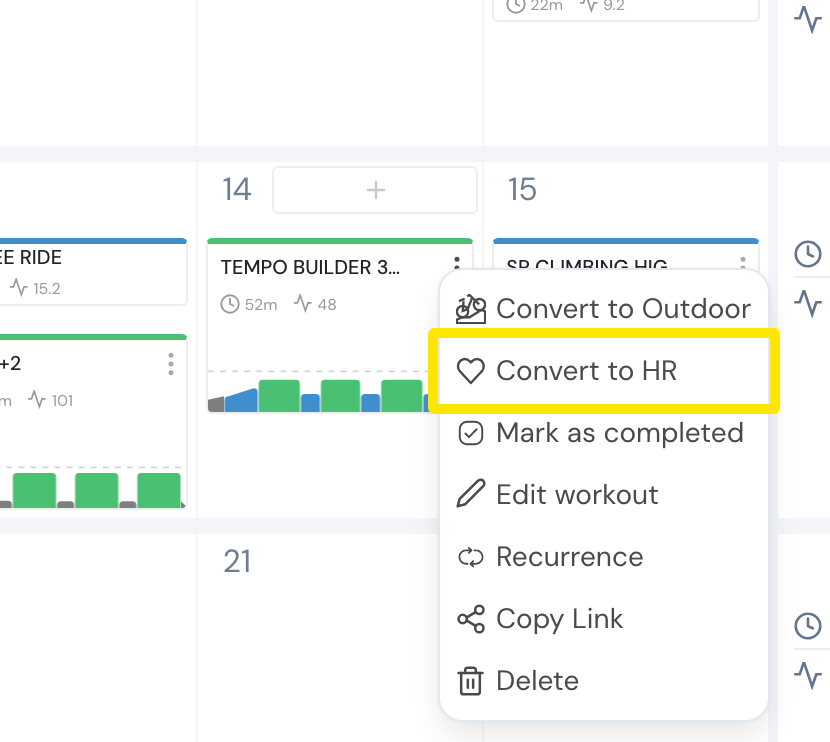 Where: Website · My Calendar · open it
Good to know: Calendar Sync needs a paid TrainerDay account. TrainingPeaks premium gets this week and next. A free TrainingPeaks account gets today and tomorrow, renewed every night.
Works on: The mobile and desktop apps' Connections also have the Calendar Sync switch. You can only place a plan with a start date on the website.