

How do I set heart rate targets when sending a workout to TrainingPeaks?
On the TrainerDay website, open a workout, click Send To, pick TrainingPeaks and change Power to Heart rate, so TrainingPeaks gets the targets as percent of your threshold HR.
- On the website, open the workout's page (click a workout in Search Workouts or My Workouts).
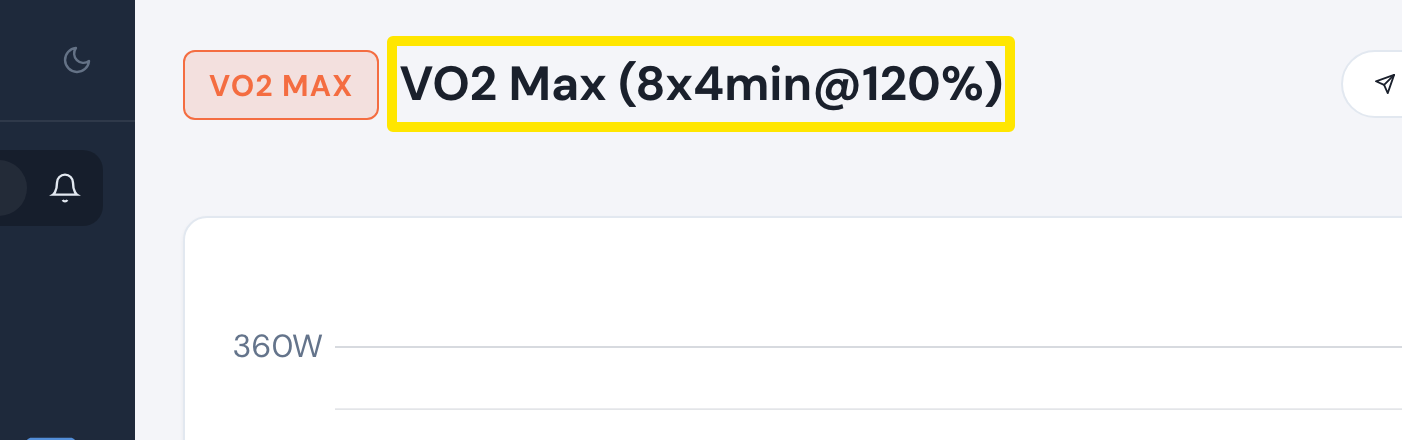 Where: Website · a workout's page
- Click Send To.
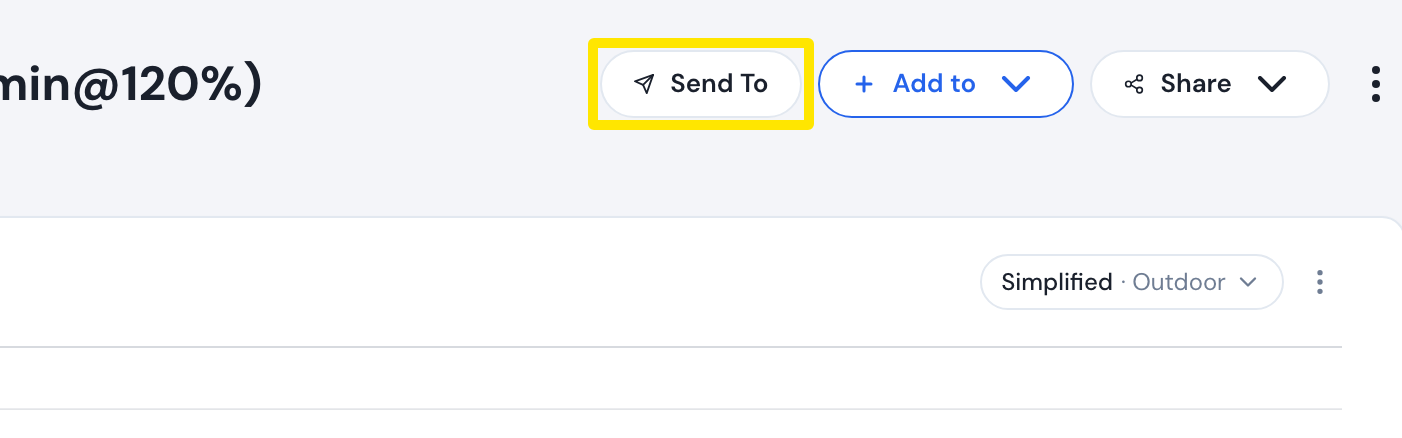 Where: Website · a workout's page
- In Send a Workout, pick TrainingPeaks in the first dropdown. It is greyed out until TrainingPeaks is connected.
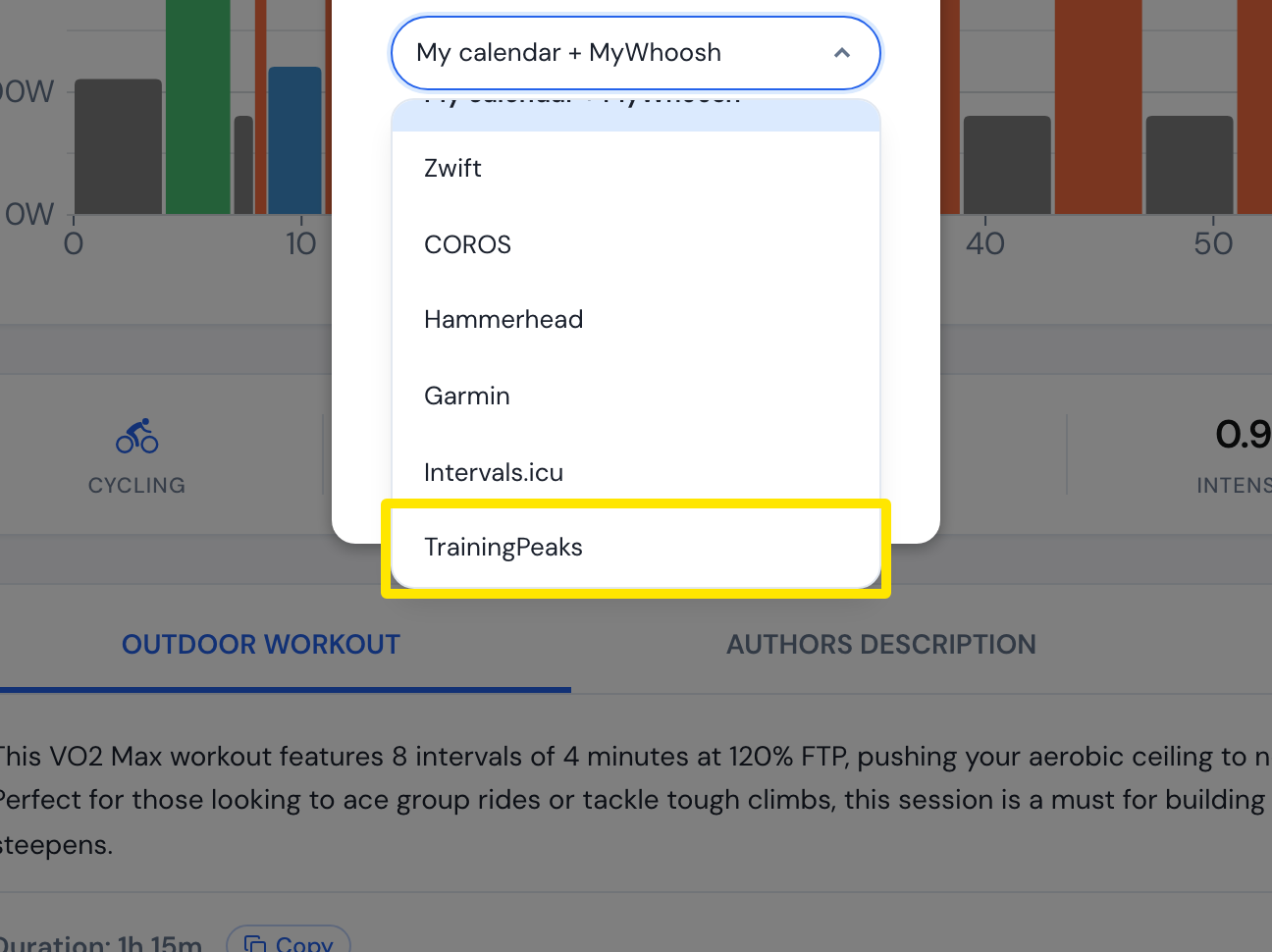 Where: Website · a workout's page
- In the second dropdown, change Power to Heart rate.
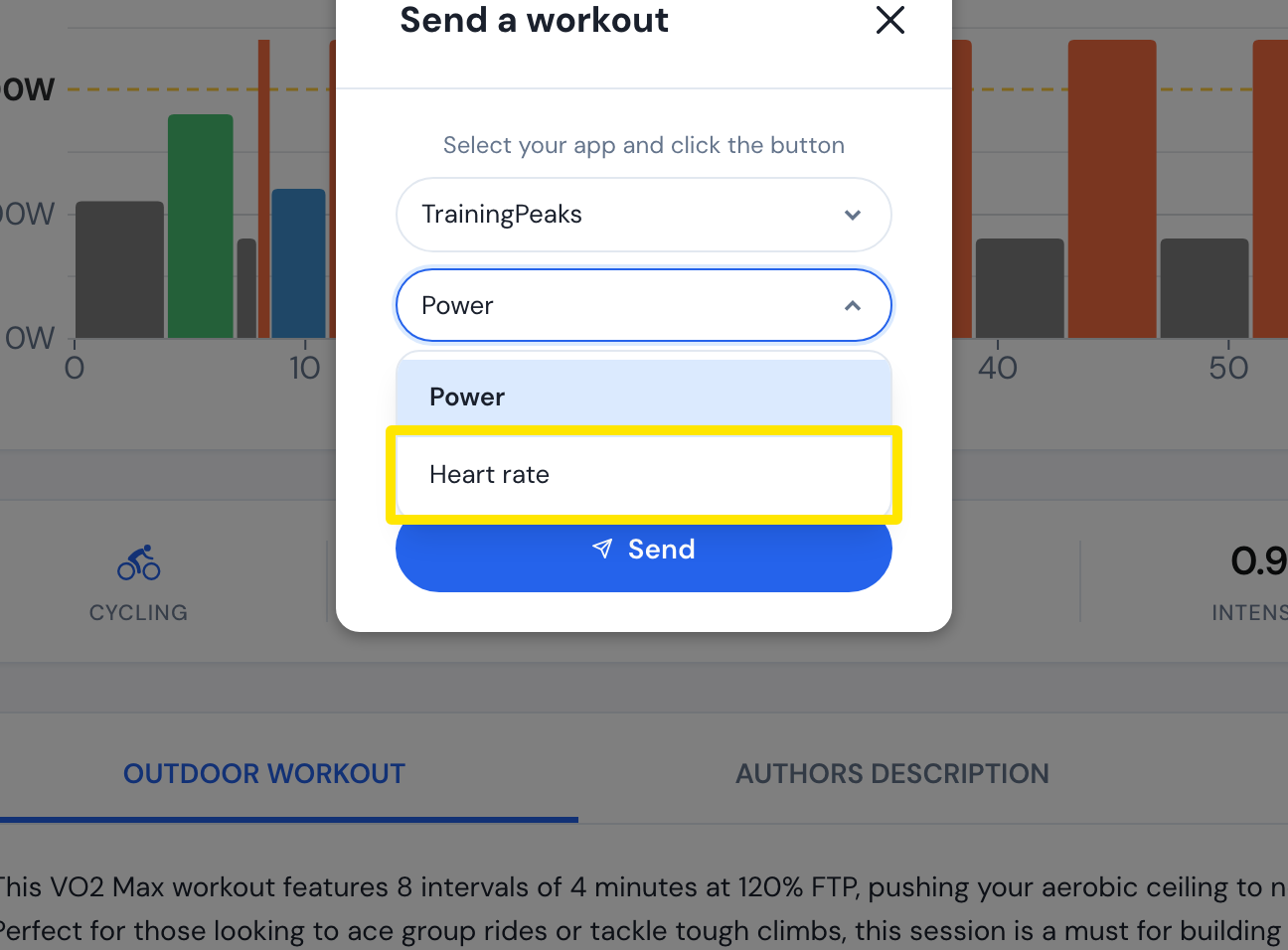 Where: Website · a workout's page
- Click Send. Each power step becomes a percent of threshold HR.
- To change how power zones turn into HR percentages, click the gear icon in the left sidebar → Sports, Zones, FTPs → Cycling Heart Rate tab, edit Average HR %, then click Save.
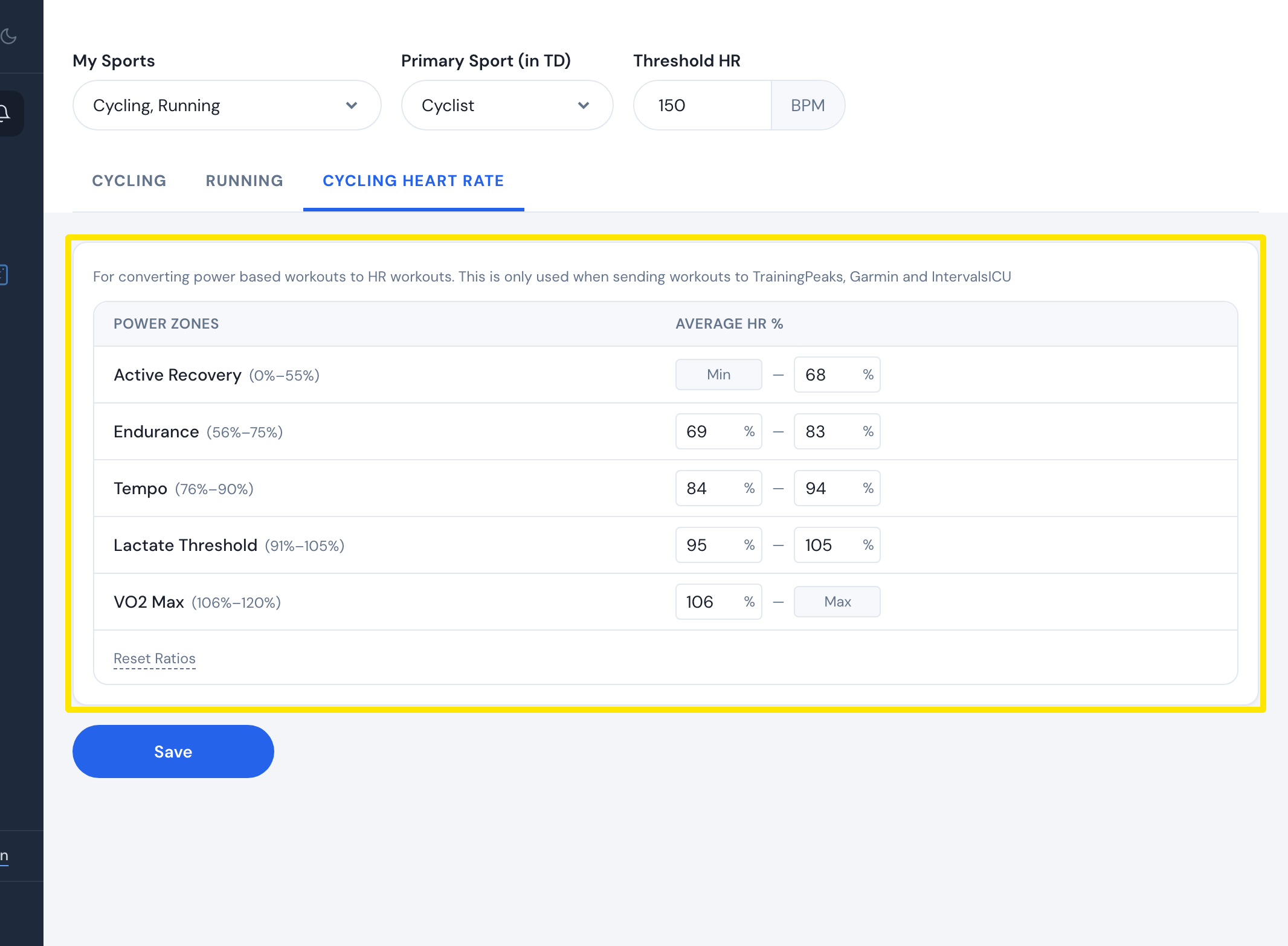 Where: Website · Sports, Zones, FTPs · open it
Good to know: Targets go as percentages, not bpm, so TrainingPeaks uses the threshold HR set in TrainingPeaks.
Works on: Website and desktop app (same Send To choice); the conversion table can be edited on the website only.