

How do I add running or swimming to my calendar?
On the website's My Calendar, click a day's + and pick Add Custom Workout for a run, Add a Workout for a structured SwimErg or running workout, or Add a Note for a pool swim.
- On the website, click My Calendar in the left sidebar (app.trainerday.com/calendar). Point at the day and click the + at the top of it.
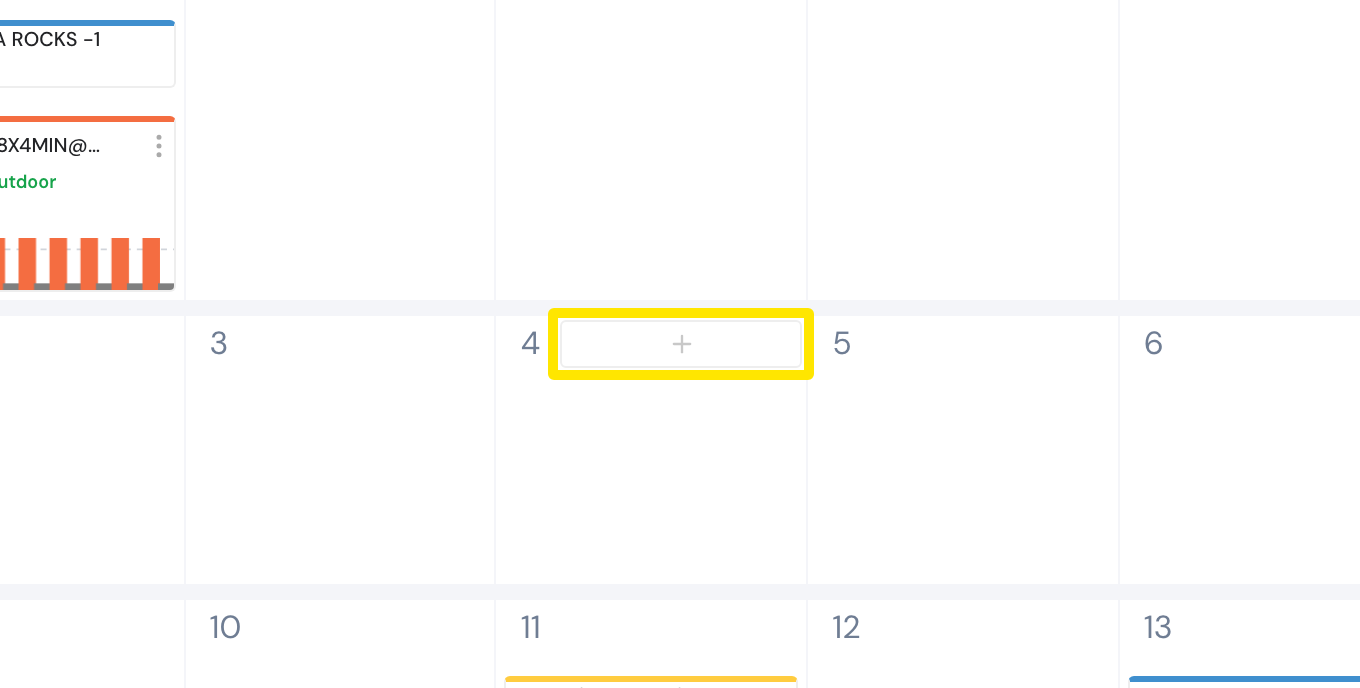 Where: Website · My Calendar · open it
- Add to Calendar opens. Pick one option:
- Add Custom Workout for a run, walk, strength or yoga session.
- Add a Workout for a structured SwimErg or running workout.
- Add a Note for a pool swim.
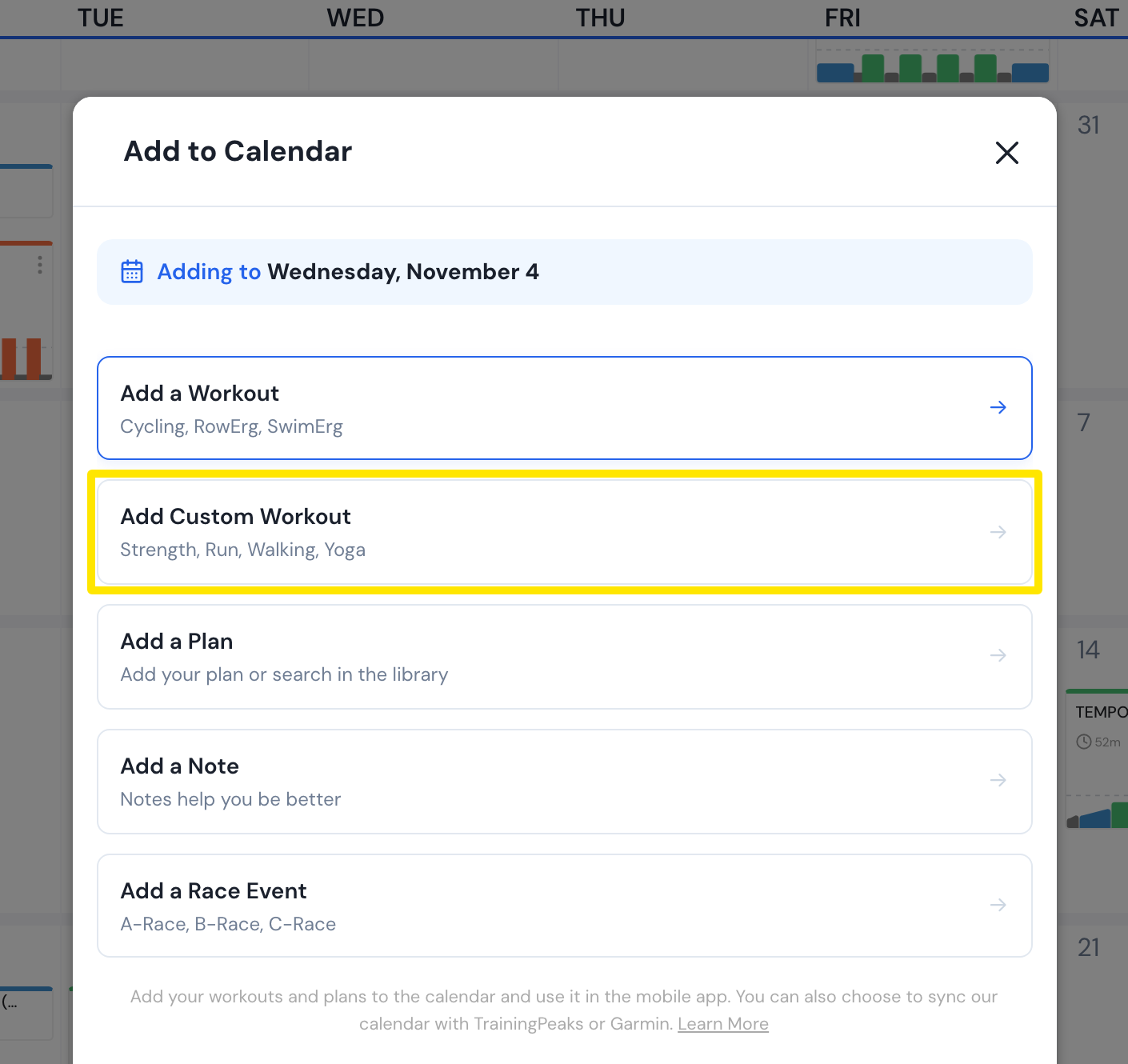 Where: Website · My Calendar → day's + → Add to Calendar · open it
- For Add Custom Workout: pick the Sport, type a Title, check the Start Date, add Duration (min), Distance and Description if you like. Click Save.
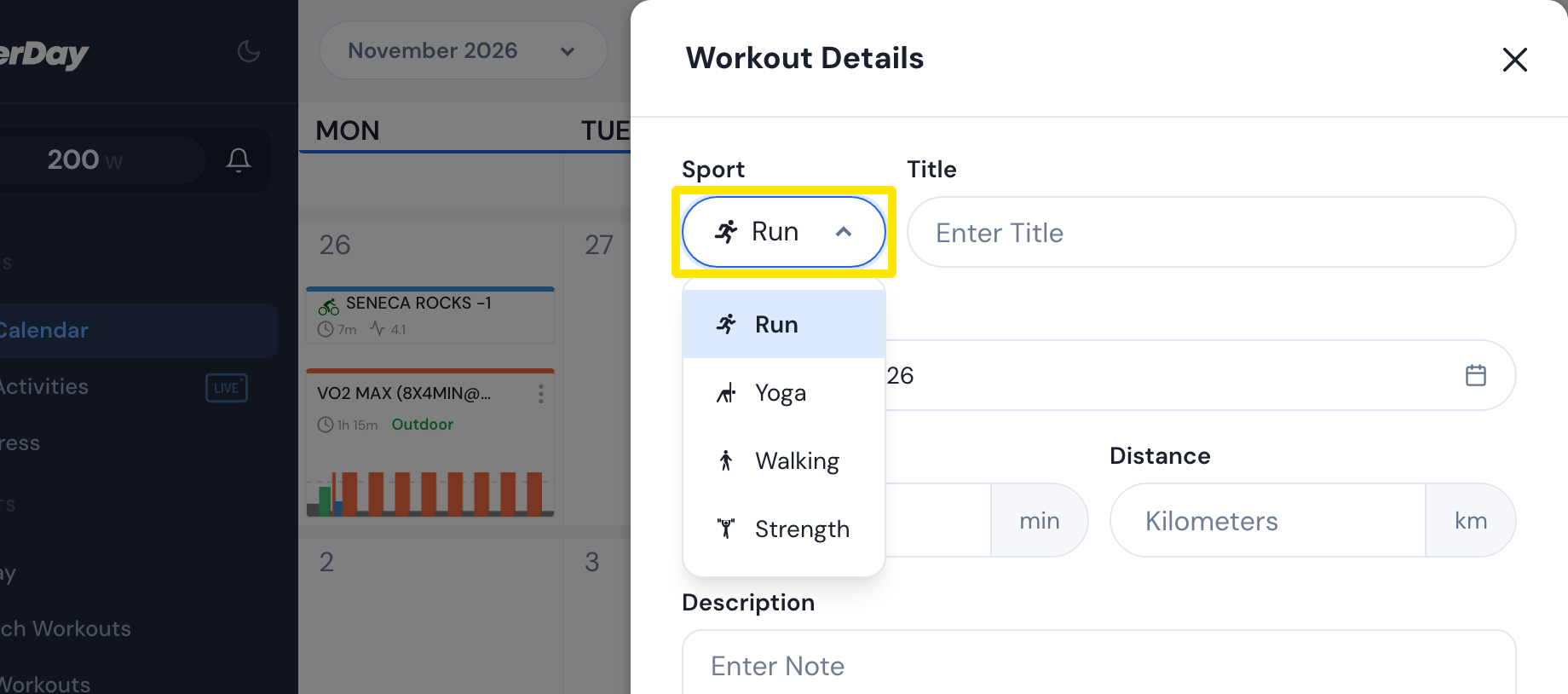 Where: Website · My Calendar → Add to Calendar → Add Custom Workout · open it
- For Add a Workout: open the sport menu left of the search box, pick SwimErg or Running, then click a workout. Check the Start Date and click Add to Calendar.
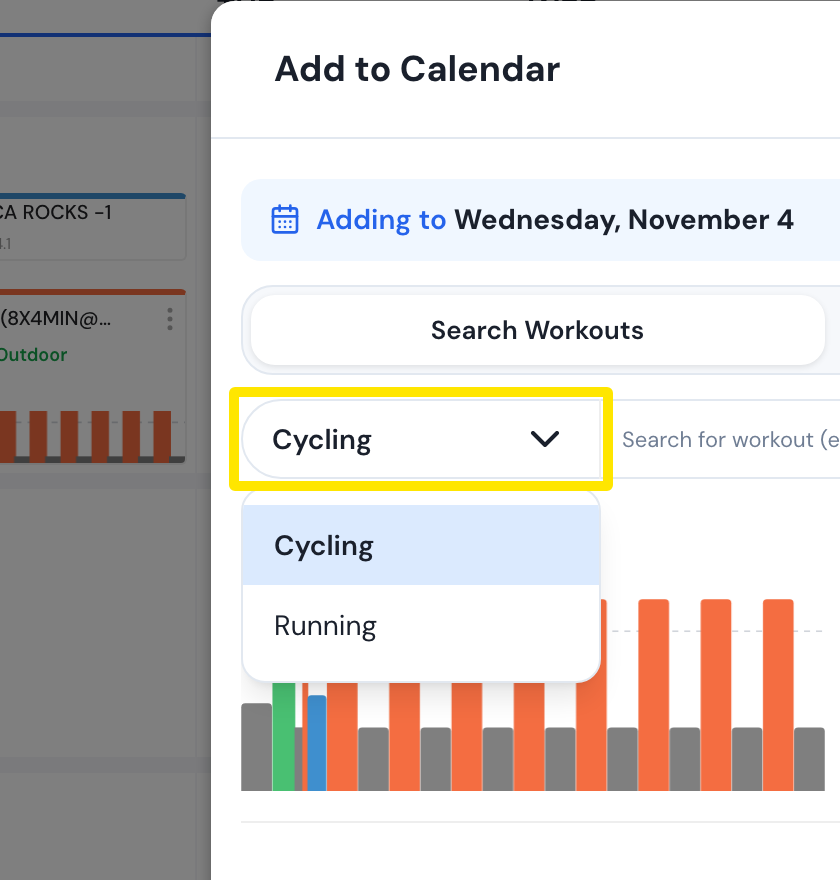 Where: Website · My Calendar → Add to Calendar → Add a Workout · open it
Good to know: The calendar is a paid feature, and only sports turned on in Account → Sports, Zones, FTPs show in the sport menu.
Works on: website; the mobile app's + offers Add a workout and Add a note but no custom workout; the desktop app can't edit the calendar.