

How do I connect my power meter or power pedals?
Connect a power meter or power pedals in the TrainerDay mobile app from Settings → Add Devices, or in the desktop app from the Bluetooth / ANT+ button, then make it your power source if a smart trainer is also connected.
- In the TrainerDay mobile app, open the Settings tab and tap Add Devices. The Devices screen opens.
- Pedal to wake the power meter or pedals. When they show under Available, tap + next to them.
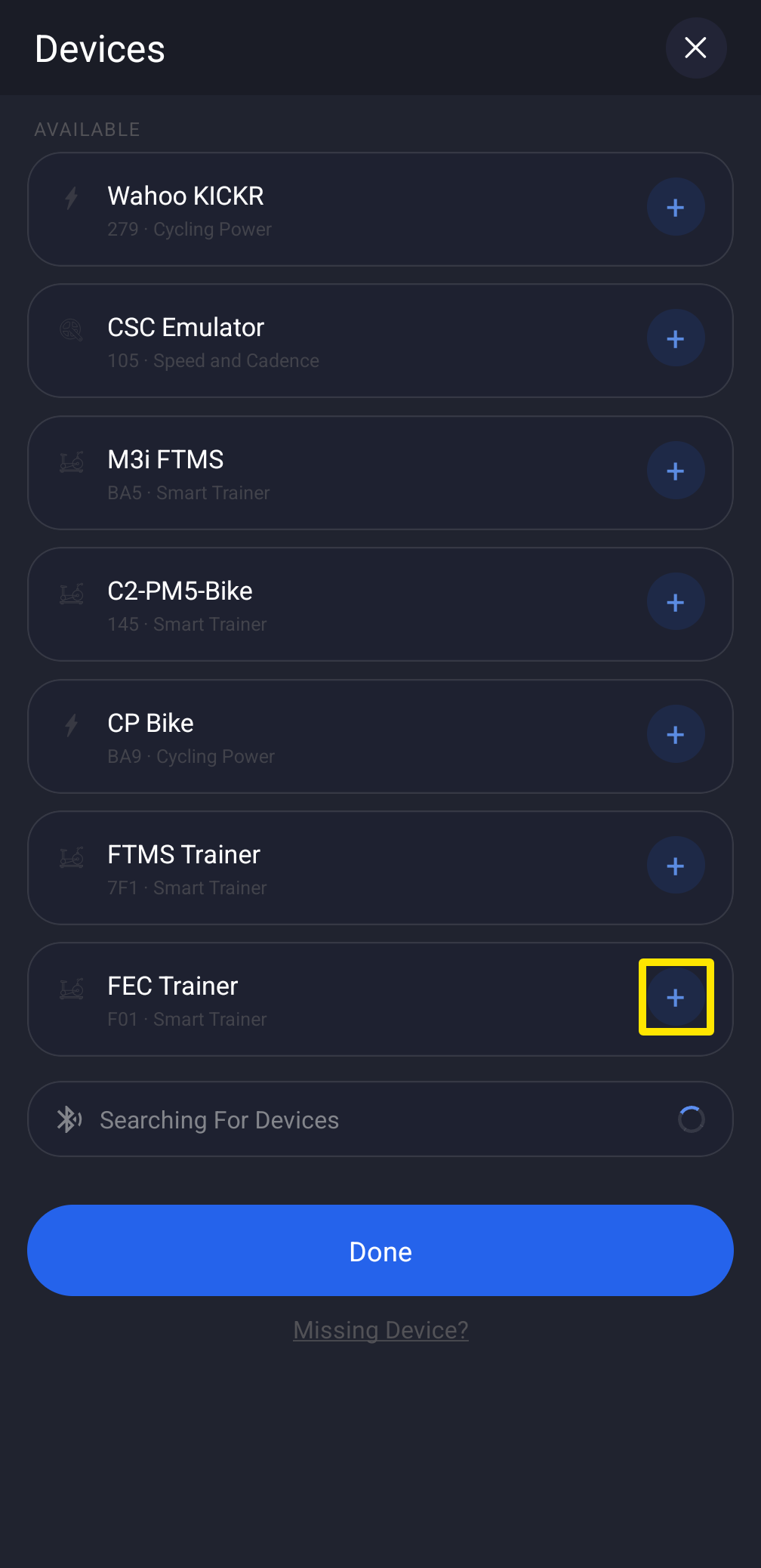 Where: Mobile app · Settings tab → Add Devices
- Still on the Devices screen, find the power meter in your connected devices. If a smart trainer is also connected, it keeps power. Tap + Power on the power meter to make it your power source.
- Desktop app: on the Today tab, click the Bluetooth / ANT+ button, pedal to wake the meter, then click Connect next to it under AVAILABLE. Tap + Power on it if a trainer is also connected.
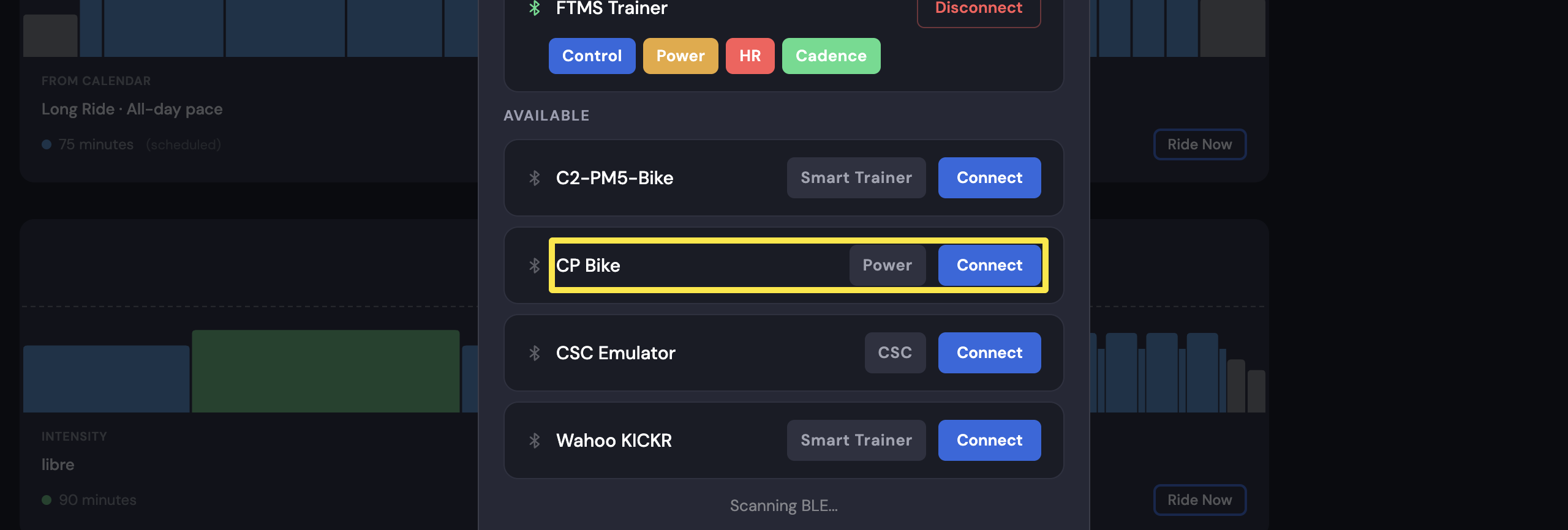 Where: Desktop app · Today tab → Bluetooth / ANT+ button
Good to know: Pair the power meter only inside TrainerDay, not in your phone or computer Bluetooth settings, because pairing it there can block the connection.
Works on: Bluetooth power meters on the mobile and desktop apps. ANT+ power meters work only on the Mac and Windows desktop app with a USB ANT+ adapter. The website cannot connect devices.