

Why does my smart trainer show up as a heart rate monitor?
TrainerDay guesses a device's type from the services it advertises, so a smart trainer like the Zwift Hub can first show up as a heart rate monitor; fix it in the mobile app's Settings → Add Devices by connecting it and turning on Control and Power on its card.
- In the TrainerDay mobile app, open the Settings tab and tap Add Devices.
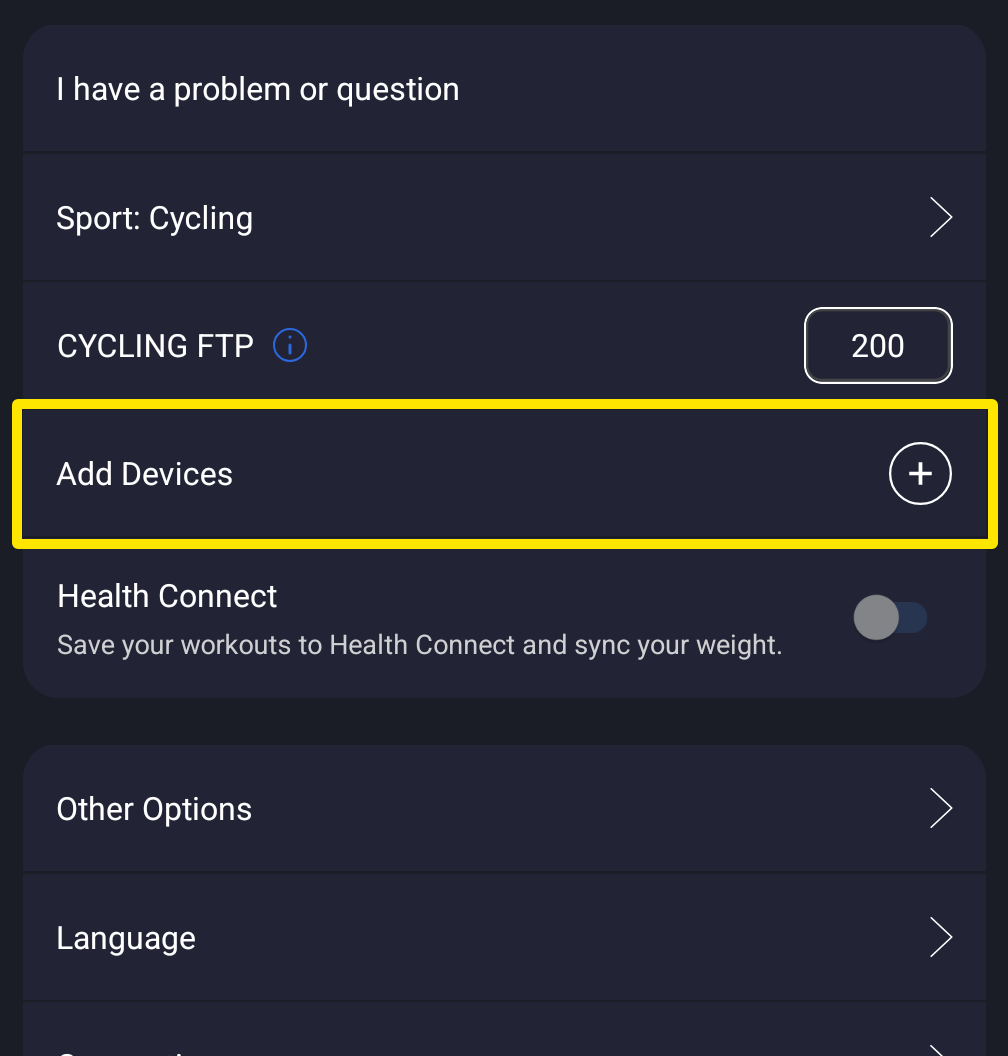 Where: Mobile app · Settings tab
- Tap + next to your trainer to connect it. After it connects, the app reads its services and corrects a wrong guess.
- On the trainer's card, tap + Control and + Power so they are on. Tap Heart Rate to turn it off if the trainer should not give heart rate. With Control on, the card shows Smart Trainer.
Good to know: No TrainerDay app has a setting to pick a device's type; the card's type follows the functions you turn on.
Works on: Mobile app; in the desktop app, open the top-bar Bluetooth/ANT+ button → Devices, connect the trainer and click + Control / + Power on its row.