

How do I use TrainerDay and Zwift at the same time?
Only one app can control your trainer, so let TrainerDay control it in the mobile or desktop app (and close Zwift), or send your TrainerDay workout to Zwift and ride it there.
- Choose one app to control the trainer: TrainerDay or Zwift. If TrainerDay controls it, close Zwift and every other app or device connected to the trainer, even ones running in the background.
- In the TrainerDay mobile app, open Settings and tap Add Devices (desktop app: click the Bluetooth / ANT+ button at the top right of the window).
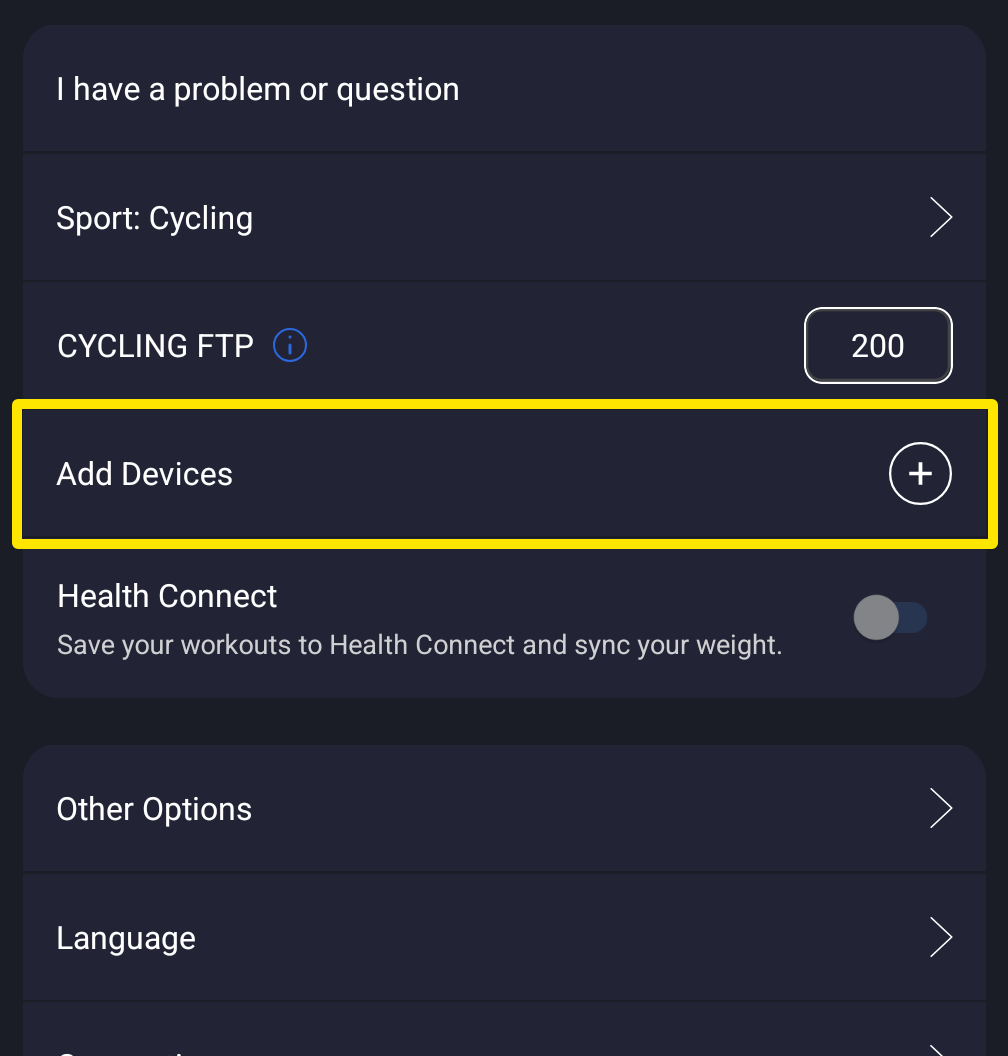 Where: Mobile app · Settings tab
- Connect the trainer and check that its card has Control on.
- To ride a TrainerDay workout inside Zwift instead, go to app.trainerday.com, click the gear icon in the left sidebar, open Connections and connect Zwift. Then ride the workout in Zwift.
- To avoid two copies of a ride on Strava, turn off Zwift's Strava upload, or disconnect Strava in TrainerDay: on Connections, open the Strava card and click Disconnect.
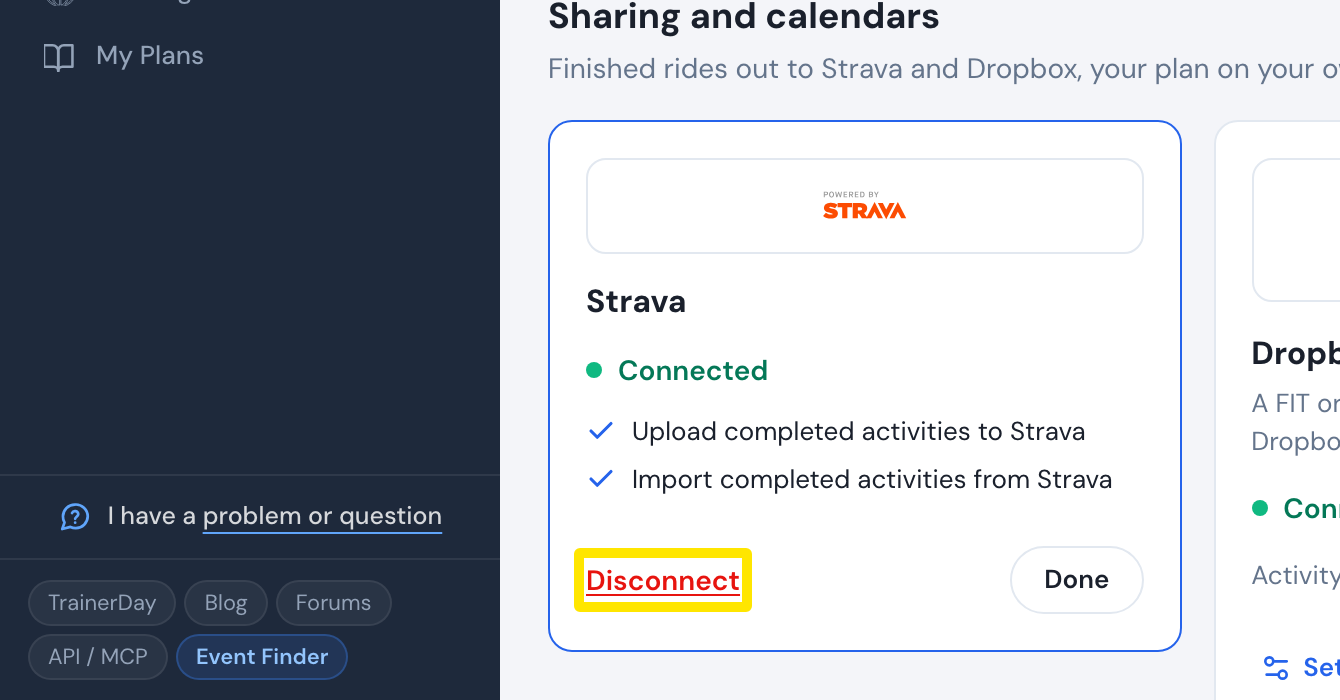 Where: Website · Connections · open it
Good to know: Workouts sent to Zwift show up only as Zwift's workout for today, even with a free Zwift account. They do not appear on your TrainerDay calendar.
Works on: TrainerDay mobile and desktop apps; Zwift and Strava connections are on the website's Connections page and in the apps.