

How do I choose which device TrainerDay uses for heart rate?
In the TrainerDay mobile or desktop app, open the Devices screen and tap + Heart Rate on the card of the device you want TrainerDay to take heart rate from.
- In the TrainerDay mobile app, open the Settings tab and tap Add Devices to open the Devices screen.
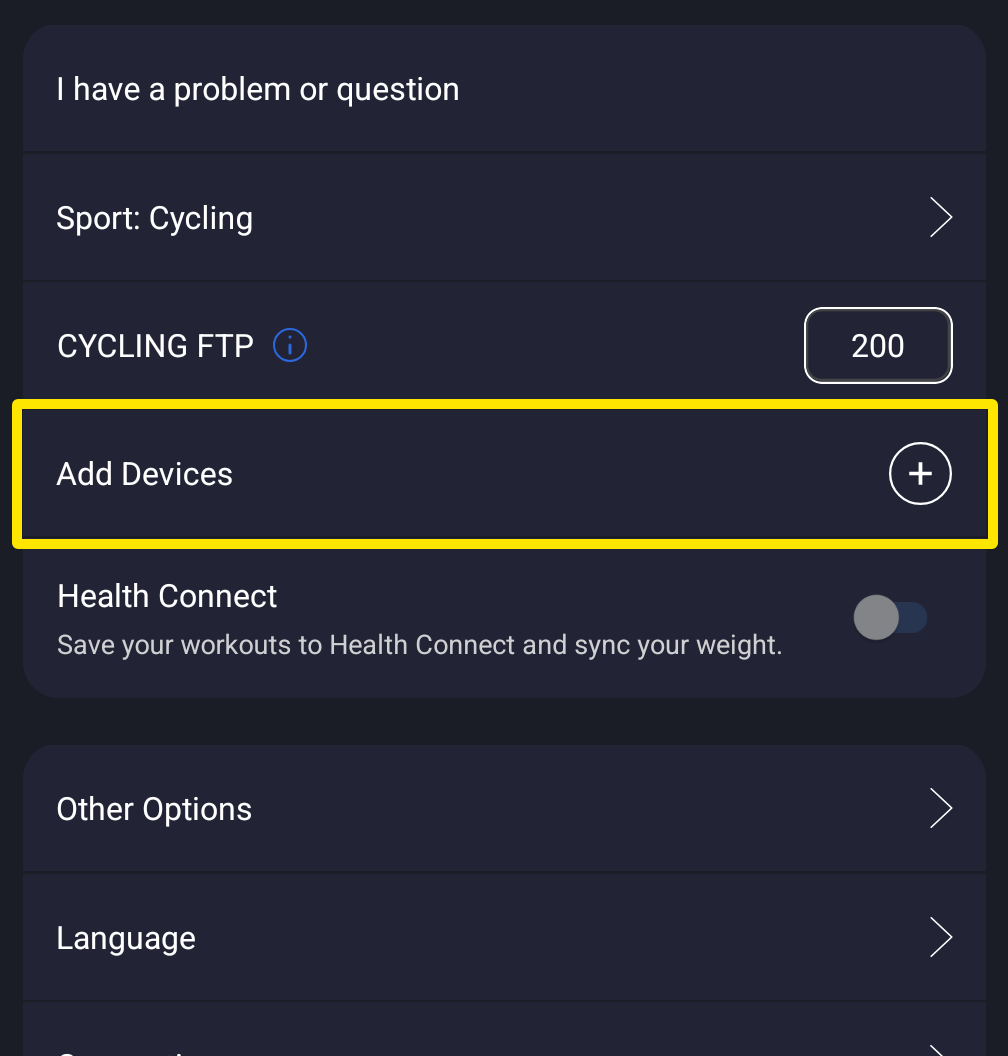 Where: Mobile app · Settings tab
- Connect the device you want to use for heart rate, for example your trainer. If it passes heart rate on, its card shows a Heart Rate tag.
- On that device's card, tap + Heart Rate. Heart rate moves to that device, and the tag on the other device's card turns off.
- If you don't need the other heart rate device in TrainerDay, tap − on its card to disconnect it.
Good to know: Each function (Control, Power, Heart Rate, Cadence) comes from one connected device at a time.
Works on: Mobile and desktop apps (desktop: top-bar Bluetooth/ANT+ button → Devices, click + HR on the device's row). The website has no device connections.