

How do I clear the TrainerDay cache without losing my data?
Clear TrainerDay's local data in the mobile app with Settings → Logout/Reset, then log back in and your workouts, plans, calendar and activities come back from your account.
- In the TrainerDay mobile app, let your latest rides finish syncing first. The app warns you about rides not yet on the server, because logging out would lose them.
- Open the Settings tab and tap Logout/Reset. This clears everything the app keeps on the phone.
- Log in again. Your workouts, calendar, plans and activities come back from your account.
- Set your Settings → Other Options choices again. They were kept only on the phone.
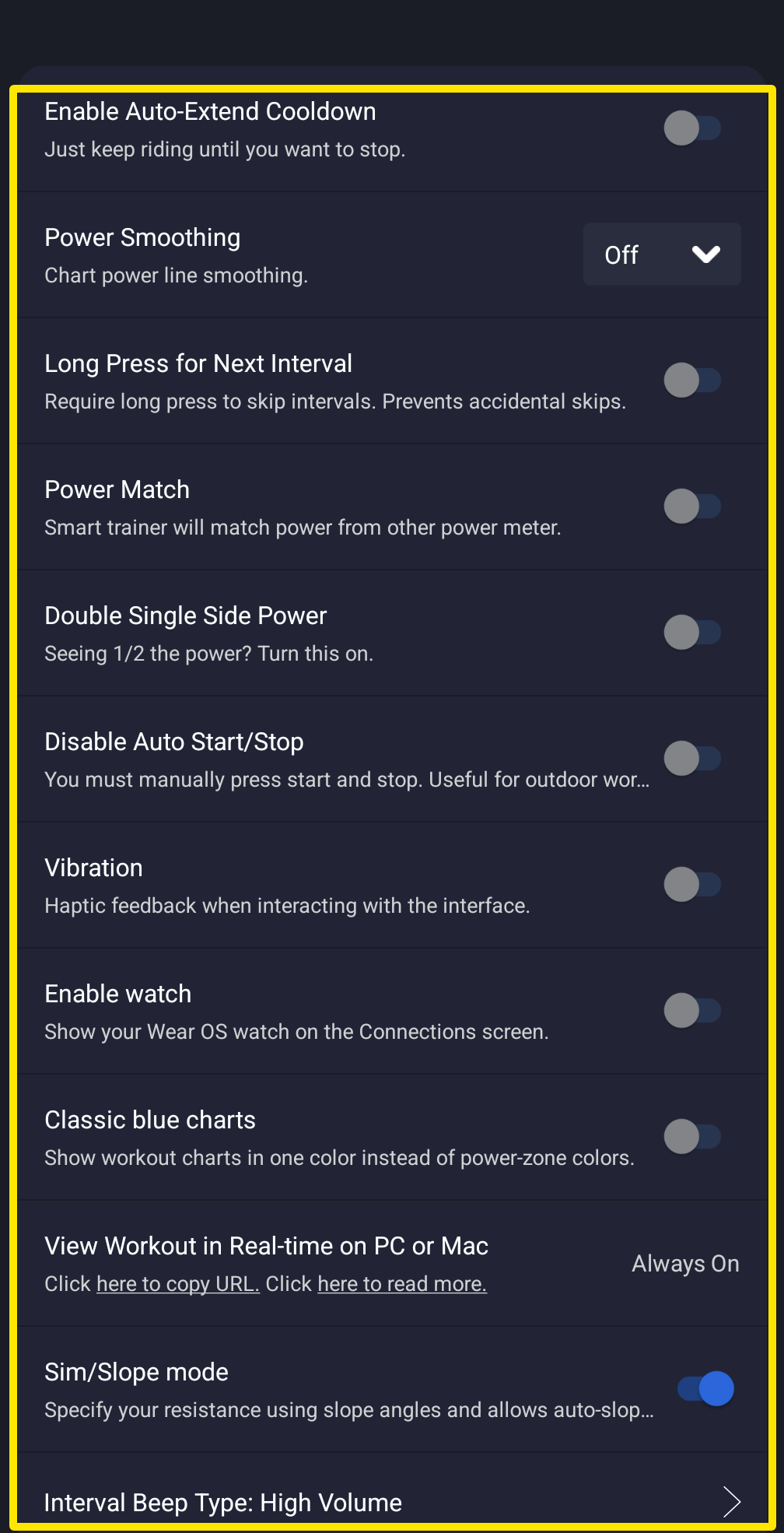 Where: Mobile app · Settings tab → Other Options
Good to know: The mobile app has no separate Clear cache button. Logout/Reset is the way to clear it.
Works on: Mobile app (Settings → Logout/Reset). Desktop app (Settings → Log Out & Clear Data, then confirm with Yes, Log Out). Website (clearing your browser's site data for app.trainerday.com only logs you out, because everything is on your account).