

How do I get my TrainerDay settings back after an update?
Log in to the TrainerDay mobile app with the same account to get your account settings back, then set your preferences again in Settings → Other Options, which are kept only on the phone.
Most settings are saved to your account and come back when you log in; see which ones sync and which stay on each device: Which TrainerDay settings sync between devices?
- In the mobile app, open the Settings tab and tap Login. Log in with the same TrainerDay account. Your FTP, threshold HR, sport, units, weights, language, username and whether you use classic charts come back from your account.
- Still on the Settings tab, open Other Options. Set your preferences again, such as Disable Auto Start/Stop, Power Smoothing, Interval Beep Type, and how much each tap changes the ERG power target, slope, or heart rate target.
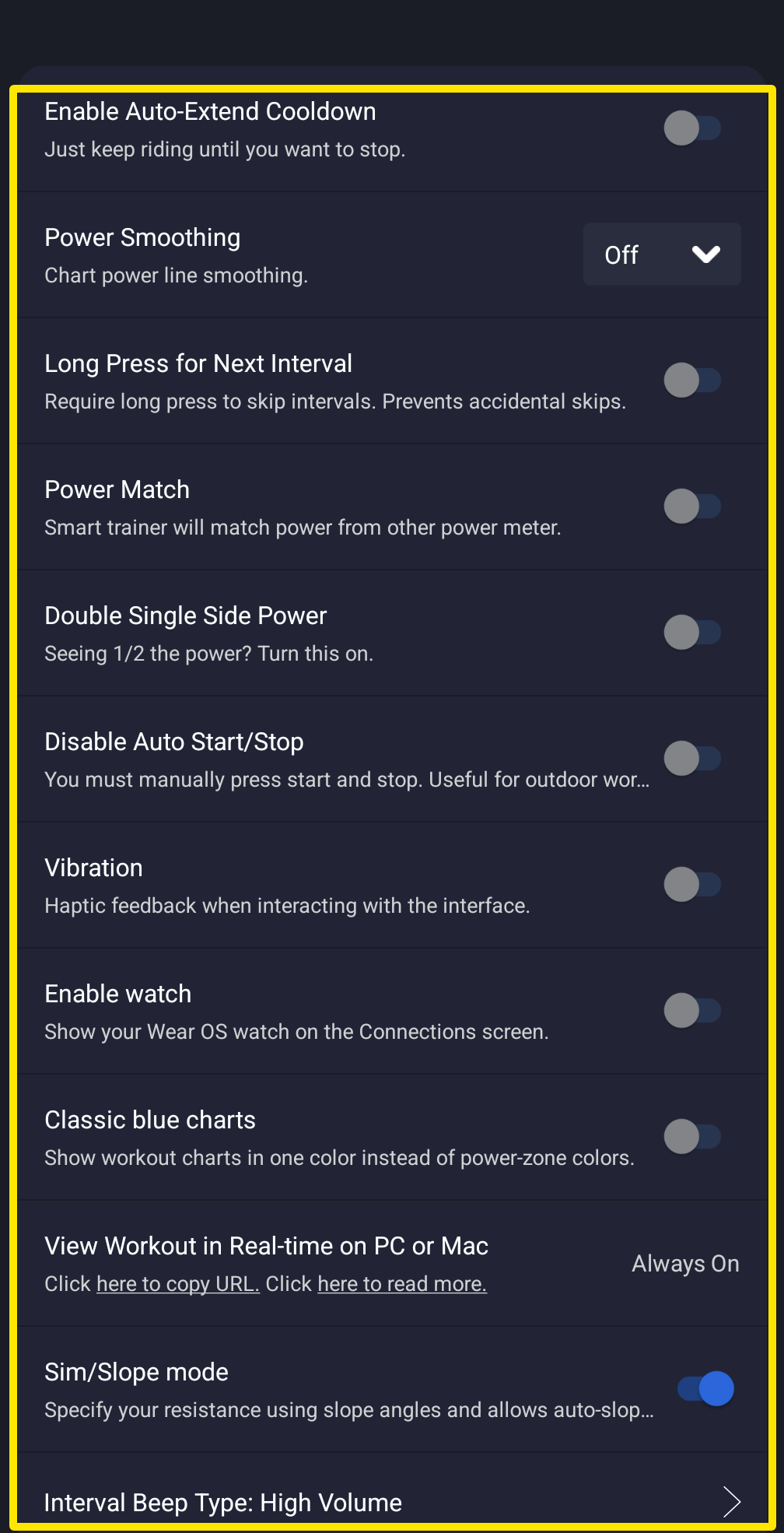 Where: Mobile app · Settings tab → Other Options
Good to know: Other Options are kept only on the phone, and Logout/Reset clears them. In the desktop app, the Workout Controls switches and step sizes stay on that computer and Log Out & Clear Data clears them, so set them again there. On the website, everything on the Account page is saved to your account.
Works on: mobile app, desktop app, website