

How do I switch between light and dark mode in TrainerDay?
On the TrainerDay website, switch between light and dark by ticking or unticking Dark theme under Account → Display, or by clicking the moon icon at the top of the left menu.
- On the TrainerDay website, click the gear icon at the top of the left menu, then Account.
- Under Display, tick Dark theme for the dark look, or untick it for light.
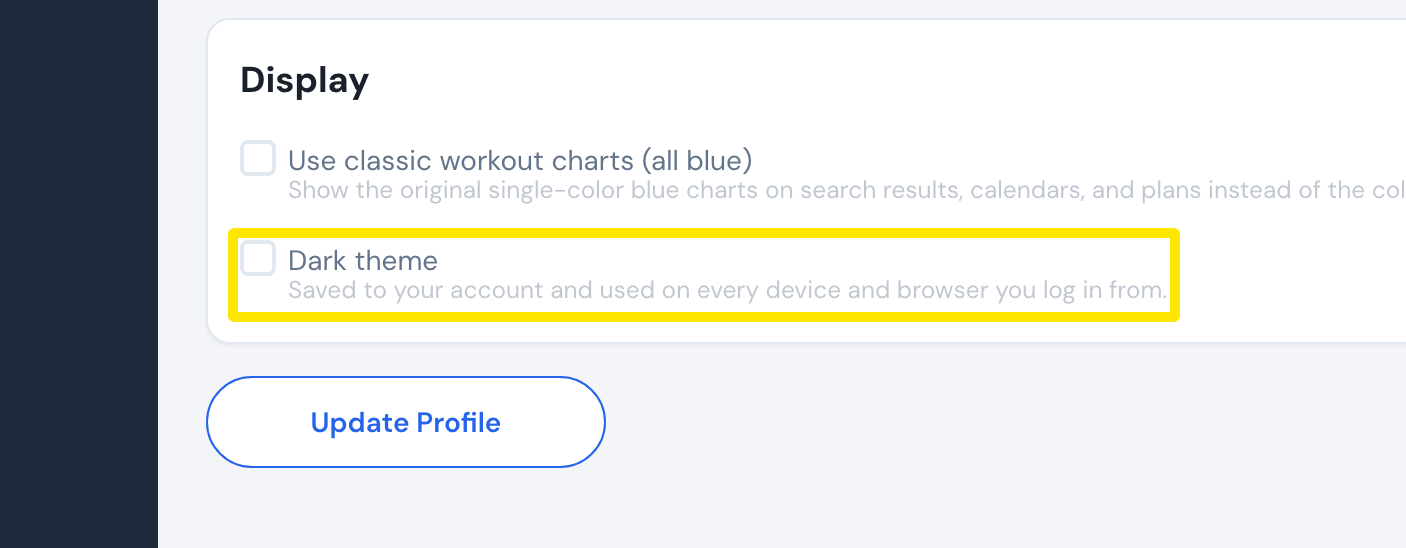 Where: Website · Account · open it
- Click Update Profile, then Confirm.
Good to know: The moon icon at the top of the website's left menu also switches between light and dark. Your Dark theme choice is saved to your account and used on every device and browser you log in from.
Works on: Website only. The mobile app is dark only, and the desktop app has no theme setting.